Where is Trash in Google Calendar?
When you delete an event from Google Calendar, it does not disappear immediately. Instead, the event is moved to the Bin (called Trash in some regions), where it is stored for 30 days. During this 30-day window, you can restore any deleted event back to your calendar. After 30 days, Google Calendar automatically and permanently deletes the event. The Bin acts as a safety net in case you accidentally delete an event and need to recover it.
How to access the Bin (Trash) in Google Calendar:
Step 1: Open Google Calendar settings
Open Google Calendar at calendar.google.com.
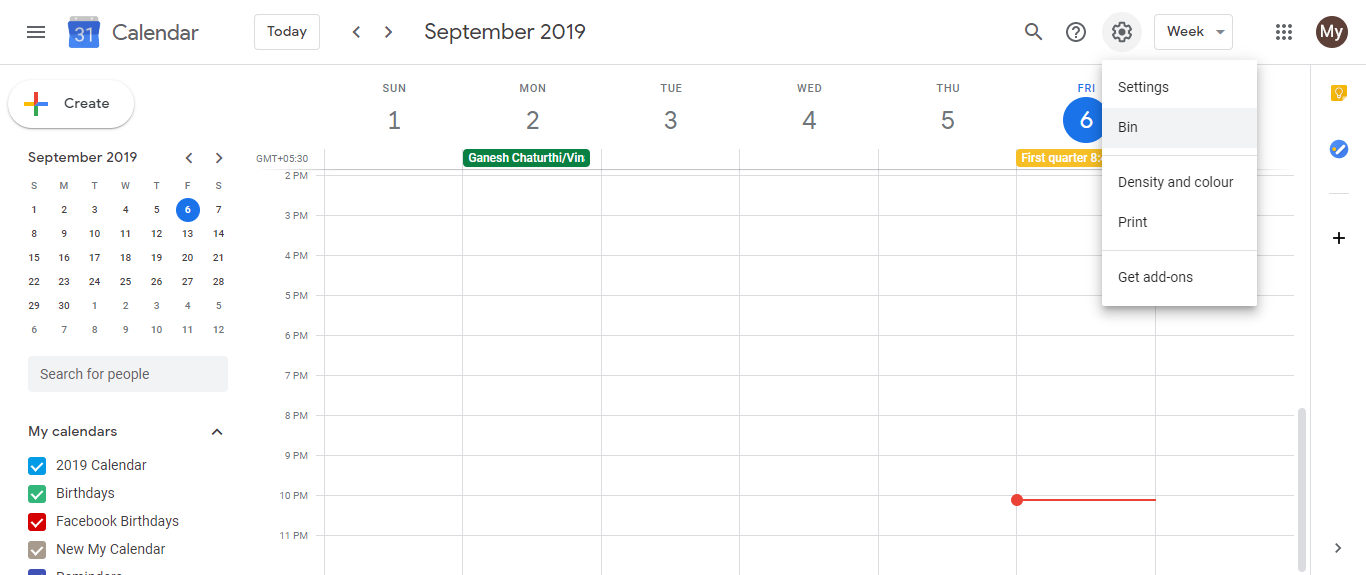
In the top-right corner, click the Settings gear icon.
From the dropdown menu, click Settings to open the full settings page.
Step 2: Navigate to the Bin
- In the left sidebar, scroll down until you find the Bin option (in some regions or older versions of Google Calendar, this may be labeled as Trash). Click on Bin.
Step 3: View deleted events
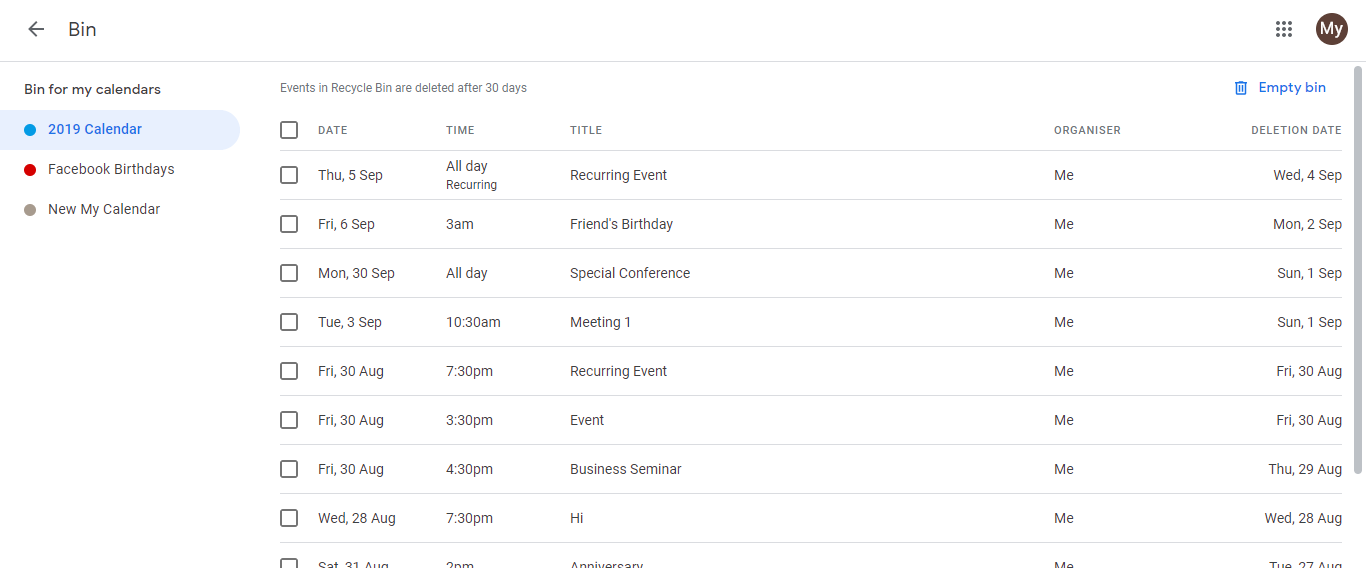
A page will open showing all the events you have deleted. The Bin displays:
- Event title
- Original date and time
- Calendar the event belonged to
- The date when the event was deleted
You can see how much time remains before each event is permanently deleted (it shows something like “Deleted 5 days ago” or “Expires in 25 days”).
How to restore a deleted event from the Bin:
Step 1: Find the event in the Bin
Open the Bin (as described above).
Look through the list of deleted events to find the one you want to restore. You can scroll through the list or use the search function if available.
Step 2: Restore the event
Click on the event you want to restore, or look for a Restore button or icon next to the event name.
Select Restore or Recover (the exact wording depends on your Google Calendar version). The event will be immediately restored to your calendar on its original date and time.
The restored event will reappear on your calendar in the calendar where it originally belonged.
How to permanently delete an event from the Bin:
If you want to permanently delete an event immediately instead of waiting for the 30-day automatic deletion:
Step 1: Open the Bin
- Navigate to the Bin as described above.
Step 2: Select and delete the event
Click on the event you want to permanently delete.
Look for a Delete permanently, Delete forever, or Remove button (the exact label varies by version).
Click to confirm the permanent deletion. The event will be immediately and permanently removed from the Bin. You cannot recover it after this action.
Permanently deleting multiple events at once:
Some versions of Google Calendar allow you to select multiple events in the Bin and delete them together:
In the Bin, check the checkbox next to each event you want to permanently delete.
At the top or bottom of the list, look for a Delete permanently or Delete selected button.
Click to confirm. All selected events will be permanently removed.
Important points about the Bin:
30-day automatic deletion: Events in the Bin are automatically and permanently deleted after 30 days. Mark your calendar if there is an important deleted event you want to restore.
Permanent deletion is irreversible: Once you permanently delete an event (either by manually deleting it before 30 days or after the automatic deletion), you cannot recover it. Google Calendar does not have an “undo” option for permanently deleted events.
Recurring events: If you delete a recurring event, the entire series is moved to the Bin. When you restore it, the entire series is restored. If you only want some occurrences back, restore the series and then delete the individual occurrences you do not need.
Searchability: You can search for deleted events in the Bin if the list is long. The search function (if available) works the same way as in your main calendar.