How to generate URLs to add events to Google Calendar?
Google Calendar lets you generate a public URL for any event, allowing you to share the event details with anyone without sending them an invitation. When you publish an event, Google creates a read-only web link that shows the event’s title, date, time, location, and description. Anyone who opens the link can see these details in their browser, but they cannot edit the event or automatically add it to their own calendar. Publishing is useful for sharing event information publicly, such as posting a webinar link on a website or sharing a conference schedule.
How to publish an event and generate a shareable URL:
Step 1: Open the event in Google Calendar
Open Google Calendar at calendar.google.com.
Find the event you want to publish by clicking on its date or searching for it.
Click on the event to open its details panel or full event view.
Step 2: Access the event menu and publish
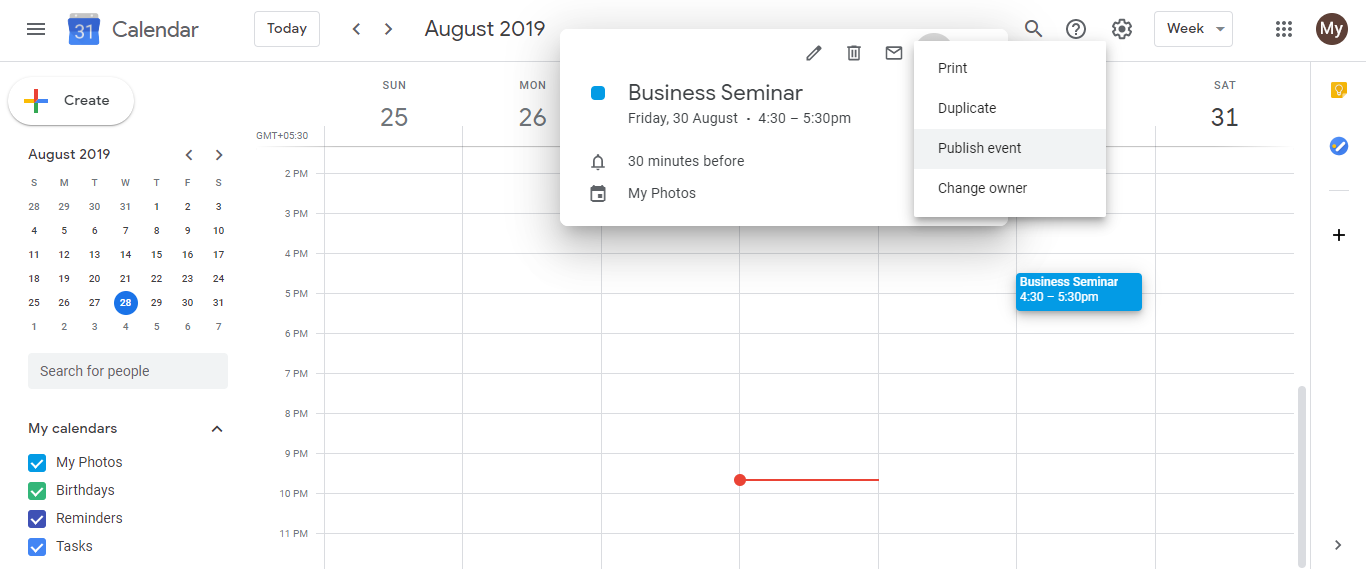
Click the three-dot menu icon (more options) at the top or within the event details. This menu appears when you hover over or open the event.
From the dropdown menu, select Publish event (in some versions of Google Calendar, this option might say “Make public” or be under a submenu).
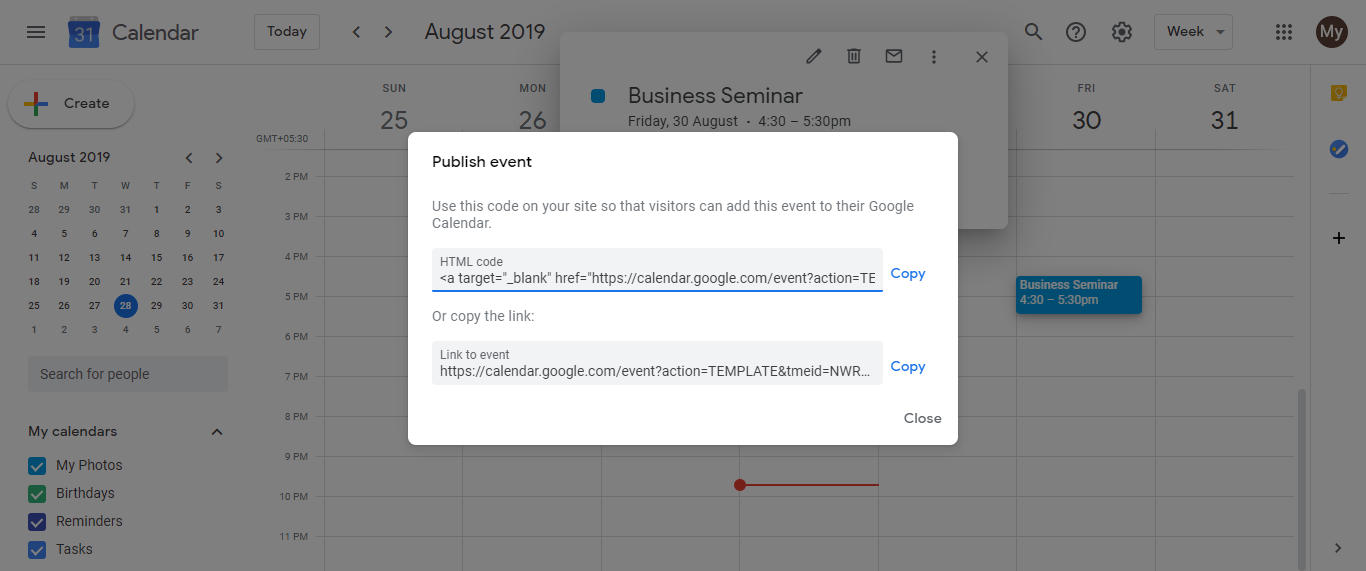
A dialog box will appear showing you the published URL and some additional options. You may also see an HTML snippet that you can use if you want to embed the event on a website.
Step 3: Copy the published event URL
In the dialog box, you will see the shareable event URL. It will look something like:
calendar.google.com/calendar/event?eid=XXXXX...or a shorter form.Click Copy to copy the URL to your clipboard, or manually select the URL text and press Ctrl+C (or Cmd+C on Mac).
Step 4: Share the URL
Paste the copied URL anywhere you want to share it: in an email, on a website, in a social media post, in a message, or anywhere else.
When someone clicks the link, it will open a page displaying the event details. They will see the event title, date, time, location, and description, but they cannot edit or modify the event.
Understanding the two outputs from the publish dialog:
When you publish an event, Google Calendar offers two outputs:
The direct event URL: This is the link someone can click to view the event details in their browser. This is what you share when you want people to see the event information online.
The HTML embed code: Below the URL, you may also see an HTML snippet (code starting with <iframe>). This code is for website developers who want to embed the published event directly on their website. If you are sharing the link via email or social media, you only need the URL, not the HTML code. The HTML code is only useful if you have a website where you want the event to appear.
What people will see when they open the published link:
Anyone who opens the published event URL will see:
- Event title
- Date and time (including time zone)
- Location (if specified)
- Full description
- Information about who organized the event
They will not see:
- Guest list or attendee information
- Internal notes or attachments (unless they are public)
- The ability to RSVP or respond