How to visually display someone else's working hours on Google Calendar?
Published
Display someone else’s calendar alongside yours to see when they’re busy, free, or available. Useful for coordinating team meetings, contractor schedules, or shared project timelines.
View a colleague’s shared calendar:
If someone has shared their calendar with you:
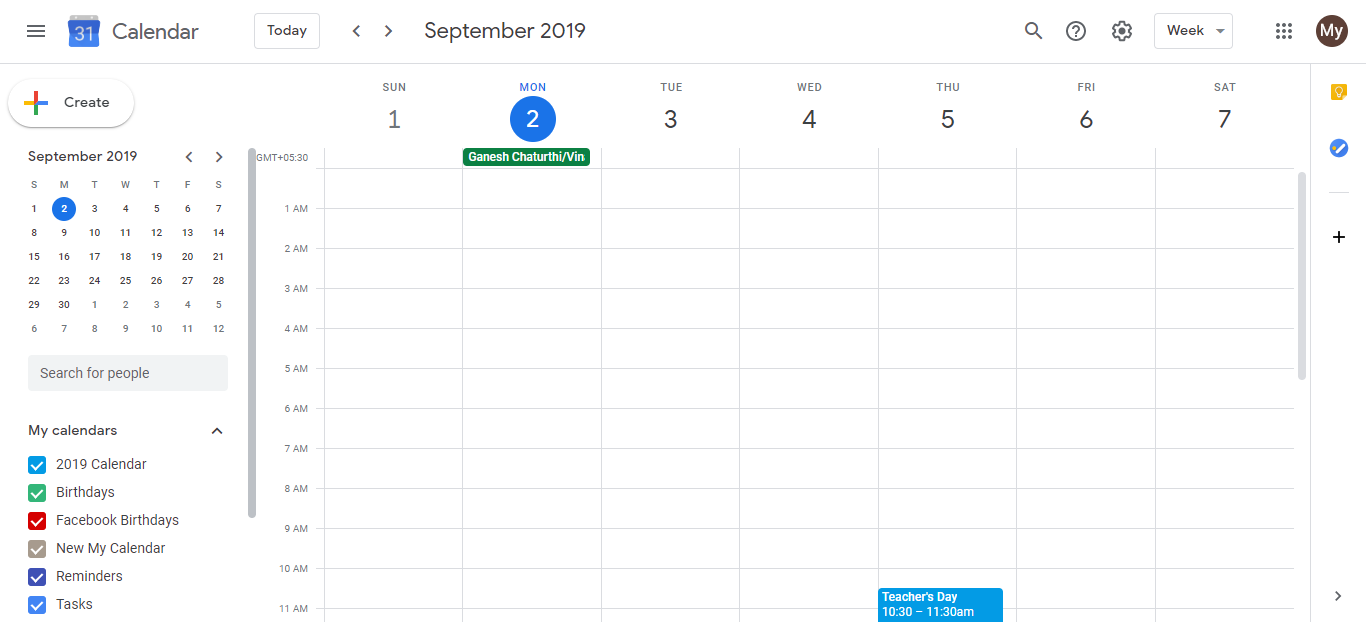
- Open your Google Calendar.
- In the left sidebar, click Add other calendars (+ button).
- Type the person’s name or email.
- Select them from the dropdown.
- If they’ve shared their calendar, it appears in your sidebar in a distinct color.
- Their events now display on your calendar, showing when they’re busy.
If you can’t find them:
Their calendar isn’t shared with you yet. Ask them to:
- Open calendar.google.com.
- Click the calendar’s three dots menu.
- Select Settings and Sharing.
- Under Share with specific people, click Add people.
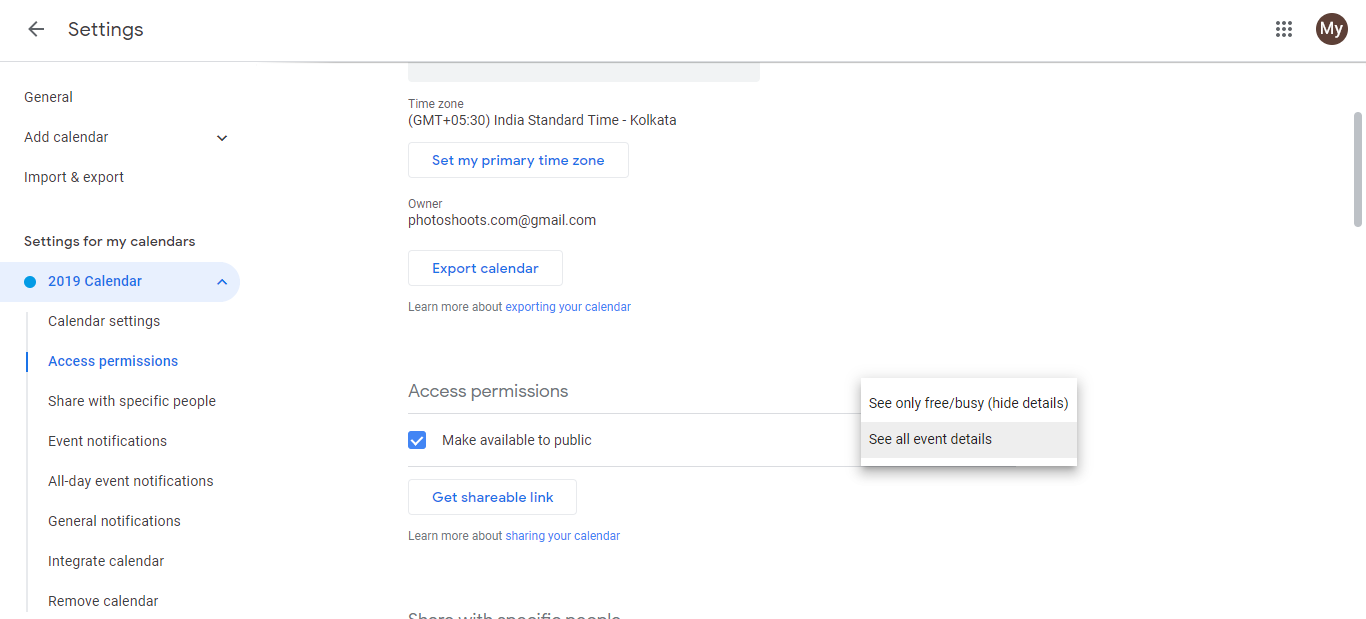
- Type your email and grant permission:
- See all event details: You see everything (use for team members)
- See only free/busy: You see only their busy/free blocks (use for privacy)
Subscribe to a public calendar:
If someone published their calendar publicly (no permission needed):
- Ask them for their public calendar link.
- In your Google Calendar, click Add other calendars (+ button).
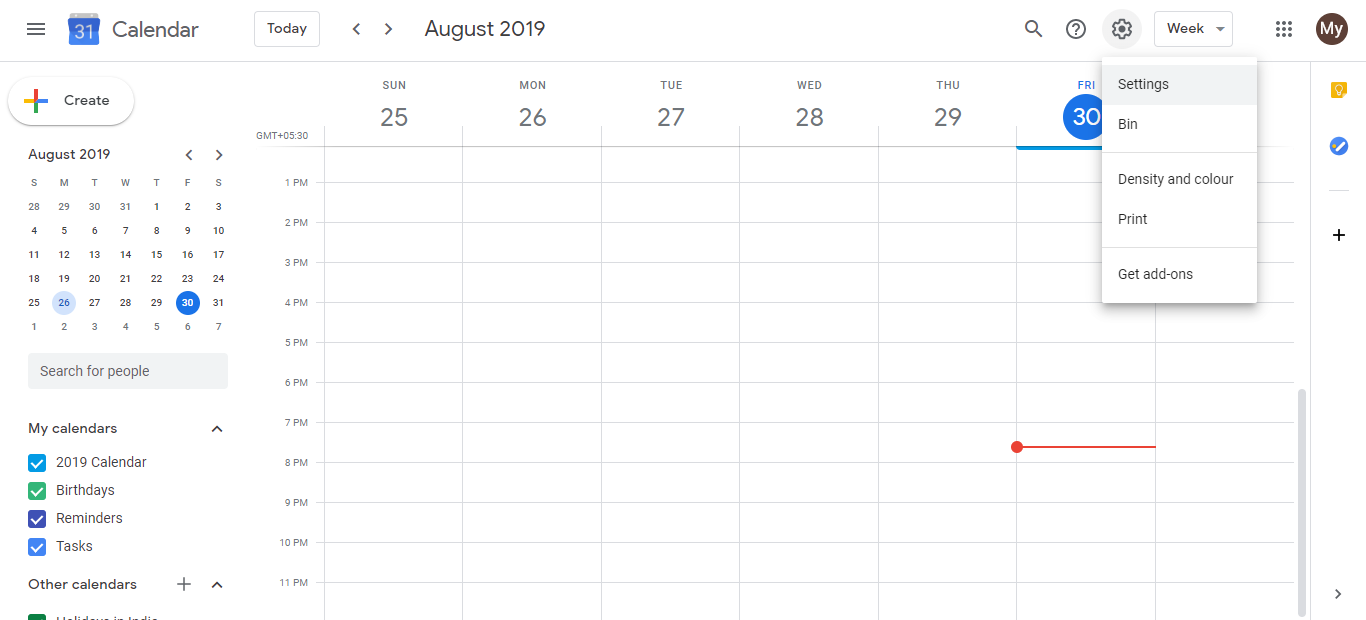
- Click Subscribe to calendar.
- Paste the public link.
- Click Subscribe.
Their calendar now displays on yours (color-coded for easy distinction).
For solo consultants:
- With contractors/team members: Add their shared calendars to see when they’re available for calls or project work
- With clients: Ask clients to share their free/busy (not full details) so you can propose meeting times that work for both
- Coordinate multiple projects: View a contractor’s or assistant’s calendar alongside yours to spot availability conflicts
Viewing tips:
- Each person’s calendar shows in a different color (auto-assigned)
- You can toggle calendars on/off in the sidebar to reduce clutter
- Private events show as “Busy” blocks (titles hidden) if they chose free/busy sharing
Frequently asked questions about How to visually display someone else's working hours on Google Calendar?
Can I view someone's calendar without their permission?
No. You need either shared access (they invite you) or a public link (they published it). Private calendars require explicit sharing.
Will someone know if I add their shared calendar to mine?
No. They won’t receive a notification. They only know if they check their sharing settings and see your email listed.
Can I change the color of someone's calendar on my view?
Yes. Right-click their calendar in your sidebar and select a color. This only changes how it appears on your screen, not theirs.
What happens if someone revokes my calendar access after I've added it?
The calendar disappears from your view immediately. Google notifies you that access was removed. Any events already synced won’t remain in your calendar.
Can I hide specific people's calendars without removing them?
Yes. Uncheck their calendar name in the sidebar to hide it temporarily. You don’t need to remove them; just toggle visibility on/off as needed.