How to view multiple Google Calendars in one interface?
Published
Google Calendar shows all your calendars together in one view. Whether you manage a personal schedule, client projects, team calendars, or shared calendars, you can see everything at once. Each calendar gets its own color so you know which events belong to which calendar at a glance.
What you see by default:
- All calendars you own (listed under My Calendars in the left sidebar)
- All calendars others shared with you (listed under Other Calendars)
- Each calendar displays in a distinct color you can change
All events from all visible calendars display together in Day, Week, Month, or Schedule view.
Show or hide specific calendars:
- Go to calendar.google.com.
- In the left sidebar, find My Calendars or Other Calendars.
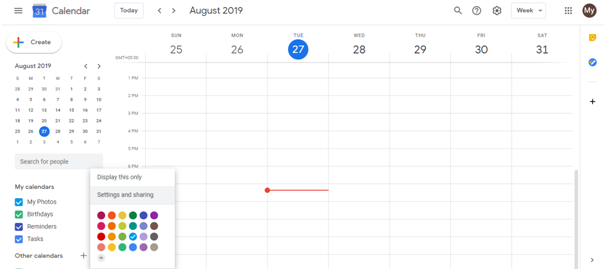
- Find the calendar name and click its checkbox to toggle it on or off.
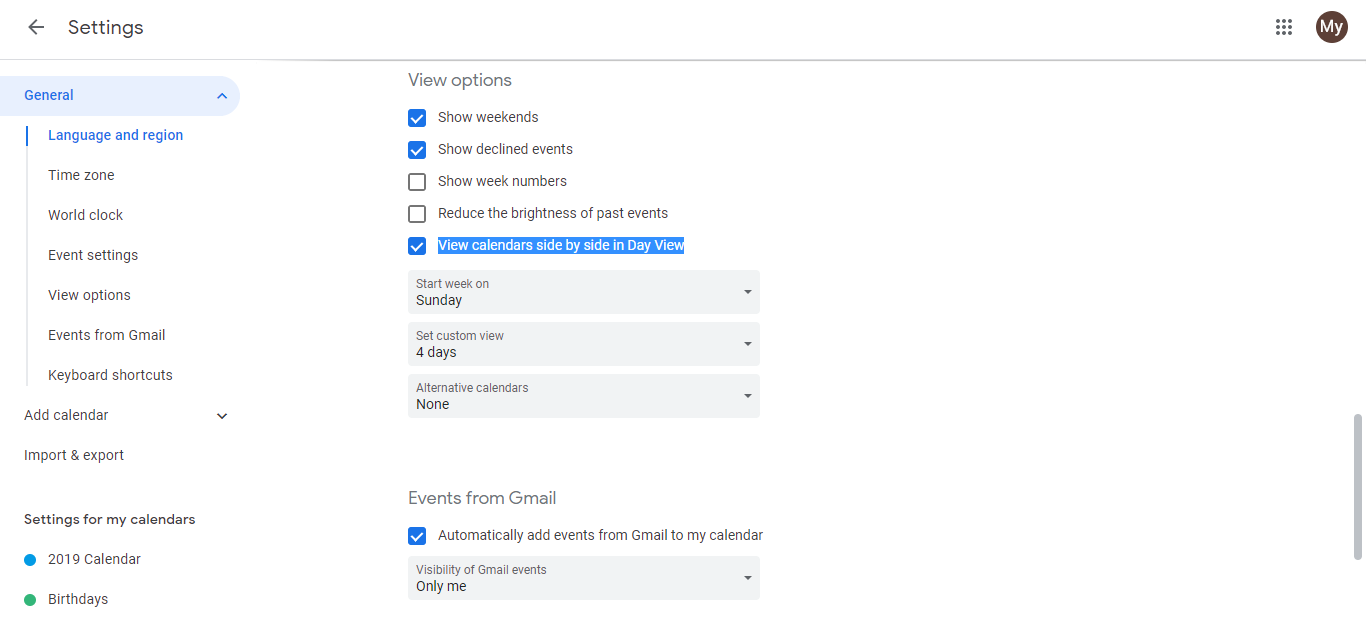
- Unchecked calendars disappear from your view. Checked calendars reappear. The change happens instantly.
How to use each view with multiple calendars:
- Month view - Shows the full month in a grid. All events from all visible calendars appear in their assigned colors. Use this to see the big picture and spot conflicts across multiple calendars at once.
- Week view - Shows 7 days with hourly time slots. Each calendar’s events appear in its color, stacked side by side if they overlap. Use this to find specific meeting times and see which calendars have conflicts.
- Day view - Shows one day in hourly detail. All visible calendar events appear in order by time. Use this to plan your exact schedule for that day across all projects.
- Schedule view - Shows a list of upcoming events from all visible calendars in chronological order. Use this to send a quick summary to a client or get a text-based overview.
Tips for solo consultants:
- Create one calendar per client or project. This lets you hide calendars you’re not actively managing that day.
- Assign colors that mean something to you. Example: blue for active client work, gray for admin tasks, green for personal time.
- When you need deep focus time, hide all calendars except the one you’re working on. This removes visual noise and keeps you focused.
- Use Week or Month view to catch double bookings. If two calendars show events at the same time, you’ll see the conflict immediately.
Google Calendar does this automatically. No special setup needed. Just add calendars and toggle them as needed.
Frequently asked questions about How to view multiple Google Calendars in one interface?
Can I merge or combine multiple calendars into one?
No, Google Calendar doesn’t have a merge function. But you can view all calendars together and toggle which ones are visible. If you truly need to consolidate, you can copy events from one calendar to another manually.
Does hiding a calendar delete it?
No. Hiding a calendar (unchecking it) only removes it from your view. The calendar and all its events stay intact. You can show it again anytime by checking the box.
Can I export or print multiple calendars at once?
You can print all visible calendars together in any view. Only checked calendars appear in the print preview. To export, you’ll need to download each calendar separately as an ICS file from settings.
What if someone removes me from a shared calendar?
The calendar disappears from your ‘Other Calendars’ list. You lose access instantly. You won’t be notified automatically, so ask the owner if you need to know when it happens.
Can I set different reminder settings for each calendar?
Yes. Each calendar can have its own notification settings. Hover over a calendar, click the three dots, go to Settings and Sharing, then configure Notifications specifically for that calendar.