How to unify free/busy info from Google Calendars for multiple projects/calendars?
The free/busy feature shows people when you’re available without revealing what you’re busy doing. Critical for solo consultants who manage multiple client projects and need to show availability without exposing confidential work.
What is free/busy visibility?
Instead of sharing full event details, free/busy shows only:
- Busy blocks (colored time slots when you’re occupied)
- Free time (open slots available for booking)
- Hidden: Event titles, client names, descriptions, locations, anything sensitive
Viewers see a transparent availability view, nothing more.
Share free/busy publicly with a link:
- Open calendar.google.com.
- In the left sidebar under My Calendars, hover over the calendar.
- Click the three dots menu.
- Select Settings and Sharing.
- Under Access Permissions, check Make available to public.
- Also check See only free/busy (hide details).
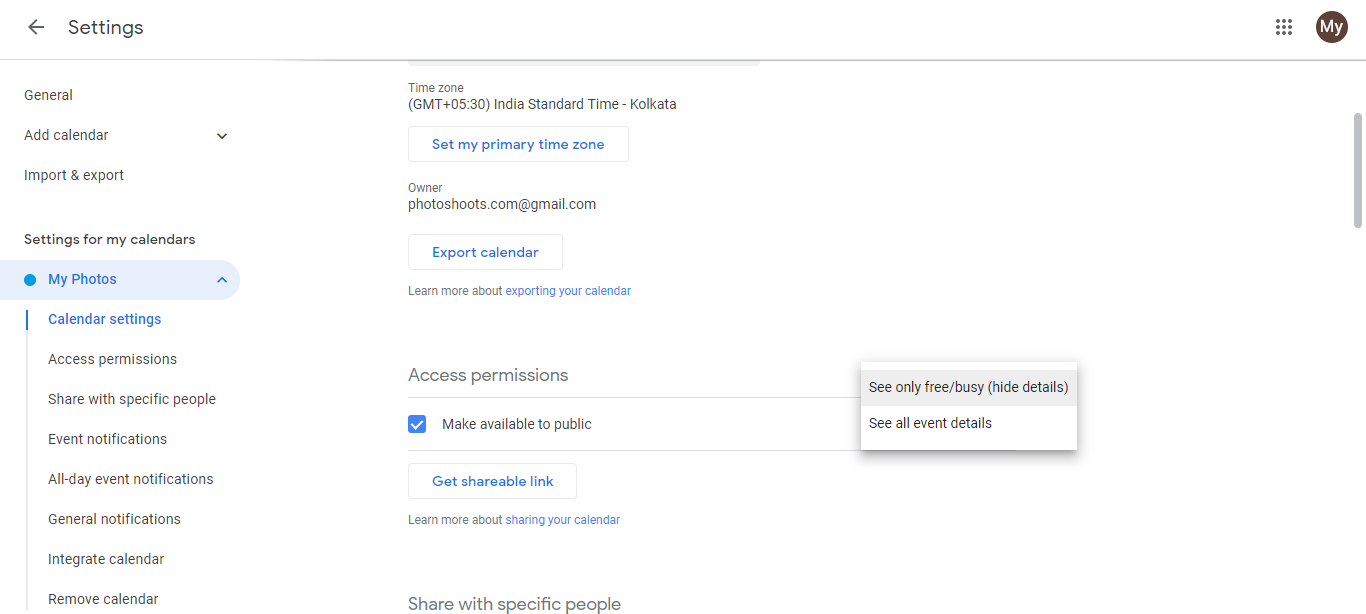
- Copy the public link.
- Share it on your website, booking page, email signature, or anywhere clients might find it.
Anyone with the link sees your availability without a Google account, without asking permission, without seeing your other clients.
Share free/busy with specific people:
For private sharing with selected clients or team members:
- Open Settings and Sharing for your calendar.
- Scroll to Share with specific people.
- Click Add people.
- Enter their email addresses.
- In Permissions, select See only free/busy (hide details).
- Click Send.
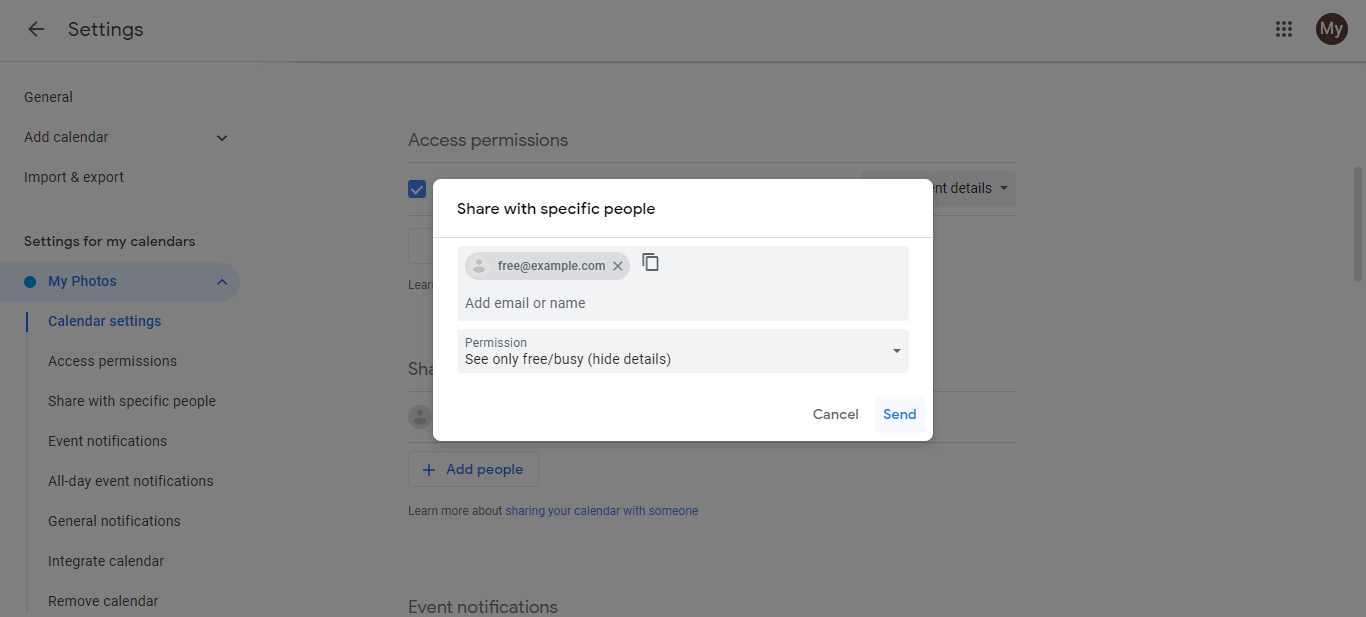
They get an email invitation and can view your availability.
Best practice for consultants:
- Use See only free/busy for all client-facing calendar links (public or shared)
- This protects confidentiality while being transparent about availability
- Clients can confidently request time slots knowing they’re not interfering with other work
- Your schedule stays private while being useful to others
Multi-calendar scenario: If you manage separate calendars for different projects, free/busy shows all of them combined (all busy blocks merge), so clients see your true availability across all projects.