How to share Google Calendar publicly?
Published
Make your Google Calendar publicly accessible with just a link. No login required. Perfect for solo consultants showing availability to clients for booking.
Make a calendar public:
- Go to calendar.google.com.
- In the left sidebar under My Calendars, hover over the calendar.
- Click the three dots menu.
- Select Settings and Sharing.
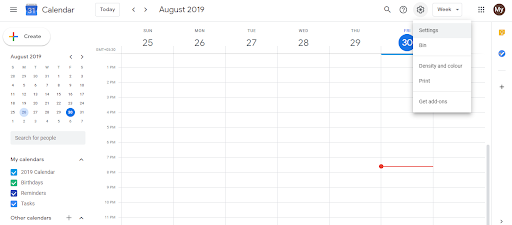
- Under Access Permissions, check Make available to public.
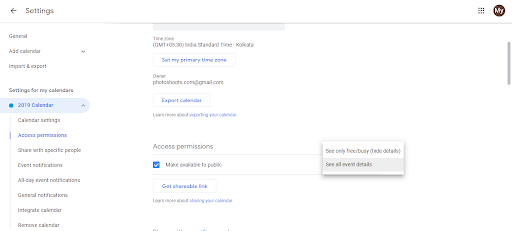
- Copy the public link that appears.
Choose what people can see:
When you check Make available to public, select one of these:
- See all event details: People see event names, times, descriptions, locations, attendees. Full transparency.
- See only free/busy (hide details): People see only your busy and free blocks, not event names or details. Recommended for consultants.
Recommended for consultants:
Always use See only free/busy (hide details) for client-facing links. This way:
- Clients see when you’re available to book
- They don’t see your other client meetings, projects, or personal time
- Your schedule stays professional and private
Share the public link:
Once public, copy the link from Access Permissions and share it:
- In your email signature
- On your website
- In your booking page
- On your LinkedIn or social media
Anyone with the link can view your availability without needing a Google account or asking for permission.
Security considerations:
- Once public, the calendar may appear in Google’s calendar directory (searchable by others)
- To make it private again, uncheck Make available to public
- Consider creating a separate “Availability” calendar just for public sharing, keeping your main calendar private
Frequently asked questions about How to share Google Calendar publicly?
Will my public calendar appear in Google's calendar search?
Possibly. Public calendars may show up in Google Calendar’s directory. If privacy is critical, share only the direct link instead and keep the link hard to guess.
What happens if I make a calendar public and then make it private again?
It becomes private immediately. Anyone with the old link will no longer be able to view it. You can toggle back and forth anytime.
Can I change the visibility from 'see all details' to 'free/busy only' after making it public?
Yes. Go back to Settings and Sharing and change the visibility option. It updates instantly for anyone viewing the link.
Is it better to show free/busy or full details to clients?
Always use free/busy for client-facing calendars. It shows availability without exposing other clients, projects, or personal details.
Can I remove specific people from a public calendar?
No. Public calendars are viewable by anyone with the link. If you need to revoke access from someone specific, make it private and share selectively with their email instead.