How to share a Google calendar with someone without a Google account and making the calendar public?
Share your Google Calendar with anyone. Google account required or not. For solo consultants, this is essential for showing clients your availability and coordinating with team members.
Share your calendar with specific people:
- Go to calendar.google.com.
- In the left sidebar under My Calendars, hover over the calendar you want to share.
- Click the three dots menu.
- Select Settings and Sharing.
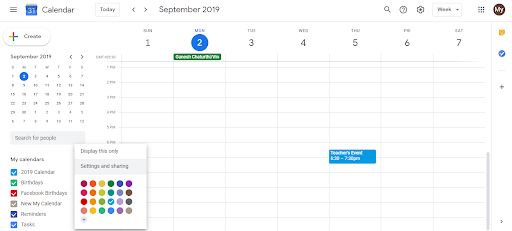
- Under Share with specific people, click Add people.
- Enter any email address (Gmail, Outlook, corporate email). All work.
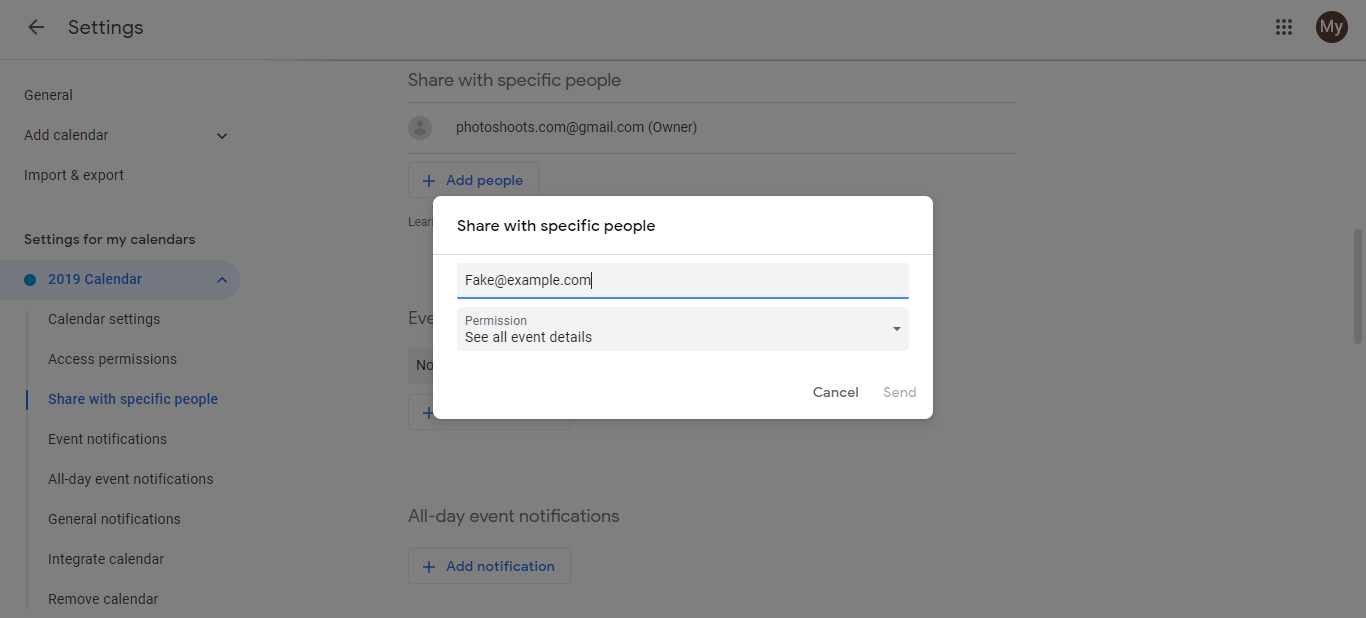
- Choose a permission level:
- See all event details: Full visibility (event name, time, description, location)
- See only free/busy: They see only busy blocks (best for client booking links)
- Make changes to events: They can add, edit, or delete events (limit this)
- Make changes and manage sharing: Full admin access (rarely needed)
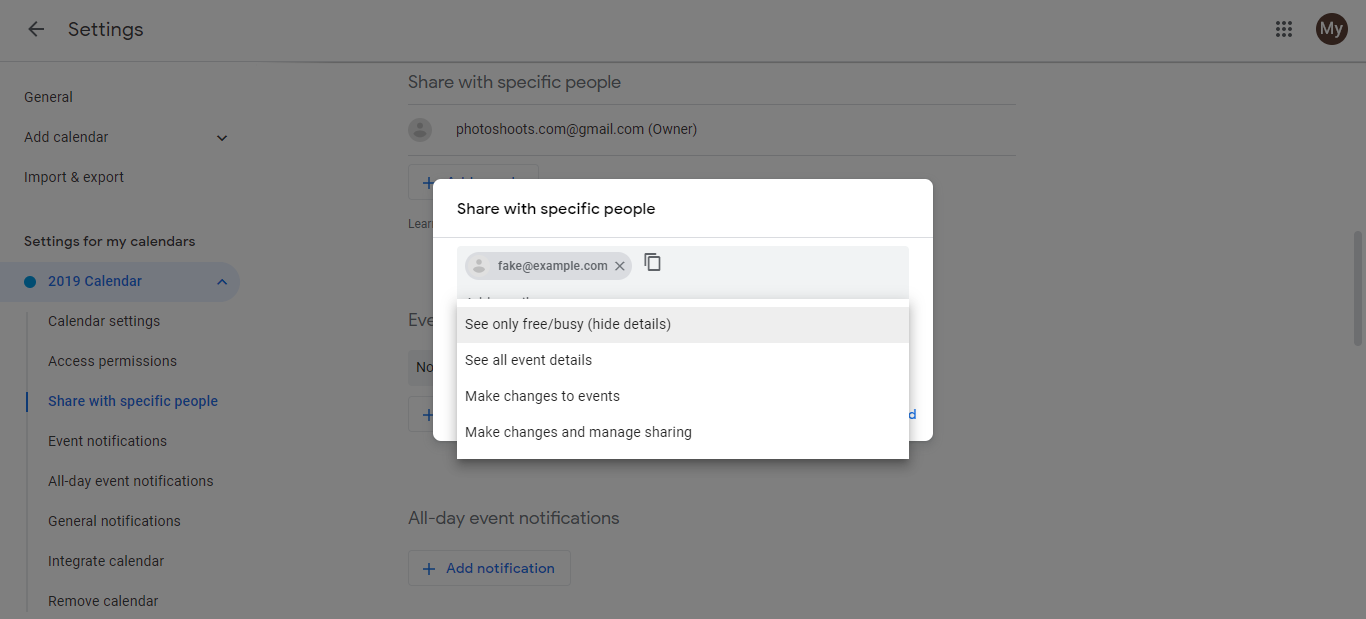
- Click Send. Google sends an email to that address with a link to your calendar.
How people without Google accounts access your calendar:
When someone receives your calendar invitation via email:
- They click the link in the email.
- If they don’t have a Google account, they see a message asking if they want to sign in. They can click “No thanks” or close that dialog.
- They view your calendar right in their browser without signing in.
- On subsequent visits, they can use the same email link to view the calendar again.
This works for anyone with any email address. Gmail, Outlook, Yahoo, or a corporate email all work the same way. They never need to create a Google account or sign in.
Make your calendar public (no invitation needed):
For displaying your availability on your website or booking page without inviting individuals:
- Go to Settings and Sharing.
- Under Access Permissions, check Make available to public.
- (Recommended) Also check See only free/busy to protect your event details.
- Copy the public link and share it anywhere.
This is the best approach for solo consultants. Clients see your availability to book time, but don’t see event names or sensitive details.
Tips:
- For client booking: use See only free/busy to show availability without revealing what you’re busy doing
- For team calendars: use See all event details so teammates see meeting names and locations
- For assistants managing your calendar: use Make changes to events with caution