How to change the owner of a Google Calendar?
Transfer control of a calendar or individual event to another person. Useful when handing off a project, ending a business relationship, or onboarding a new team member to manage a calendar.
Important distinction:
In Google Calendar, you can’t truly “transfer ownership.” You remain the original owner. But you can grant someone else full admin control (“Make changes and manage sharing” permission) so they can manage everything as if they own it.
Give full control of an entire calendar:
- Open your Google calendar.
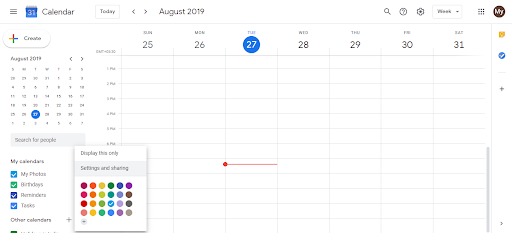
- In the left sidebar under My Calendars, hover over the calendar.
- Click the three dots menu.
- Select Settings and Sharing.
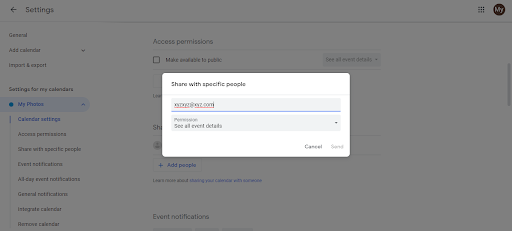
- Scroll to Share with specific people.
- Click Add people.
- Enter the email of the person to give full control to.
- In the Permissions dropdown, select Make changes and manage sharing.
- Click Send.
That person can now:
- Add, edit, and delete events
- Change calendar color and name
- Invite others and manage permissions
- Share with additional people
It’s full administrative control without technically transferring ownership.
Transfer ownership of a single event:
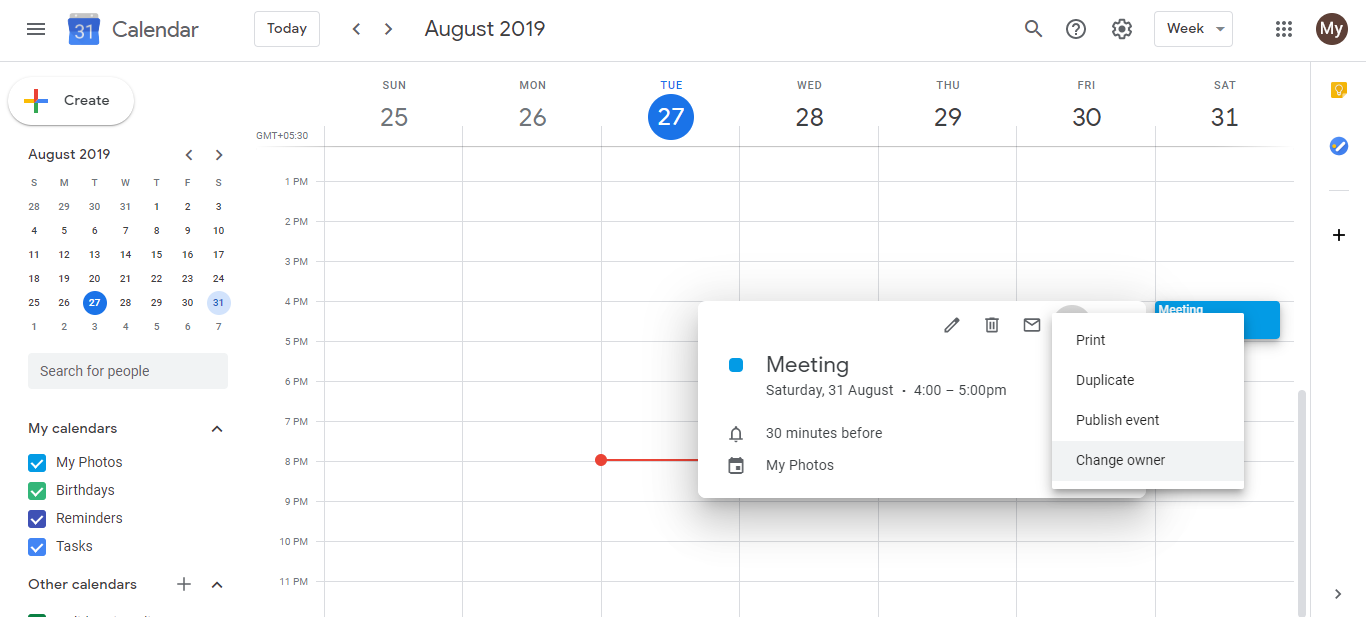
- Open the event in Google Calendar.
- Click edit (pencil icon).
- Click the three dots in the event details.
- Select Change Owner (if available on the event).
- Enter the new owner’s email.
- Click Change Owner.
The new owner becomes the event creator and has full control. You lose editing rights unless the new owner re-shares it with you.
When to use each:
- Full calendar admin: For ongoing collaboration (handing off a project calendar to a team member)
- Single event ownership: For specific events where someone else should be in charge
For solo consultants:
If bringing on an assistant to manage your calendar:
- Give them Make changes and manage sharing permission (not full transfer)
- This keeps your name as the owner while letting them add/edit events
- If they leave, you keep full control