How to change the default privacy settings on Google Calendar?
Published
Control who can view your calendar and what details they see. For solo consultants, this is essential. You want clients to see when you’re available without exposing confidential notes, other client names, or sensitive meeting details.
Change privacy settings for a calendar:
- Go to calendar.google.com.
- In the left sidebar under My Calendars, hover over the calendar you want to adjust.
- Click the three dots menu.
- Select Settings and Sharing.
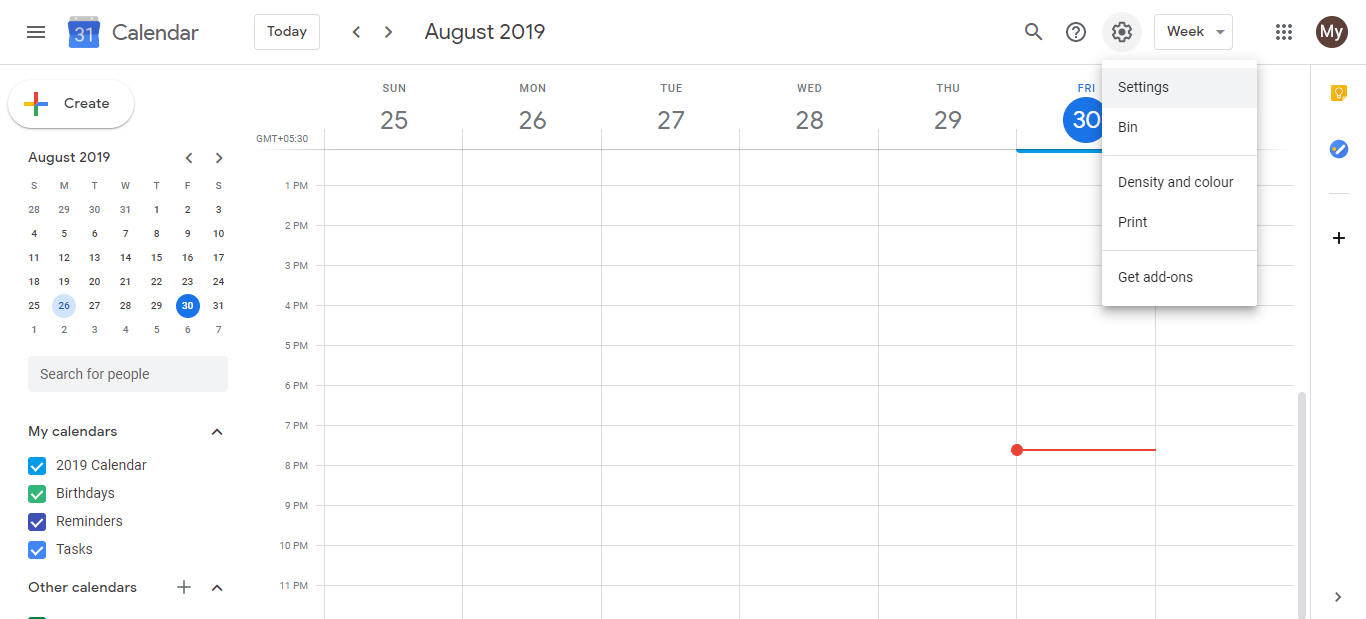
- Scroll to the Access Permissions section.
Privacy levels:
- Private (default): Only you can see your events. No one else sees anything, even with a link.
- Make available to public: Anyone with the link can view full event details (names, descriptions, times, attendees).
- See only free/busy (hide details): People see only your busy/free blocks. Event names, descriptions, and details stay hidden.
Recommended: Use free/busy for client bookings:
- Check Make available to public.
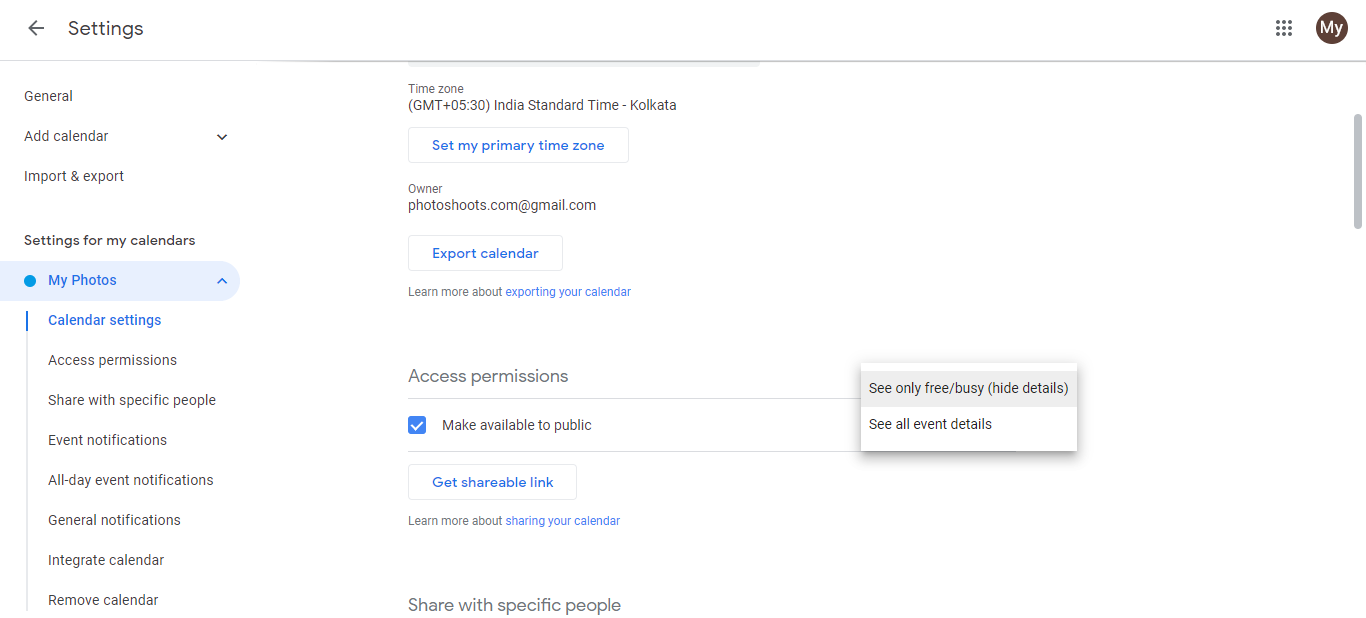
- Also check See only free/busy (hide details).
- Click Save.
Now when a client gets your calendar link, they see blocks of time (busy = not available, free = available to book) but don’t see:
- What you’re actually doing during busy time
- Names of other clients or projects
- Meeting descriptions or notes
- Personal time details
Tips for consultants:
- Use Free/Busy only for all client-facing calendar links
- Keep your main calendar private and use a separate “Availability” calendar set to free/busy for sharing
- This way clients book you without seeing confidential information
- Review settings periodically. Make sure client calendars stay private by default
Frequently asked questions about How to change the default privacy settings on Google Calendar?
Can I set different privacy levels for different calendars?
Yes. Each calendar has its own privacy settings. Your main calendar can be private while a client-facing ‘Availability’ calendar is public.
If I make my calendar public, can people find it by searching?
Possibly. Public calendars may appear in Google Calendar’s directory search. If privacy is critical, don’t make it public. Share the link directly instead.
What does 'See only free/busy' actually hide?
It hides event titles, descriptions, locations, attendee names, and all details. Only busy/free blocks are visible. Perfect for protecting confidentiality.
Can I change privacy settings for past events only?
No. Privacy settings apply to the entire calendar, all events, past and future. You can’t hide just old events.
If I share a calendar with specific people, do they see my privacy settings?
The permission level you set (See all details, See only free/busy, etc.) controls what they see. Your privacy settings apply regardless of who you share with.