How to change Google Calendar time zone without changing the time zone of each individual event on the calendar?
Google Calendar separates time zone display from event scheduling. When you change your account’s time zone, existing events stay scheduled for their original times. They just display in your new time zone. This is crucial when traveling, moving, or managing clients across multiple regions.
Change time zone for your entire account:
- Go to calendar.google.com.
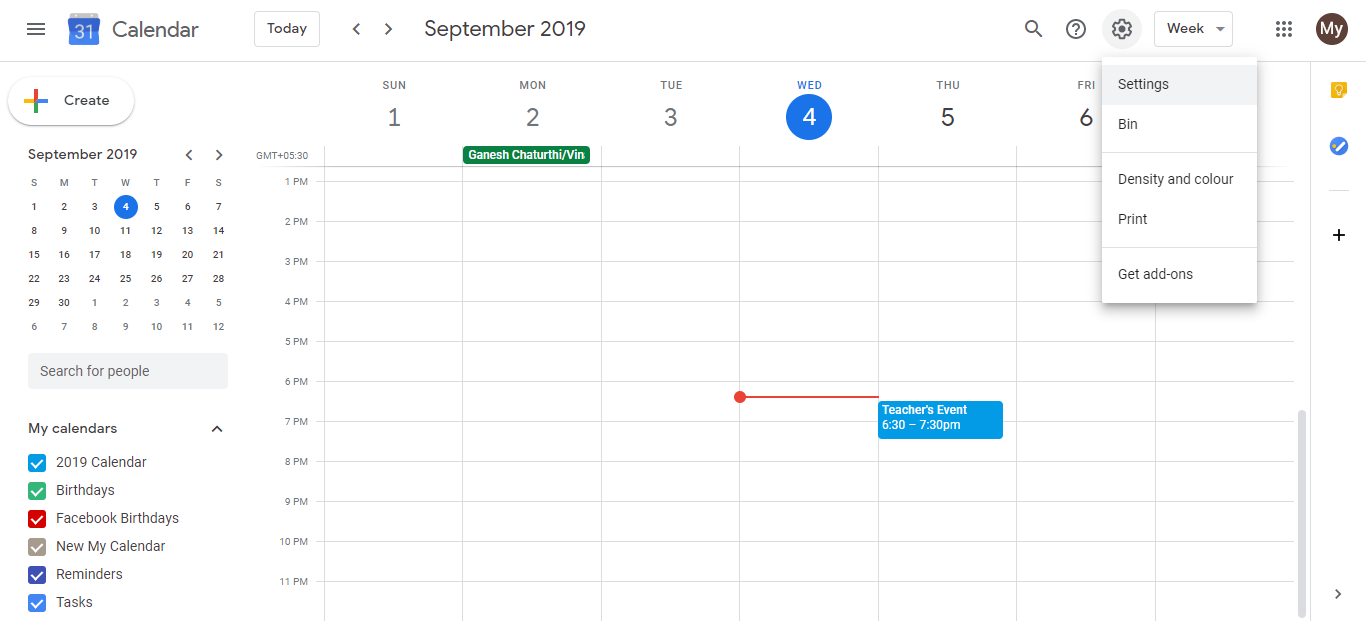
- Click the Settings icon (gear) in the top right and select Settings.
- In the left sidebar, click General.
- Find the Time zone dropdown.
- Select your desired time zone.
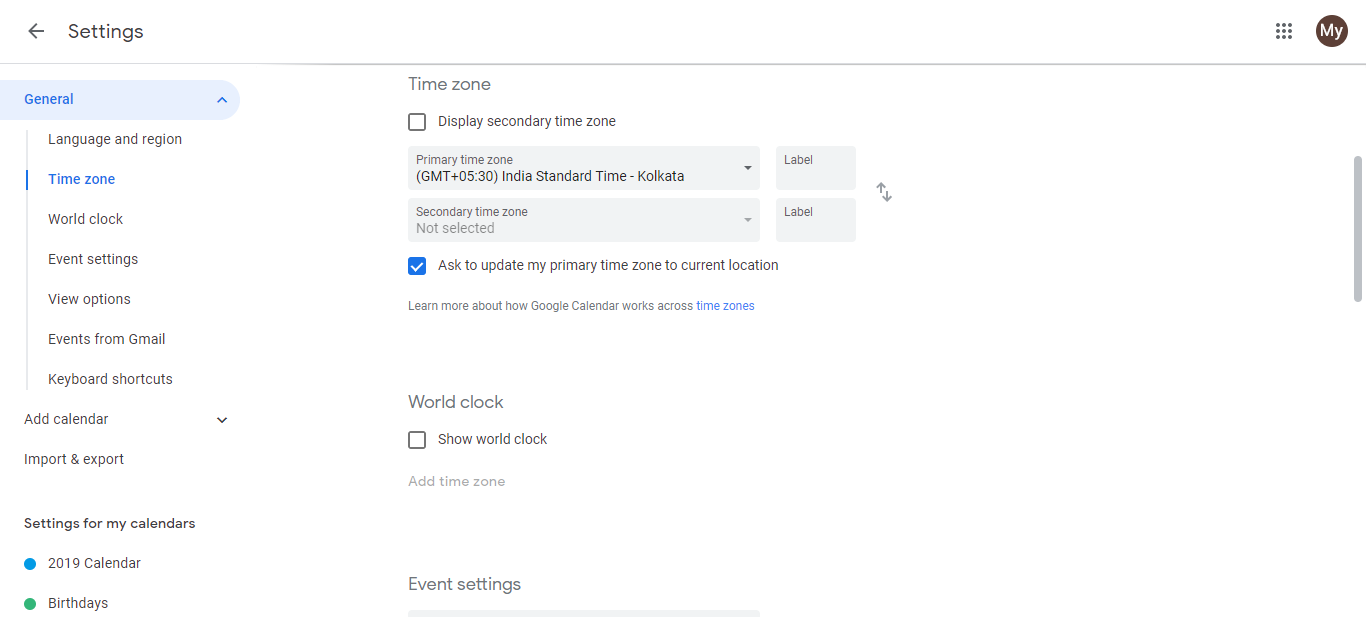
- (Optional) Check Use the current location to auto-detect time zone based on your device.
- Click Save at the bottom.
Change time zone for a specific calendar:
If you manage separate calendars for different regions or clients, each calendar can display in its own time zone. This is helpful when you work with teams across multiple time zones.
Example: You have a “US Clients” calendar and a “London Partner” calendar. Set the US calendar to Eastern Time and the London calendar to GMT. When you open your calendar, you see both in their local times, so you never confuse when calls happen.
Steps to set a calendar’s time zone:
- In the left sidebar under My Calendars, hover over the calendar you want to adjust.
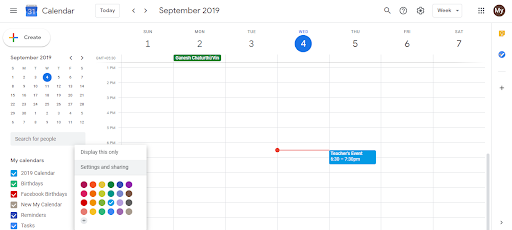
- Click the three dots menu.
- Select Settings and Sharing.
- Scroll to the Time zone section.
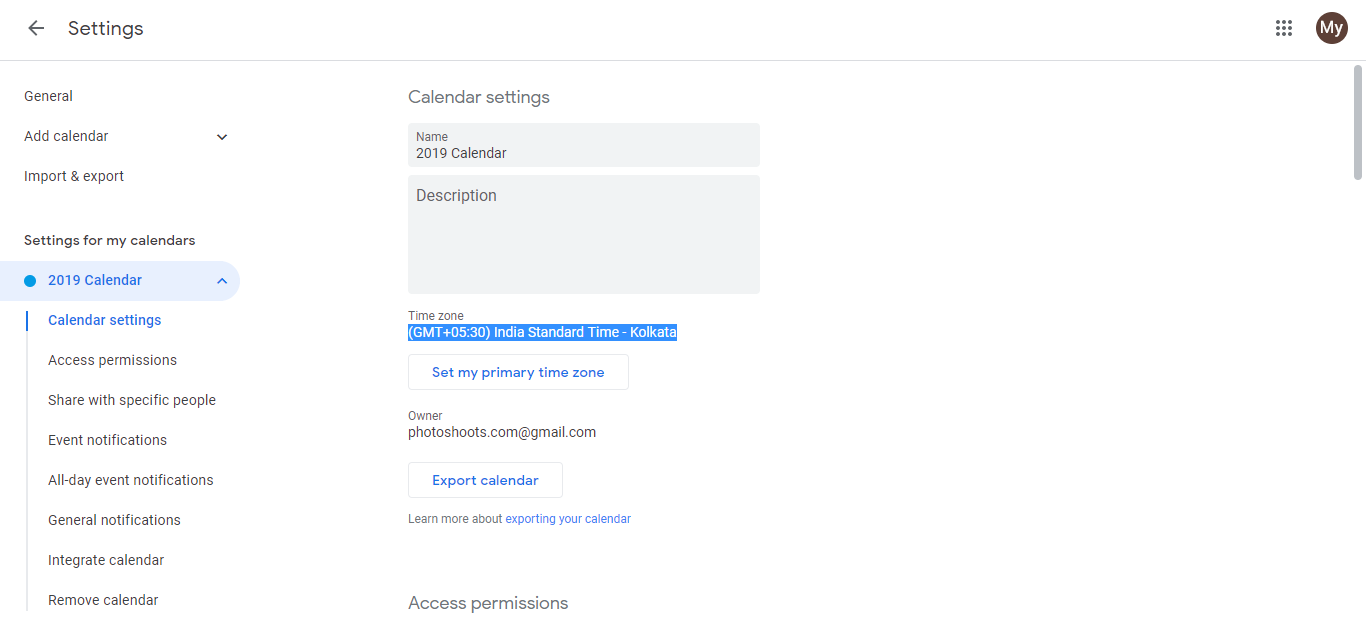
- Select the time zone you want for this calendar.
- Click Save.
Tips for solo consultants:
- Set your main account time zone to where you live or work most of the time. This is your default.
- Use per-calendar time zones only if you manage multiple calendars across different regions. It adds complexity but prevents mistakes.
- Events always stay scheduled for their original time. Only the display changes. A 9am call with a client stays 9am even if you change time zones.
- When traveling, use auto-detect location. Google Calendar will update your account time zone automatically as you move.
Important: Changing your display time zone never reschedules events. It only changes how times appear on your calendar.