How to add images to Google Calendar?
Published
Attach images, PDFs, contracts, and files directly to calendar events. All event materials stay together in one place, perfect for client meetings, project kick-offs, and deliverable tracking.
Add an image or file to an event:
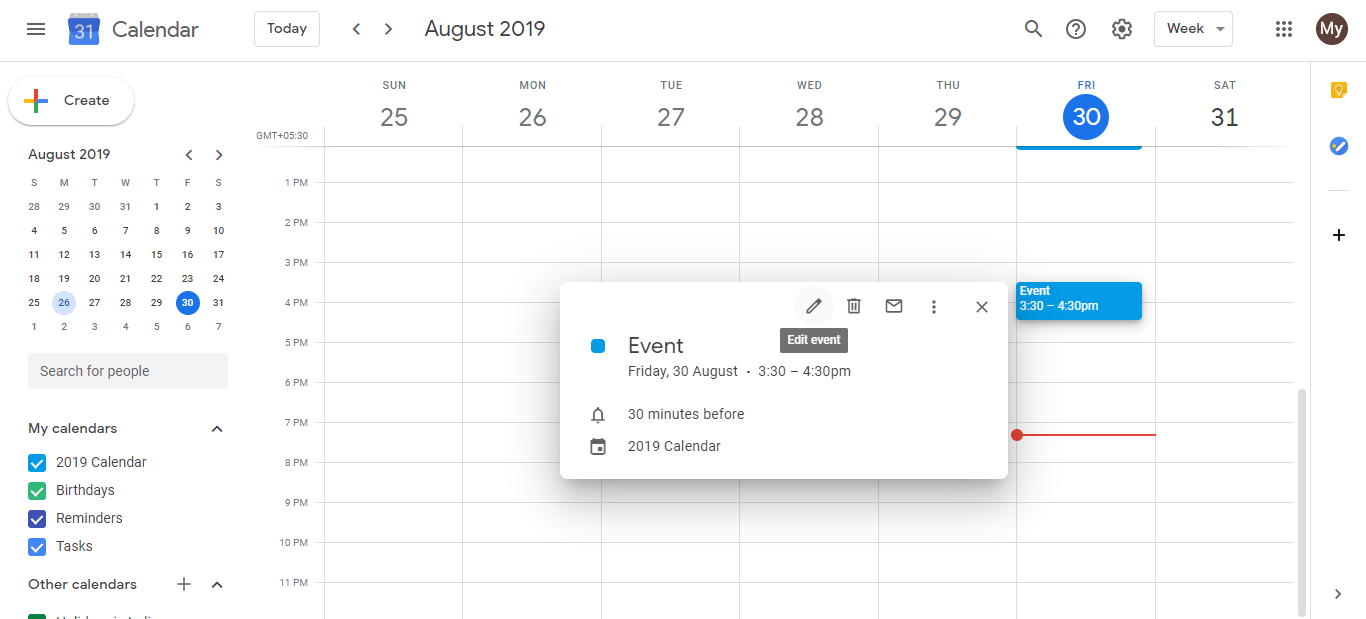
- Open your Google Calendar and click the event.
- Click the edit icon (pencil).
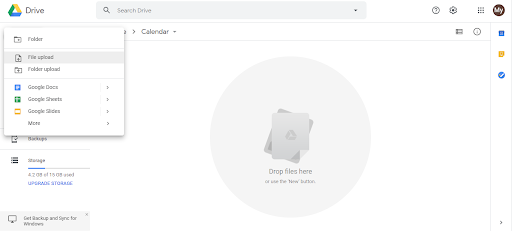
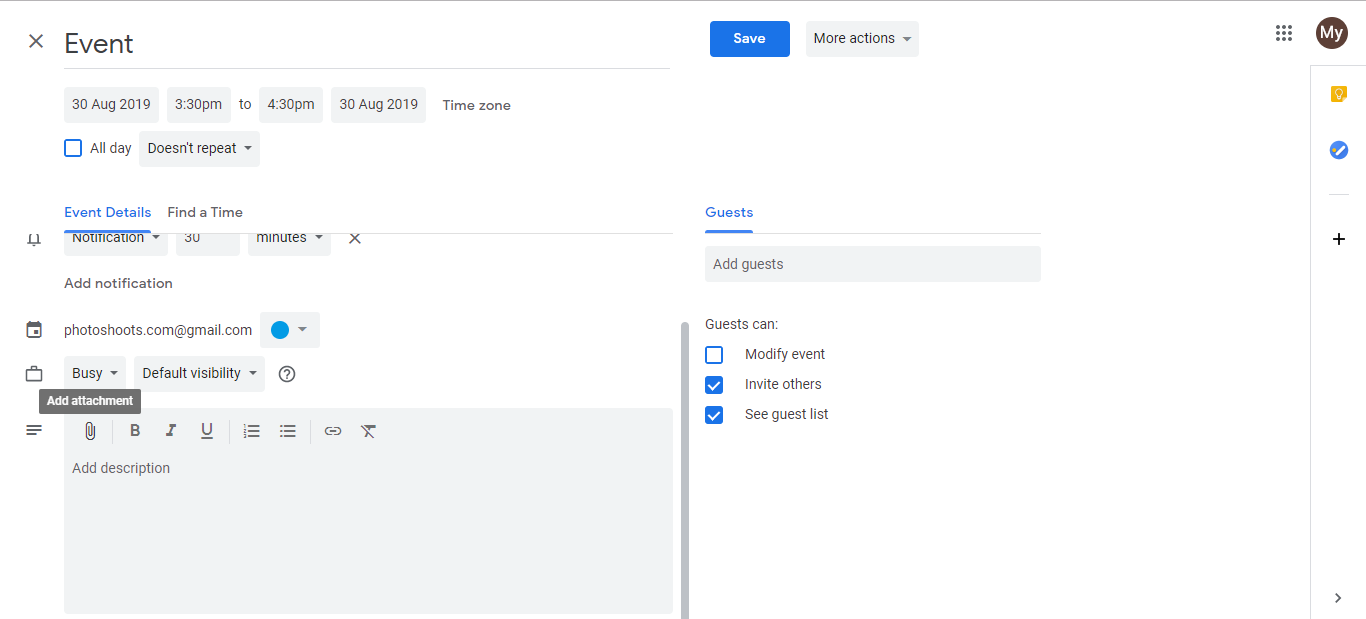
- Scroll down to the Description field.
- Click the Attach files icon (paperclip).
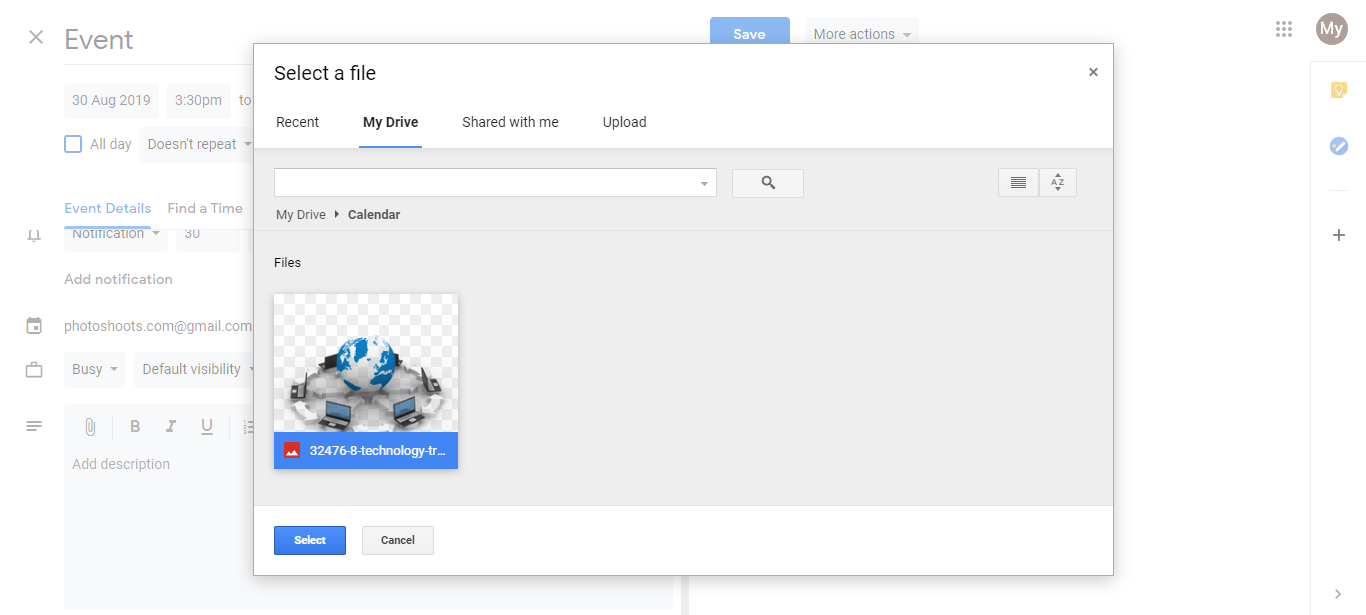
- Choose Upload from computer or Google Drive.
- Select the image or file you want to attach.
- Click Open.
- The attachment appears in the description.
- Click Save.
What you can attach:
- Images (PNG, JPG, GIF)
- PDFs (contracts, proposals, invoices)
- Documents (Word, Google Docs)
- Presentations
- Spreadsheets
- Any file from your computer or Google Drive
Key points:
- Visible to event viewers: Anyone who can see the event can see the attachments
- Multiple attachments: Add as many files as you need to one event
- Storage: Attachments are stored in Google Drive. No additional storage needed beyond your Drive limit.
- Context preserved: Everything about a client meeting (notes, documents, contracts) stays attached to the event itself
Perfect for solo consultants:
- Attach the client proposal to the kick-off meeting event
- Add signed contracts to contract-review appointments
- Attach before-and-after photos to project milestones
- Store meeting agendas directly in the event
- Keep receipts and invoices linked to project events for easy reference later
Frequently asked questions about How to add images to Google Calendar?
Is there a file size limit for attachments?
Google Calendar uses your Google Drive storage. Files must follow Drive’s size limits (typically 5TB per file). For most business documents and images, size is never an issue.
If I update an attached file, do all viewers see the change?
Only if you attach a Google Drive file. Uploaded copies don’t update. For always-current documents, use Google Docs or upload from Drive instead.
Can I insert images inline in the event description instead of as attachments?
Not natively. Images appear as attachments. For inline display, paste the image URL in the description, and it may render as a preview.
Will event attachments show on my mobile Calendar app?
Yes. Attachments sync across web and mobile. On mobile, tap the event to see and download attached files.
Do I need to upload files to Google Drive first, or can I attach from my computer?
You can do both. Choose ‘Upload from computer’ for quick attachment, or ‘Google Drive’ to link existing Drive files. Computer uploads go to Drive automatically.