How to block all Google calendar invites?
Google Calendar does not offer a complete block of all invitations. You cannot prevent invitations from arriving in your email, and there is no built-in block or filter for specific senders. However, you can control whether invitations automatically appear on your calendar before you respond to them. By default, Google Calendar adds every invitation to your calendar the moment it arrives, even if you have not yet decided whether to attend. By changing one setting, you can make invitations visible only after you explicitly accept or respond to them.
Why change this setting:
The default behavior adds all invitations to your calendar immediately. This can clutter your calendar with many “maybe” events before you have made decisions. Some people prefer a cleaner calendar showing only events they have confirmed attending. The setting allows you to control this behavior.
How to change the “Automatically add invitations” setting:
Step 1: Open Google Calendar settings
Open Google Calendar at calendar.google.com.
In the top-right corner, click the Settings gear icon.
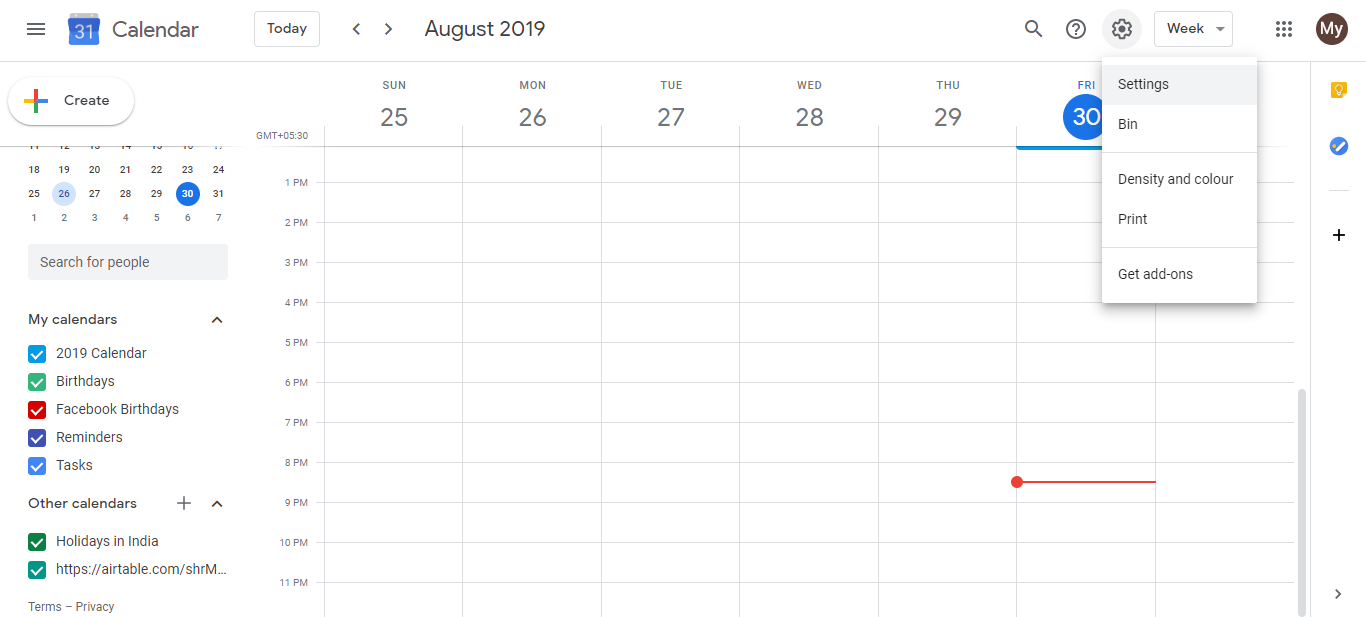
- A dropdown menu appears. Click on Settings to open the full settings page.
Step 2: Find the Event Settings section
In the left sidebar, scroll down to locate the Event Settings section (or you may see it listed as Invitations depending on your Google Calendar version).
Look for the option labeled Automatically add invitations or Add invitations to my calendar.
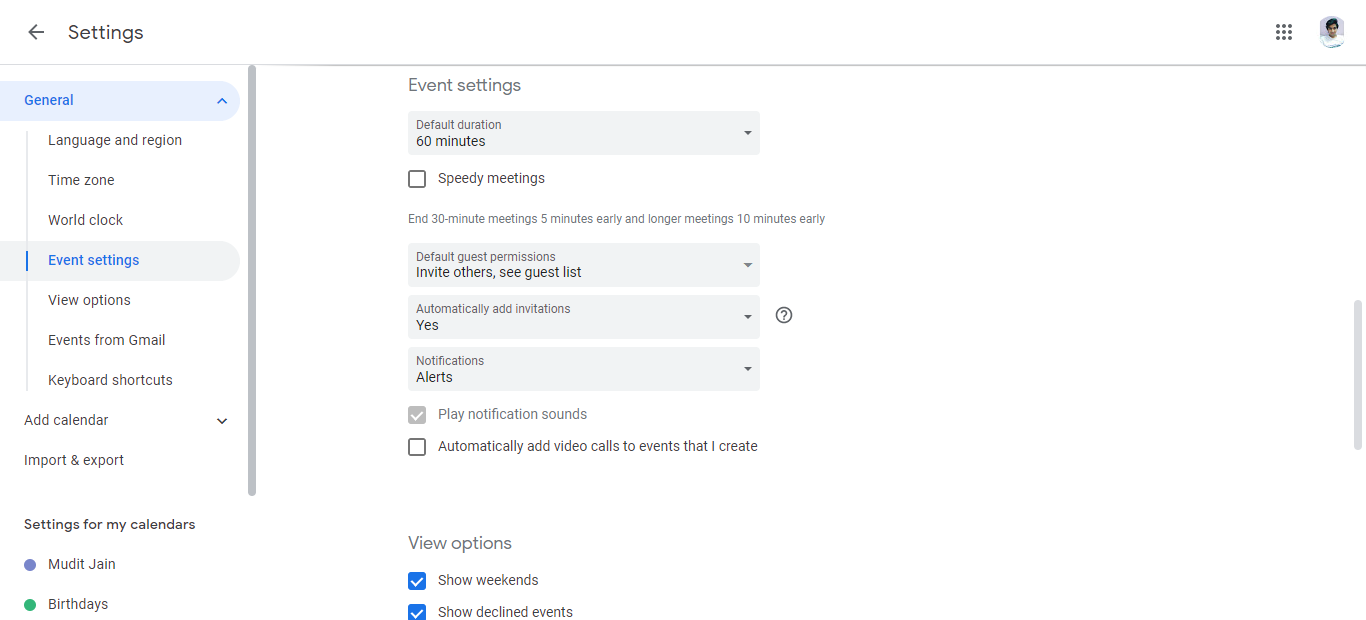
Step 3: Choose your preference
You will see two options:
Option 1: Yes (default) Selecting Yes means all invitations you receive are automatically added to your calendar the moment they arrive, even if you have not yet responded. Your calendar shows the event in a tentative or pending status until you accept, decline, or mark as maybe. This is the default Google Calendar behavior and gives you a full view of all pending events.
Option 2: No, only display invitations to which I have replied Selecting No, only display the invitations to which I have replied means invitations do not appear on your calendar until you respond to them (accept, decline, or mark as maybe). The invitations still arrive as emails in your Gmail inbox, and you can open the email and respond (Accept, Decline, or Maybe) directly from Gmail or from Google Calendar’s invitation panel. Once you respond, the event immediately appears on your calendar according to your response. This keeps your calendar cleaner by showing only events you have made decisions about.
Step 4: Save your choice
- After selecting your preference, the setting is saved automatically. You do not need to click a separate Save button.
Invitation notifications still arrive regardless of this setting:
Whether this setting is Yes or No, you will still receive email notifications when someone invites you to an event. The setting only controls whether the event appears on your calendar view before you respond. You can adjust email notification settings separately in Google Calendar’s notification preferences.
To find unanswered invitations when using “No”:
If you select “No” and forget about invitations in your inbox, you can find unanswered invitations by:
- Going to your Gmail inbox and searching for emails from calendar invitations
- Looking in Google Calendar’s left sidebar for an “Invitations” section or pending events indicator
- Some Gmail versions show a separate “Waiting for your response” section that lists unanswered invitations