How to add private notes to public Google Calendar invites?
Google Calendar does not have a formal "private notes" feature, but you can add a description or notes to any calendar event. When you receive an invitation from someone else, you can add personal notes to your own copy of the event. When you are the organizer and send invitations, you can add notes and control whether attendees see them. The method depends on whether you received the invitation or created it.
Scenario A: Adding notes when you received an invitation
When you receive a calendar invitation from someone else, you can add personal notes or a description to your own copy of the event. These notes will be visible only on your calendar copy, though with an important limitation explained below.
Step 1: Open the event you received
Open Google Calendar at calendar.google.com.
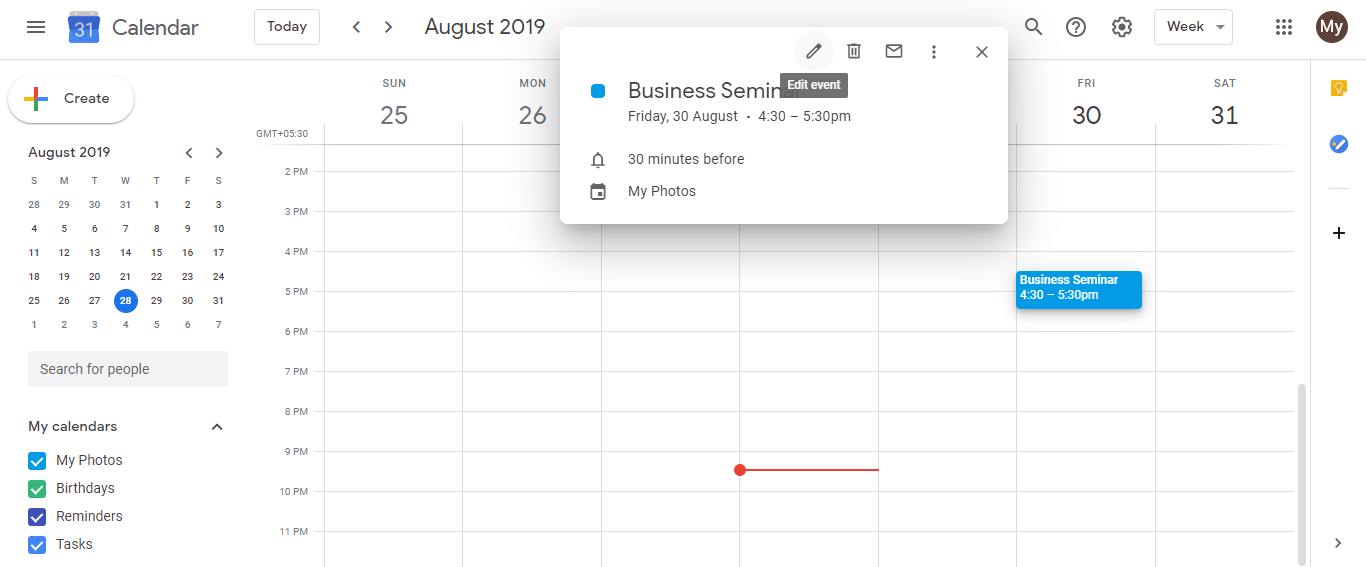
Click on the event invitation you received. The event details panel opens.
Click the pencil icon (or Edit button) to open the event editor.
Step 2: Add your private notes
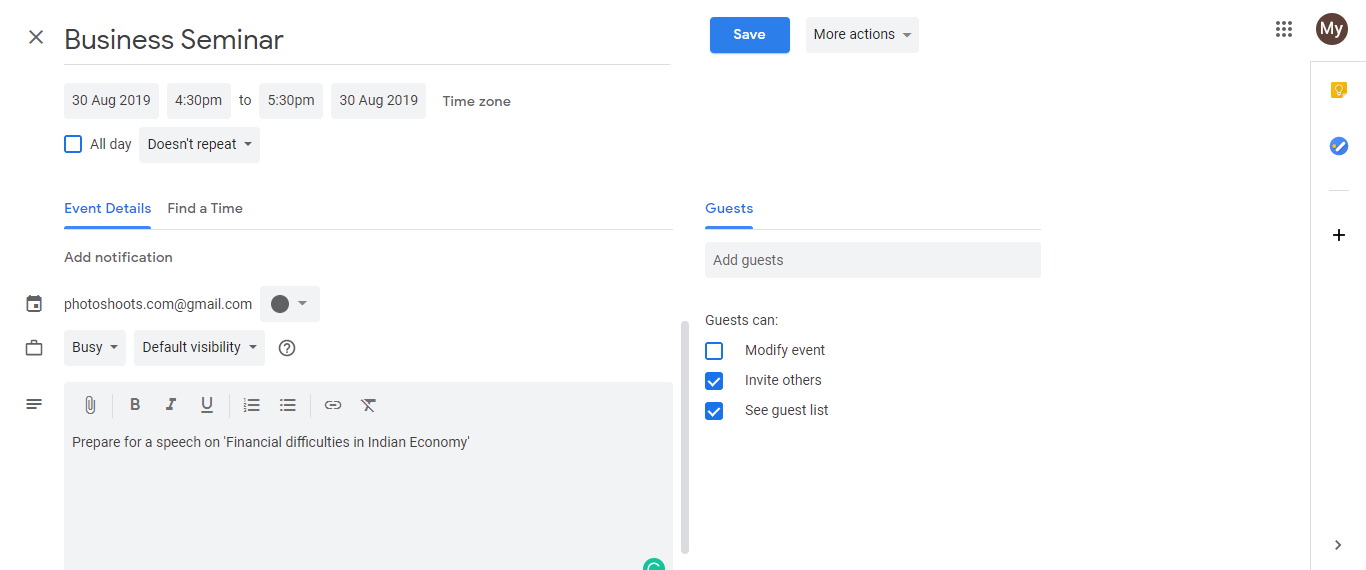
Scroll down to find the Description field (located below the event title and time).
Click in the Description field and type your personal notes. You can write anything you need to remember: your thoughts about the meeting, questions to ask, preparation reminders, or any other personal context.
Click Save to save your changes.
Important limitation: If the organizer who sent you this invitation makes any changes to the event later and saves those changes, Google Calendar may overwrite the Description field on your copy with the organizer’s version. This means your personal notes could be lost. If your notes are important, save them in a separate document or take a screenshot before the organizer might edit the event.
Scenario B: Adding notes when you are the organizer
When you create a calendar event and invite others, you can add a description that attendees will see. If you want to add private notes that only you see, send the invitation first without a description, then edit it later to add your notes, taking care not to notify attendees.
Step 1: Send the invitation without a description
Create your calendar event with the event title, date, time, location, and guest list.
Leave the Description field empty (or include only details you want attendees to see).
Click Save. Google Calendar will send the invitation email to all guests.
Step 2: Edit the event to add your private notes
After the invitation is sent, open the same event in your calendar.
Click the pencil icon to edit the event.
Scroll down to the Description field and add your private notes or additional information.
Click Save. A dialog appears asking: “Update only this event” or “Notify all guests about the changes.”
Select Notify all guests about the changes only if you want attendees to see your notes. Select Update only this event if you want your changes to remain private. When you select “Update only this event,” Google Calendar saves your notes without sending a notification email to attendees.
Why this approach works: By adding the description after sending the original invitation, you avoid including it in the initial invitation email. By selecting “Update only this event” when saving, attendees do not receive a second email with your notes. Your notes remain on your calendar copy only.
Alternative: Using a separate personal note tool
For notes that absolutely must remain private and cannot be lost to synchronization issues, consider keeping a separate document (in Google Docs, Notion, or a note app) linked to the event or titled with the event name. This gives you a backup that is not subject to Google Calendar’s sync limitations.