How to add a guest on Google Calendar automatically?
When you create a Google Calendar event, you can add guests to be notified and invited. The title of this article mentions “automatically,” but Google Calendar does not automatically add guests without your action. What the process does offer is smart, convenient ways to add guests: auto-complete when you type their name (matching against your Google Contacts), carrying over the same guests across all occurrences of a recurring event, and for Workspace accounts, allowing administrators to set default guests that appear on new events you create. This guide covers the manual process of adding guests to a single event and managing their permissions.
How to add guests to a Google Calendar event:
Step 1: Open Google Calendar and locate the event
Open Google Calendar at calendar.google.com.
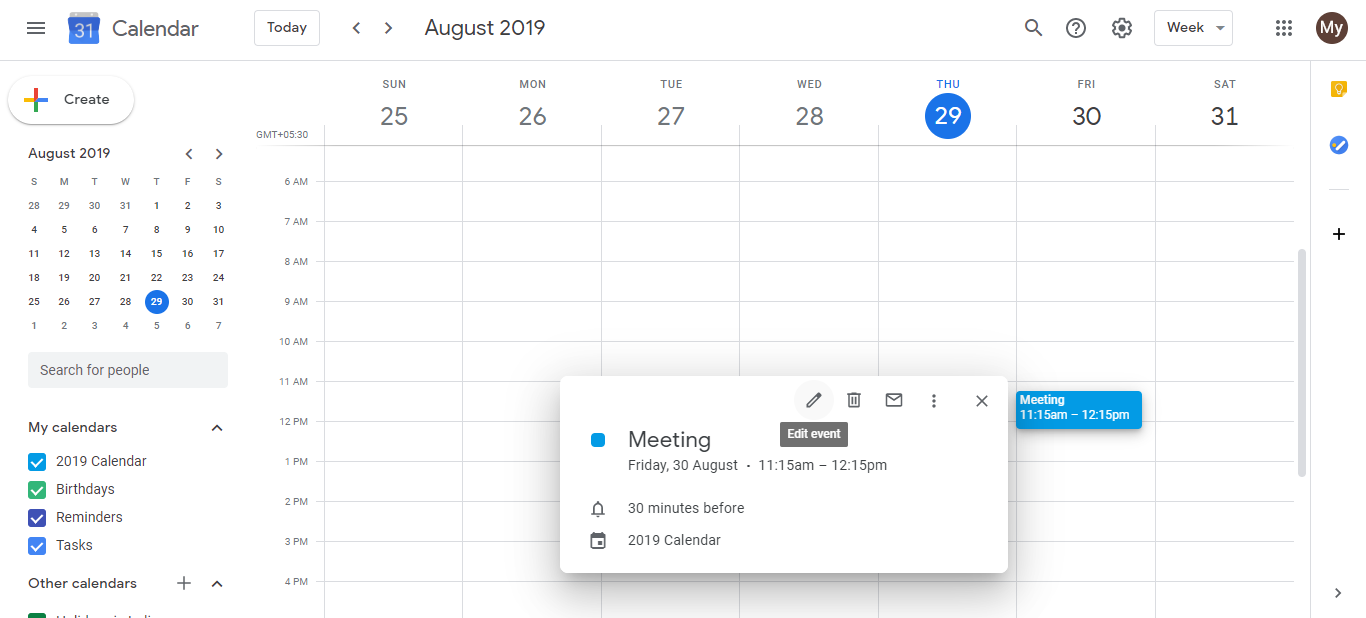
Click on the event you want to add guests to. This opens the event details.
Click the pencil icon (or the Edit button) to open the event editor where you can modify the event details.
Step 2: Add guests using the Guests field
In the event editor, scroll down to find the Guests section (usually located below the event title and description).
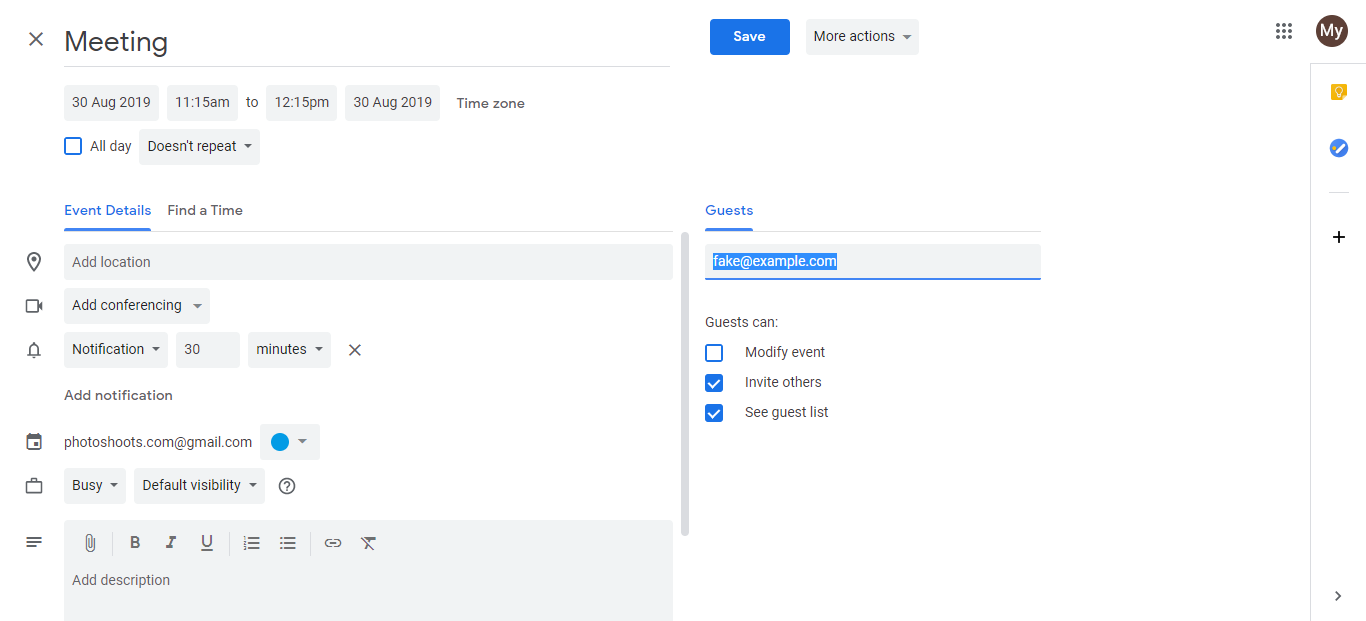
Click in the Guests field or tap Add guests.
Start typing the name or email of the person you want to invite. Google Calendar will show suggestions from your Google Contacts as you type. This auto-complete feature means you do not need to manually type the full email address if the person is already in your contacts.
Click or tap on the contact name from the suggestions to add them. If the person is not in your contacts, you can type their full email address and press Enter to add them manually.
Repeat steps 6 and 7 to add multiple guests. Each guest will appear as a separate entry in the Guests field.
Step 3: Set guest permissions
After adding guests, you can control what permissions each guest has:
Modify event: When enabled (checked), the guest can edit the event details like changing the time, location, or description. This is useful for organizers who want guests to help manage the event details. When disabled, guests can see the event but cannot edit it.
Invite others: When enabled, the guest can add more people to the event. When disabled, only the original organizer can manage the guest list. This is useful if you want to control who is invited and prevent the list from growing unexpectedly.
See guest list: When enabled, invited guests can see the full list of everyone invited to the event. When disabled, guests only know that you invited them but cannot see who else is attending. This is useful for privacy when the attendee list is confidential.
To change these settings, look for checkboxes next to each permission. The default is typically that guests can modify the event and see the guest list, but cannot invite additional people.
Step 4: Save the event
After adding guests and configuring their permissions, click Save to save the event.
Google Calendar will automatically send an invitation email to each guest notifying them of the event. The email includes the event title, date, time, location, and a link for the guest to respond (Accept, Decline, or Maybe).
Adding guests to recurring events:
If the event is part of a recurring series and you want to add a guest to all occurrences, Google Calendar will prompt you when you save: “Update only this event” or “Update all events in the series.” Select Update all events in the series to add the guest to every occurrence of the recurring event. Select Update only this event if you want to add the guest to just the specific date you edited.
Removing a guest:
If you need to remove a guest later, open the event editor, find that guest’s name in the Guests section, and click the X button next to their name. When you save, you will be prompted whether to notify the guest of the change. If you notify them, Google Calendar sends a cancellation notice. If you do not notify them, the removal is silent and they will only realize they are no longer invited when they check their calendar.