How does one resend a Google Calendar invite to one attendee for a meeting?
Google Calendar does not have a dedicated "Resend invite" button for individual attendees. There is no one-click way to send a fresh invitation to someone who did not receive the original or who you want to re-invite. The standard workaround is to remove the attendee from the guest list and then immediately re-add them, which triggers a new invitation email. The key to making this seamless is suppressing the cancellation notification when you remove them, so they do not receive a confusing cancellation message before getting the new invite.
Important: This process resets the attendee’s RSVP status
When you remove and re-add an attendee, they return to “Awaiting” status. If they previously accepted the event, they will need to accept the new invitation again. Use this process only when truly necessary, since it may require them to re-respond.
How to resend an invitation to one attendee:
Step 1: Open the event in edit mode
Open Google Calendar at calendar.google.com.
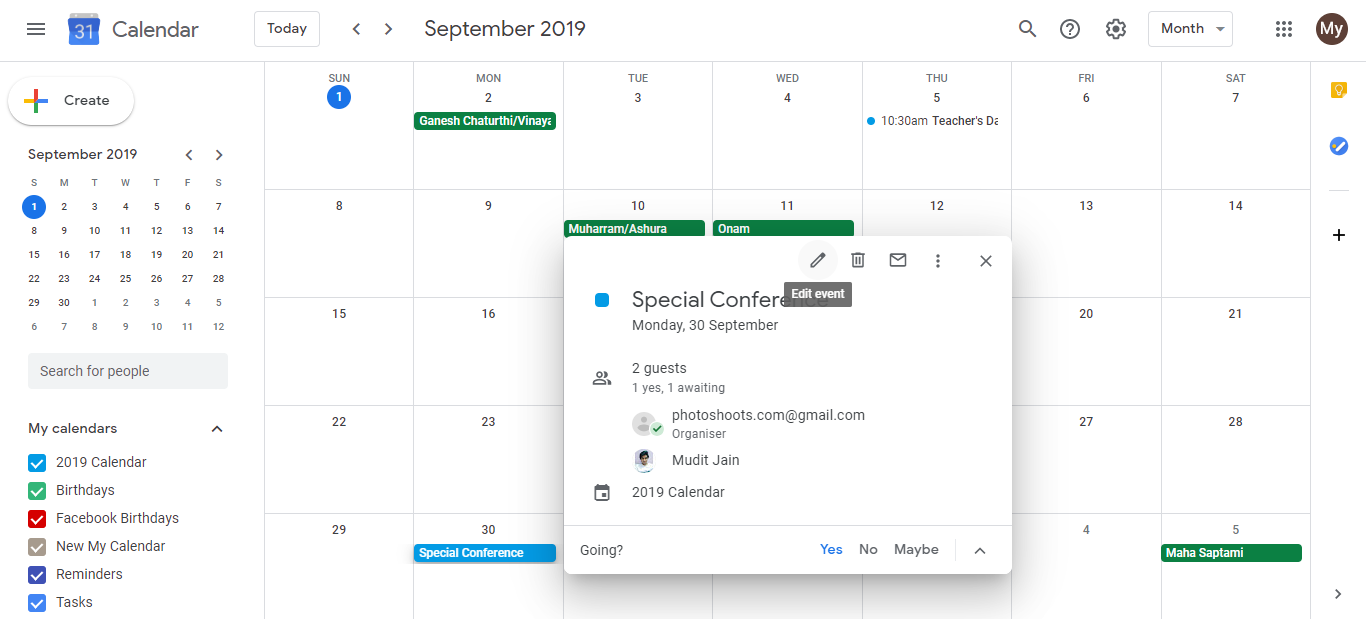
Click on the event you want to resend the invitation for. The event details panel opens.
Click the pencil icon (or Edit button) to open the event editor.
Step 2: Remove the attendee without sending a cancellation
Scroll down to find the Guests section.
Find the name of the attendee you want to resend the invitation to.
Click the X button next to their name to remove them from the guest list.
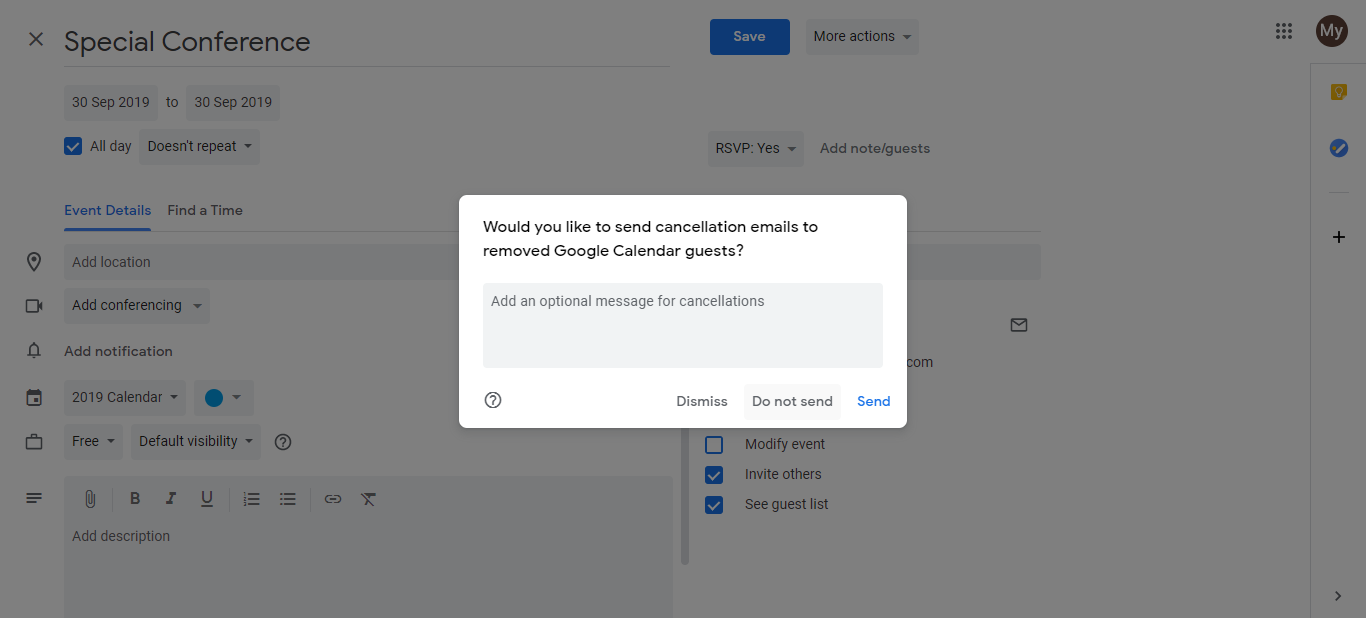
A dialog box immediately appears asking: “Notify guests about changes” or “Don’t send.” This is the critical step. Select Don’t send to remove them silently without sending a cancellation email.
Why “Don’t send” is important: If you select “Notify guests about changes,” Google Calendar sends a cancellation notice to the attendee saying the event is cancelled. Moments later, when you re-add them, they receive a new invitation email. This can be confusing because they see both a cancellation and a new invite within minutes. By selecting “Don’t send,” the removal is invisible to them. They only see the fresh invitation email when you re-add them.
Step 3: Re-add the attendee
In the same Guests section, click Add guests or click in the Guests field.
Start typing the attendee’s name or email address. If they are in your Google Contacts, their name will auto-complete.
Select their name from the suggestions or type their full email address and press Enter to add them back to the guest list.
Step 4: Save and choose notification option
Click Save to save the event with the attendee re-added.
Google Calendar will prompt you: “Update only this event” or “Notify guests about the changes.”
You have two options here:
Notify guests about the changes: Select this if you want to notify only the newly re-added attendee (or all attendees if you prefer). Google Calendar will send the new invitation email to the re-added attendee.
Update only this event: Select this if you do not want to send any notification. The attendee will NOT receive the invitation email. Use this option only if you plan to contact them separately to ask them to check their calendar or resend through another method.
For most cases, select Notify guests about the changes so the re-added attendee receives the fresh invitation email.
Step 5: Verify the change
- The event is now saved. The attendee will receive a new invitation email (assuming you selected to notify them). They will see the event invitation as if being invited for the first time, and their response status will show as “Awaiting” until they accept, decline, or mark as maybe.
Why this workaround exists:
Google Calendar does not offer a simple “resend invite to this person” feature because the calendar is designed assuming invitations are sent once when the event is first created. The invite-remove-re-invite workaround achieves the goal of sending a fresh invitation, though it has the side effect of resetting the attendee’s response status.
Alternative approach: Re-edit the event and notify all attendees
If you are resending because you want to notify attendees about a significant change to the event (time, location, description), you can:
- Edit the event and make your changes
- Click Save
- Select “Notify guests about the changes”
This sends an update email to all attendees without removing anyone. This approach preserves their RSVP status and is cleaner if your goal is to update everyone about event changes rather than specifically targeting one person who missed the original invite.