How to unlink Google Calendar from Outlook Calendar?
Unlinking Google Calendar from Outlook Calendar means removing the connection between the two applications so they no longer display each other’s events. The process depends on which direction you set up the link: either Google Calendar subscribed to Outlook events, or Outlook subscribed to Google Calendar events.
Understanding the directions:
When you link Google Calendar and Outlook, the connection is one-directional:
- Google Calendar subscribes to Outlook: You view Outlook events in Google Calendar
- Outlook subscribes to Google Calendar: You view Google Calendar events in Outlook
To fully unlink, you may need to unsubscribe on both sides if you set up links in both directions.
Scenario 1: Remove an Outlook calendar subscription from Google Calendar
(This removes your view of Outlook events in Google Calendar)
Open Google Calendar at calendar.google.com.
In the left sidebar under Other calendars, look for the Outlook calendar you want to remove.
Click the three-dot menu next to the calendar name.
Select Unsubscribe or Remove calendar.
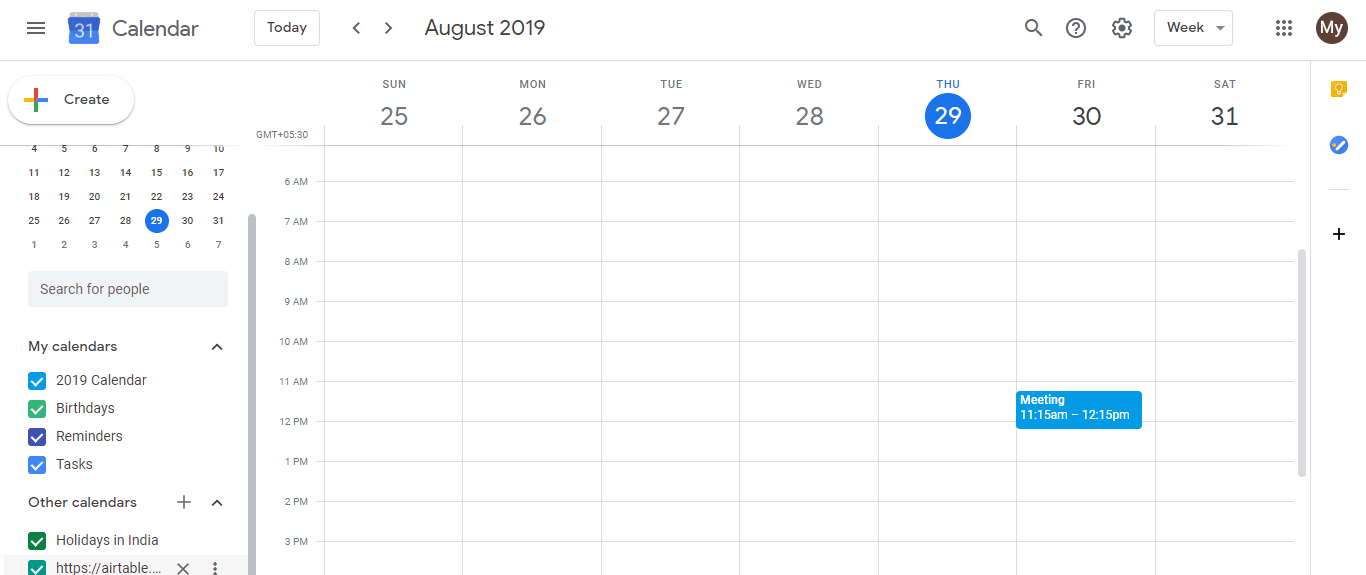
The Outlook calendar immediately disappears from your Google Calendar view.
Your Google Calendar events are unaffected. The original Outlook calendar remains in Outlook unchanged.
Scenario 2: Remove a Google Calendar subscription from Outlook
(This removes your view of Google Calendar events in Outlook)
Open Microsoft Outlook (desktop application or Outlook.com).
Go to File > Account Settings > Internet Calendars (location varies by Outlook version).
Find the Google Calendar subscription in the list.
Select it and click Remove.
Confirm the removal. The Google Calendar immediately disappears from your Outlook calendar list.
Your Outlook calendar remains unchanged. The original Google Calendar is unaffected.
If you linked calendars in both directions:
If you set up both connections (Google can see Outlook AND Outlook can see Google), you will need to unlink both:
- Remove the Outlook calendar from Google Calendar (Scenario 1 above).
- Remove the Google Calendar from Outlook (Scenario 2 above).
Important: Unlinking does not delete
When you unlink:
- The calendar disappears from your view on that side
- The original calendar remains intact and unchanged on its source application
- Events are not deleted
- You can always re-link the calendars later by repeating the subscription process
Revoking access completely:
If you want to permanently stop the link and prevent re-linking, change the sharing settings:
To stop Outlook from accessing Google Calendar:
Open Google Calendar.
Click Settings gear icon.
In the left sidebar, find your calendar and click the three-dot menu next to it.
Click Settings.
Scroll to the Share with specific people or groups section.
Remove any Outlook/email addresses you previously shared with.
The iCal URL is no longer valid, and anyone trying to subscribe to it will fail.
To stop Google Calendar from accessing Outlook:
Open Outlook and go to the calendar’s sharing settings.
Make the calendar private or revoke the public sharing URL.
The subscription link is no longer valid in Google Calendar, and the calendar will show an error.
Troubleshooting:
If you cannot find the calendar to unlink:
- The calendar may already be unlinked
- The calendar may be located under a different section (check both My calendars and Other calendars)
- Try refreshing your browser or the application
- If the calendar still appears but will not unlink, try removing your account and re-adding it
Summary:
| Goal | Action |
|---|---|
| Remove Outlook events from Google view | Unsubscribe from Outlook calendar in Google Calendar sidebar |
| Remove Google events from Outlook view | Remove Google Calendar from Outlook’s Internet Calendars |
| Stop both directions | Unlink on both sides |
| Permanently block access | Change sharing settings on the source calendar |