How to sync Google Calendar with ical?
The term “sync Google Calendar with iCal” typically refers to keeping your Google Calendar and Apple Calendar (iCal on Mac) updated with the same events. There are two methods: a live, bidirectional sync (recommended), or a one-time import.
Important distinction:
- Live sync: Google Calendar and iCal stay automatically updated with each other’s changes. Recommended for ongoing use.
- One-time import: You copy events from iCal to Google Calendar once. Changes in iCal will not automatically update Google Calendar afterward.
This article explains the live sync method, which is the most practical approach for using both apps together.
Method 1: Live bidirectional sync (recommended for Mac users)
This method sets up an automatic, ongoing sync between iCal and Google Calendar on your Mac.
Step 1: Add your Google account to macOS
On your Mac, open System Preferences or System Settings.
Go to Accounts or Internet Accounts (the exact name varies by macOS version).
Click the + button to add a new account.
Select Google.
Enter your Google account credentials and authorize macOS to access your Google Calendar.
Make sure the Calendars checkbox is enabled.
Step 2: Verify sync in Apple Calendar
Open Apple Calendar (or Calendar app on Mac).
Your Google Calendar should now appear in the sidebar under Other Calendars or with your Google account name.
Events from Google Calendar automatically sync to Apple Calendar.
Any new events you create in Apple Calendar will sync to Google Calendar on your Google account.
Why this works:
When you add your Google account to macOS Internet Accounts, the system uses CalDAV (a calendar protocol) to keep both apps synchronized. Changes in either app are automatically pushed to Google’s servers and reflected in the other app, typically within minutes.
Method 2: One-time import (if you need a snapshot of events)
If you only want to import iCal events to Google Calendar once (not ongoing sync), follow these steps:
Open Apple Calendar on your Mac.
Select the calendar you want to export from the sidebar.
Go to File > Export (or right-click the calendar > Export).
Save the calendar as a .ics file to your computer.
Open Google Calendar at calendar.google.com.
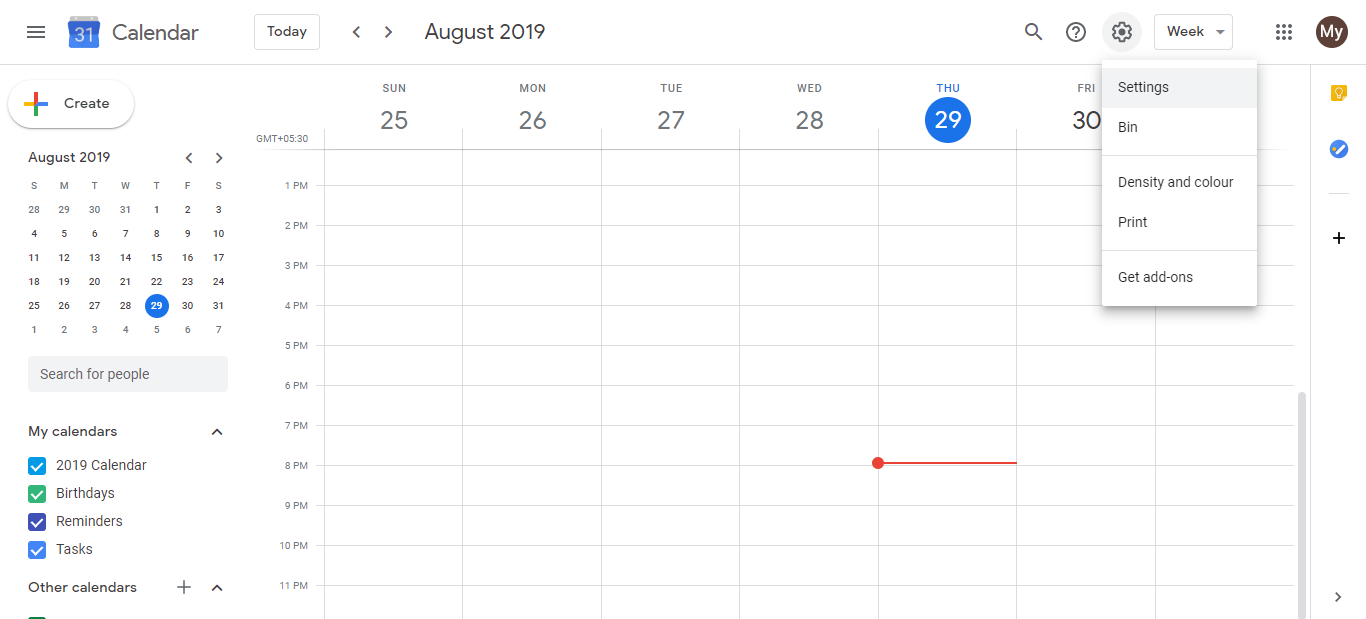
Click the Settings gear icon in the top-right corner.
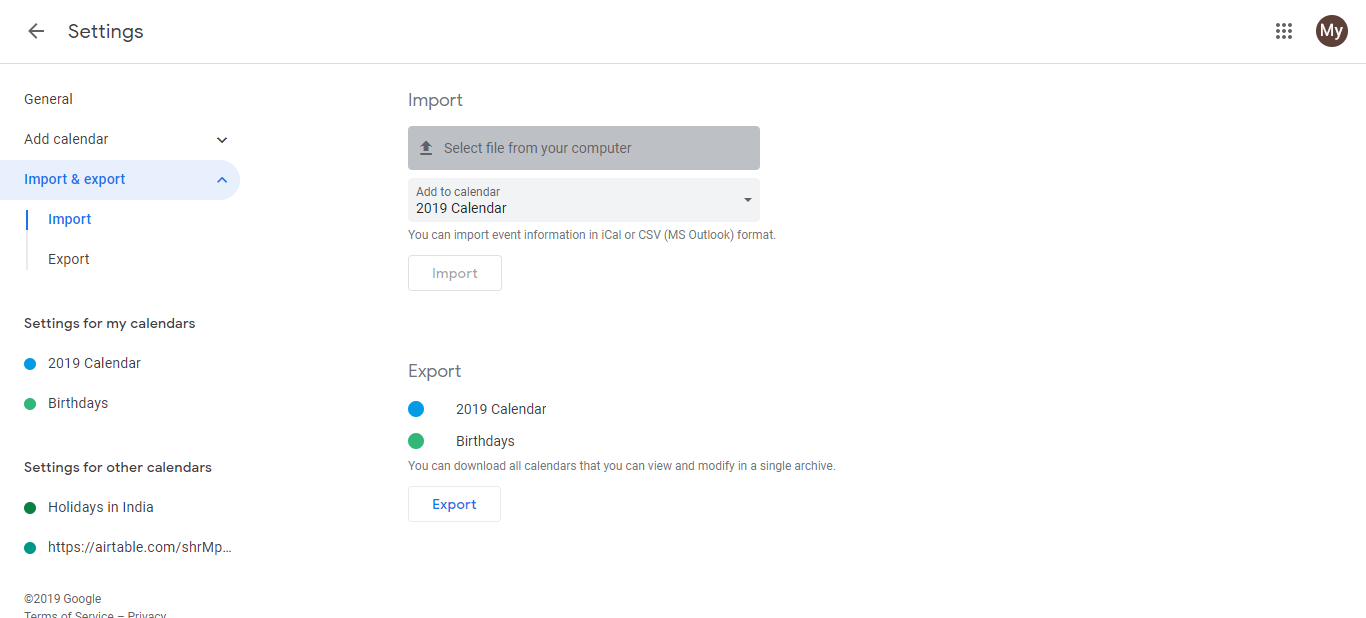
In the left sidebar, click Import & export.
In the Import section, click Select file from your computer.
Choose the .ics file you exported from Apple Calendar.
Click Import.
Google Calendar adds the events to your calendar. This is a one-time action; future changes in Apple Calendar will not update Google Calendar unless you repeat this process.
Comparison of the two methods:
| Feature | Live sync (macOS) | One-time import |
|---|---|---|
| Ongoing updates | Yes, automatic | No, one-time only |
| Direction | Bidirectional | One-way (iCal to Google) |
| Ease of setup | Very simple | Moderate |
| Requires re-sync | No | Yes, if you want new events |
| Time zone handling | Automatic | Manual verification needed |
| Works on iPhone/iPad | Yes (via iCloud) | No |
Recommended approach:
For Mac users who use both Apple Calendar and Google Calendar, the live sync method via macOS Internet Accounts is far superior because:
- Changes sync automatically
- Works both directions
- Takes only a few minutes to set up
- Time zones are handled automatically
- No manual export/import needed
Troubleshooting sync issues:
If your calendars are not syncing after adding the account:
- Go back to Internet Accounts and toggle the Calendars checkbox off, then on again.
- Restart both Apple Calendar and any browser windows with Google Calendar.
- Verify both apps are using the same time zone (System Preferences > Time & Date).
- Check that your Google account password is up to date in Internet Accounts.