How to sync Google Calendar to Outlook Calendar?
Syncing Google Calendar to Outlook Calendar means viewing your Google Calendar events inside Microsoft Outlook. There are two approaches: a simple subscription method (one-way, read-only) or a two-way sync using third-party tools.
Method 1: Subscribe to Google Calendar in Outlook (simple, one-way, read-only)
This is the easiest method. You subscribe to your Google Calendar using a public URL, and Outlook displays your Google events. This is one-way only: you see Google events in Outlook, but changes in Google Calendar may take time to appear, and you cannot edit from Outlook.
Step 1: Get your Google Calendar’s iCal URL
Open Google Calendar at calendar.google.com.
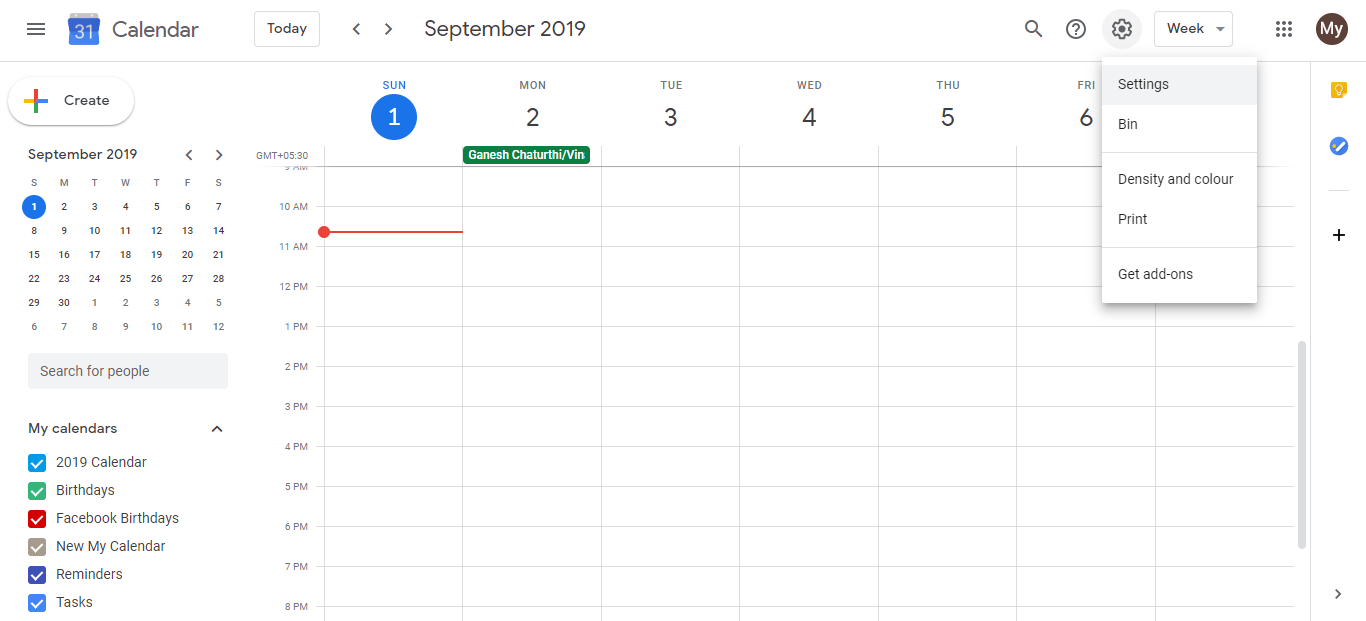
In the left sidebar, find your calendar under My calendars and click the three-dot menu next to it.
Select Settings.
Scroll down to the Integrate calendar section.
Look for Secret address in iCal format (or similar label).
Click the copy icon (or select and copy the URL) next to the iCal format link. It should look like:
https://calendar.google.com/calendar/ical/your-email%40gmail.com/private-xxxxxxxxxxxxx/basic.ics
Step 2: Subscribe to the calendar in Outlook
Open Microsoft Outlook on your desktop or at outlook.com.
In Outlook, go to File > Account Settings > Internet Calendars (the exact menu may vary by Outlook version).
Click New to add a new internet calendar subscription.
A dialog box appears asking for a calendar URL.
Paste the Google Calendar iCal URL that you copied in Step 1.
Click Add or OK.
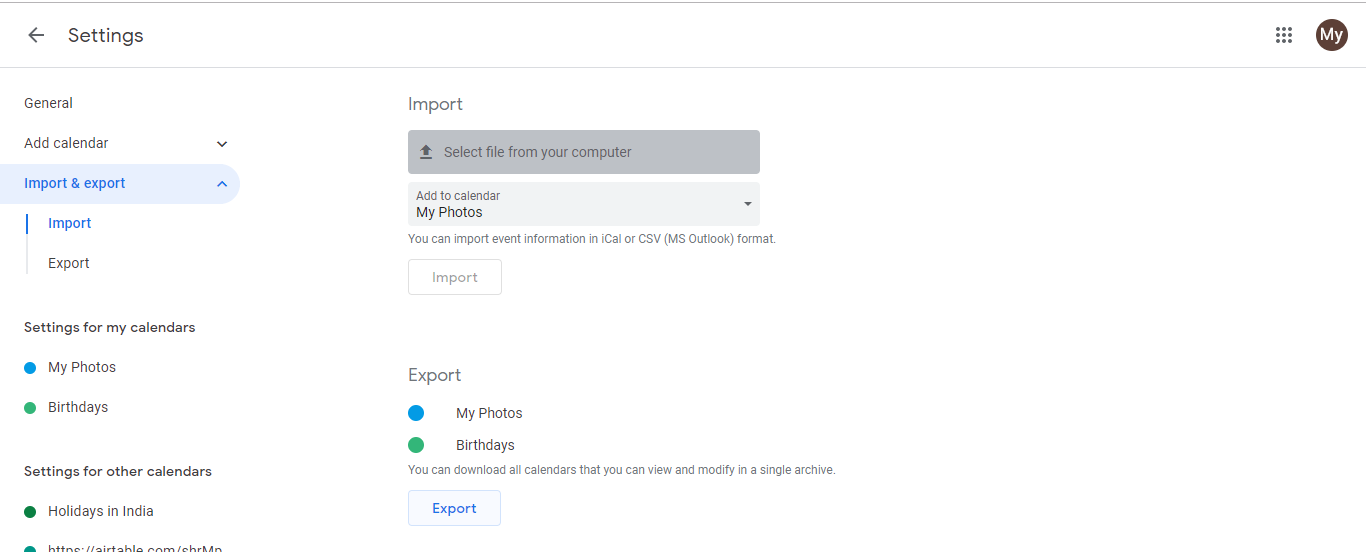
Outlook adds the Google Calendar to your calendar list (usually under Other Calendars or a similar section).
Google Calendar events now appear in your Outlook calendar view.
Step 3: Manage the subscribed calendar
Once subscribed, you can toggle the calendar visibility on or off by checking/unchecking it in the calendar list.
You can customize the display color or remove the subscription at any time through the same Internet Calendars menu.
Important notes about the subscription method:
- Read-only: You cannot edit Google Calendar events from Outlook.
- Delayed updates: Outlook checks for updates periodically (typically every few hours), so new Google Calendar events may not appear immediately.
- No back-sync: If you edit an event in Outlook, it does not update in Google Calendar. You must make changes in Google Calendar itself.
- Requires the URL: The subscription link (iCal URL) must remain valid. If you revoke sharing or change calendar settings, the subscription may break.
Method 2: Two-way sync using third-party tools (more advanced)
If you need changes in Google Calendar to update in Outlook and vice versa, you will need a third-party automation platform:
Popular tools for two-way sync:
- EasySync: Specifically designed for Google Calendar and Outlook sync
- Zapier: General automation platform that can sync between Google Calendar and Outlook
- Make (formerly Integromat): Another automation option
How two-way sync typically works:
Sign up for the third-party tool and authorize both your Google and Outlook accounts.
The tool creates a “Zap” or workflow that:
- Triggers when a new event is created in Google Calendar
- Creates a corresponding event in Outlook
- Triggers when events are updated or deleted, syncing those changes
A separate workflow does the reverse: changes in Outlook create/update events in Google Calendar.
The sync runs continuously or at scheduled intervals, keeping both calendars in sync.
Comparison of the two methods:
| Feature | One-way subscription | Two-way sync tool |
|---|---|---|
| Cost | Free | Free tier available, paid plans for advanced use |
| Setup time | 5 minutes | 10-15 minutes |
| Direction | One-way (Google to Outlook) | Both directions |
| Real-time | No (delayed updates) | Periodic or continuous |
| Edit capability | Read-only in Outlook | Can edit from either app |
| Maintenance | Low | Moderate |
Choosing between the two methods:
Use the subscription method if:
- You primarily work in Google Calendar
- You only need to view Google events in Outlook
- You want a quick, no-maintenance solution
Use two-way sync if:
- You work in both Google Calendar and Outlook equally
- You need changes in either app to sync
- You want the most current information without delays
Troubleshooting:
If the subscription is not working:
Verify that the iCal URL is correct and not expired.
Check that your Google Calendar sharing settings have not changed.
Try manually refreshing the calendar in Outlook (File > Info > Refresh Calendar).
If the calendar subscription is still broken, you may need to delete it and re-add it with the current URL.