How to sync a WebCal to "My Calendars" in Google Calendar?
A WebCal (webcal://) is a calendar subscription link using the iCalendar format. Adding a WebCal to Google Calendar creates a live subscription that automatically updates as the source calendar changes. Unlike a one-time import, a WebCal subscription keeps the calendar synchronized.
Understanding WebCal vs. import:
- WebCal subscription: Creates a live feed. Google Calendar periodically checks the source and pulls in new events. You see changes from the source calendar over time.
- One-time import: Copies events from a .ics file into your calendar at a single moment. Future changes to the source calendar are not reflected.
WebCals are preferred because they stay up-to-date automatically.
How to subscribe to a WebCal in Google Calendar:
Step 1: Get the WebCal URL
Find the calendar you want to subscribe to (e.g., a public calendar, shared calendar, or another person’s calendar).
Look for a Subscribe, Share, Export, or WebCal option in that calendar’s settings or menu.
Copy the WebCal URL. It typically looks like:
webcal://calendar.google.com/calendar/ical/...https://calendar.google.com/calendar/ical/...- Or a similar URL ending in
.ics
Step 2: Open Google Calendar
Open Google Calendar at calendar.google.com.
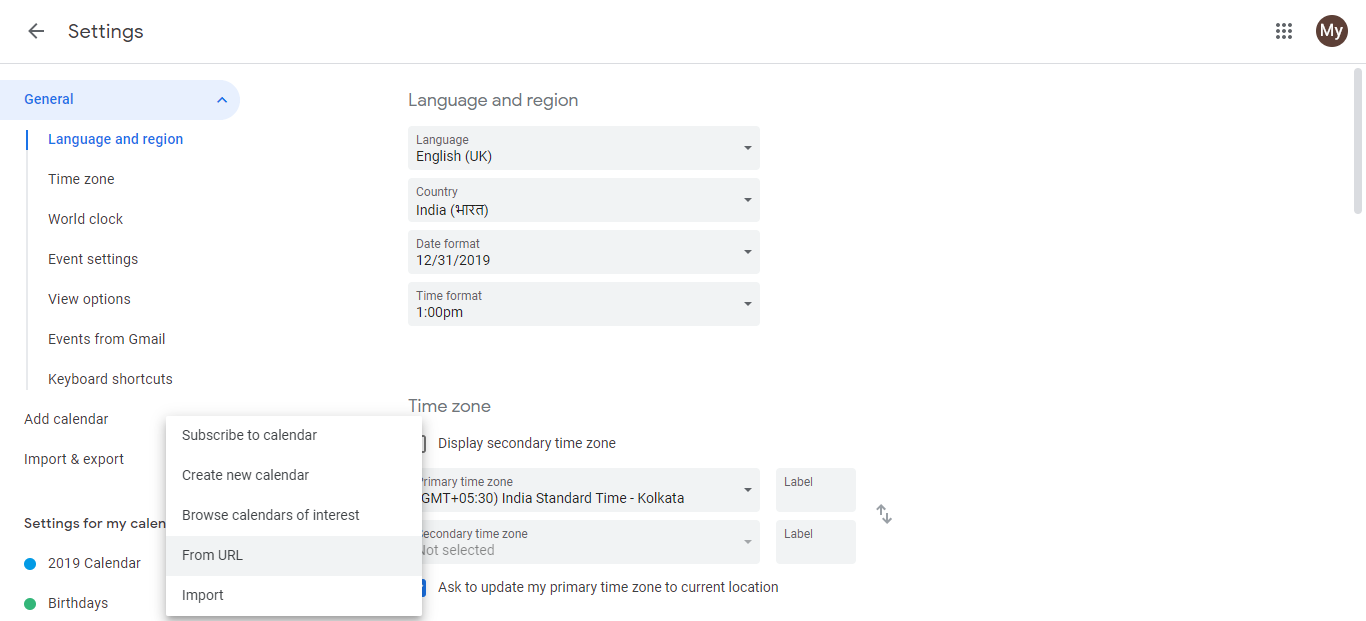
In the left sidebar, find Other calendars and click the + button next to it.
Select Subscribe to calendar or Add from URL (label may vary).
Step 3: Paste the WebCal URL
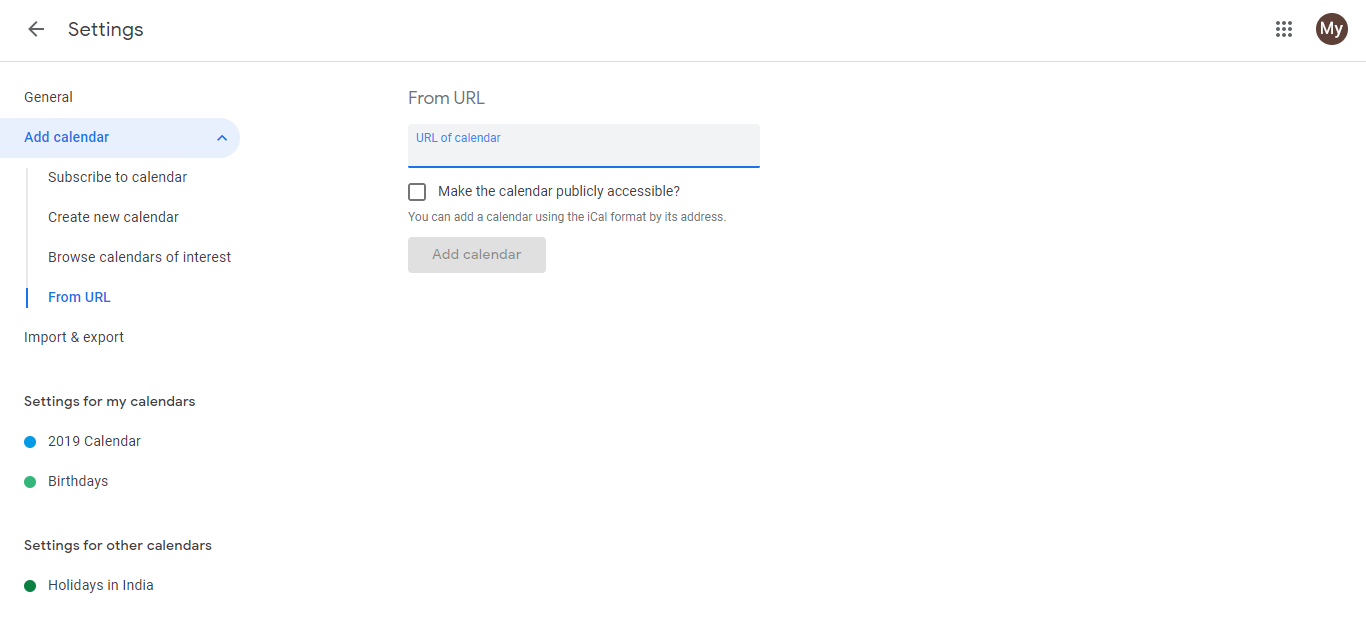
A dialog box appears asking for a calendar URL.
Paste the WebCal URL you copied in Step 1.
Click Subscribe or Add (depending on the label).
Step 4: View the subscribed calendar
The WebCal now appears in your Other calendars list in the left sidebar.
All events from the subscribed WebCal appear on your Google Calendar.
Google Calendar automatically checks the WebCal feed for updates periodically (typically every few hours).
Managing a subscribed WebCal:
Toggle visibility:
- Click the checkbox next to the WebCal name to show/hide its events on your calendar.
Change color:
- Click the three-dot menu next to the WebCal name and select a color to customize its display.
Remove the subscription:
- Click the three-dot menu next to the WebCal name and select Unsubscribe or Remove calendar.
Understand how updates work:
When you subscribe to a WebCal:
- Google Calendar downloads the calendar data from the source URL.
- Events appear on your calendar on their specified dates.
- Google Calendar periodically checks the URL for changes (usually every few hours).
- New events in the source calendar eventually appear in your Google Calendar.
- Deleted events in the source calendar are removed from your view.
- Updated event details (time, title, description) sync over time.
Why WebCals are useful:
- Public calendars: Subscribe to holidays, sports schedules, weather, or other public calendars without creating them yourself.
- Shared calendars: Colleagues can share a WebCal URL that you subscribe to, giving you access to their calendar without needing to grant you direct sharing permissions.
- Automatic updates: Changes to the source calendar are reflected in your view without manual reimporting.
- Non-destructive: Subscribing does not copy the events; it creates a live link to the source, so changes are always current.
Finding public WebCals to subscribe to:
Many organizations and services publish WebCal URLs:
- Holidays: Search “holidays WebCal [your country]” (e.g., “US holidays WebCal”)
- Sports: Sports teams and leagues often publish WebCal URLs for their schedules
- Weather: Some weather services offer WebCal subscriptions
- Shared events: Friends, colleagues, or organizations may share WebCal URLs
Important notes:
- Read-only: You cannot edit events in a subscribed WebCal. Any changes must be made in the source calendar.
- Periodic updates: Google Calendar does not update in real-time. Changes to the source calendar may take several hours to appear.
- URL must remain valid: If the source calendar revokes sharing or changes settings, the WebCal URL may stop working and you will lose access.
- Can unsubscribe anytime: Unsubscribing removes the calendar from your view but does not delete the source calendar.
Difference between WebCal and regular URL subscription:
Both webcal:// URLs and https:// URLs work in Google Calendar’s Add from URL function. The webcal:// protocol is simply an older standard; modern Google Calendar handles both formats automatically.