How to quickly copy availability in Google Calendar in plain text?
The question "How to copy availability in plain text" typically refers to exporting your free time slots as readable text that you can paste into an email or message. Google Calendar does not have a built-in "copy availability" button, but there are several workarounds.
Why this matters:
Sharing your availability with others is useful when coordinating meetings. Rather than asking someone to browse your full calendar, you provide them with a short list of times you are free (e.g., “Tuesday 10-11 AM, 2-3 PM; Wednesday 3-4 PM”).
Method 1: Manual approach using Google Calendar’s Week view (fastest for quick sharing)
If you need to share availability right now:
Open Google Calendar at calendar.google.com.
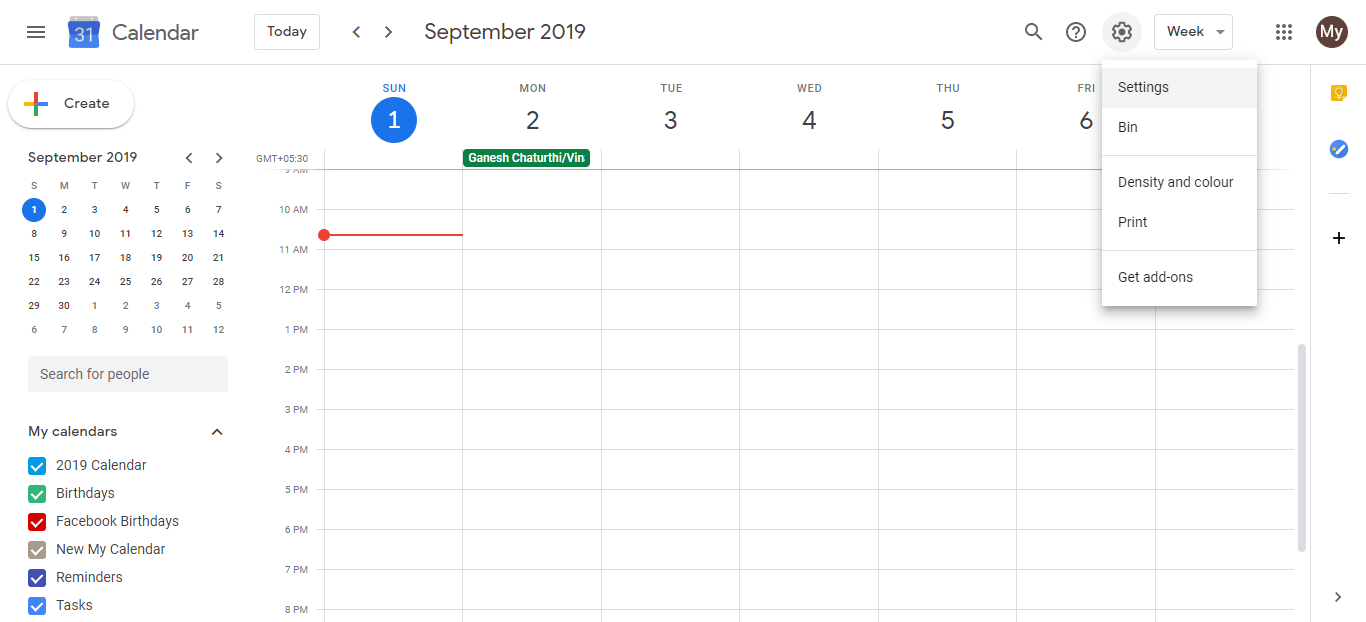
Switch to Week view by clicking the Week button at the top.
Look at the time slots that are free (no events scheduled).
Write down your available times manually (e.g., “I’m free Tuesday 10-11 AM, 2-4 PM” and paste into a message.
This method is quick but requires you to visually scan your calendar.
Method 2: Use Google Calendar’s Appointment Schedule (for booking links)
Google Calendar’s Appointment Schedule feature (available in some accounts) allows you to create a shareable link that shows only your available time slots. People can then book time directly without needing to ask.
Open Google Calendar Settings (gear icon > Settings).
Look for Appointment Schedule or Appointment slots in the left sidebar.
Create a new appointment schedule and define:
- Your working hours (e.g., 9 AM to 5 PM)
- Days you are available
- Duration of appointments (e.g., 30 minutes)
- Buffer time between appointments (e.g., 15 minutes)
Google Calendar generates a shareable link.
Share this link with others. They will see only your available time slots and can book directly.
This approach is more powerful than sharing plain text because it prevents double-booking and automates the scheduling process.
Method 3: Use a third-party scheduling tool (most professional)
Tools like Calendly, Cal.com, or Acuity Scheduling integrate with Google Calendar and generate a shareable availability link.
Sign up for a tool like Calendly (free tier available).
Connect your Google Calendar account to the tool.
The tool reads your calendar and automatically determines your free time slots based on your working hours and existing events.
Share the unique scheduling link with others.
When someone books a time, the tool automatically creates a Google Calendar event on your calendar.
This is the most professional and efficient approach for frequent availability sharing.
Why the full export method is not recommended for plain text:
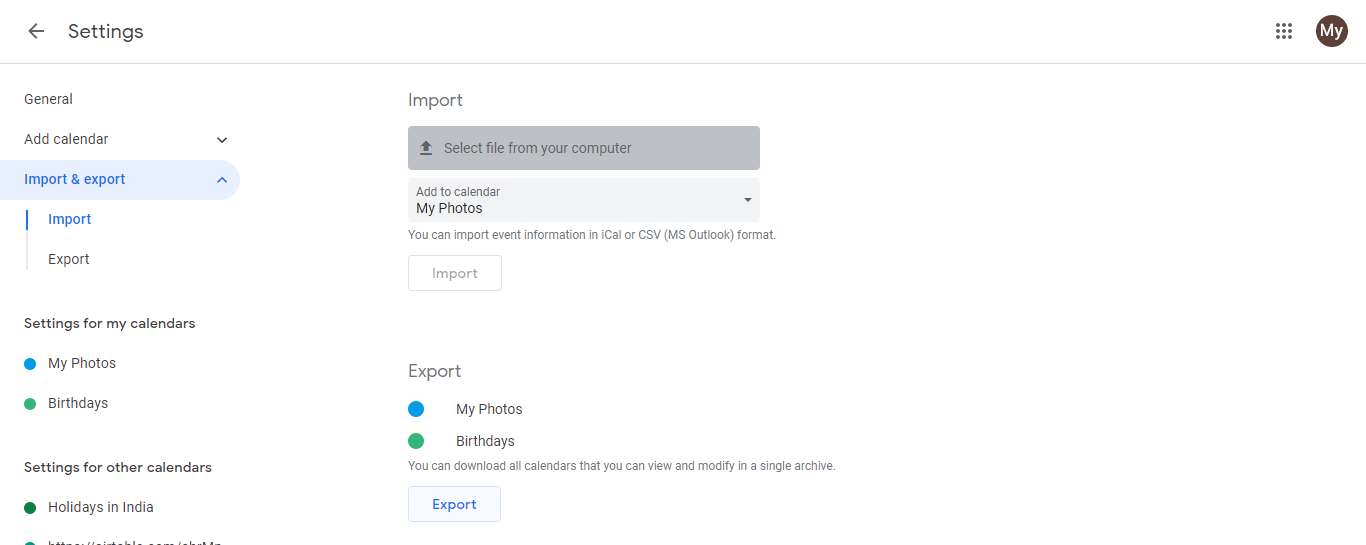
The current article describes exporting your entire calendar as a .ics file and converting it to plain text. This approach:
- Exports all your events (not just your free times)
- Requires multiple steps and third-party conversion tools
- Does not intelligently extract “availability”
- Is slow compared to the methods above
This is why the article has been rewritten to focus on practical methods for actually sharing your free time slots, rather than exporting your full event list.
Quick summary of available options:
| Method | Setup time | Best for | Automation |
|---|---|---|---|
| Manual Week view | 1 minute | One-off sharing | No |
| Appointment Schedule | 5-10 minutes | Routine booking requests | Yes, auto-create events |
| Third-party tool (Calendly) | 5 minutes | Professional scheduling | Yes, full automation |
Choose the method that matches your frequency of sharing and your level of formality.