How to mirror two Google Calendars?
Mirroring two Google Calendars means keeping the same set of events visible across two calendars so that both views are synchronized. In practice, Google Calendar does not offer native “true mirroring” (perfect bidirectional sync between two independent calendars). The practical alternative is to share one calendar with another person or email account, so both can view the same events.
Understanding what “mirroring” means:
The term “mirroring” can mean different things:
- One-way visibility: You share your calendar with someone, and they can see your events. This is the most common setup.
- Mutual visibility: Both people share their calendars with each other, so each can see the other’s events.
- Single merged view: Both people view the same calendar (e.g., a shared team calendar) rather than mirroring separate calendars.
This article covers the one-way setup. For mutual viewing, both people would repeat these steps.
How to set up calendar sharing (one-way mirror):
Scenario: You have a personal calendar and a work email. You want your work email to be able to see your personal calendar events, so all your calendar events appear in one place.
Step 1: Open your personal calendar settings
Open Google Calendar with your personal Gmail account at calendar.google.com.
In the left sidebar under My calendars, locate the calendar you want to share (e.g., “Personal”, “My Calendar”, or a custom calendar name).
Click the three-dot menu next to the calendar name.
Select Settings and sharing (or just Settings, depending on your Calendar version).
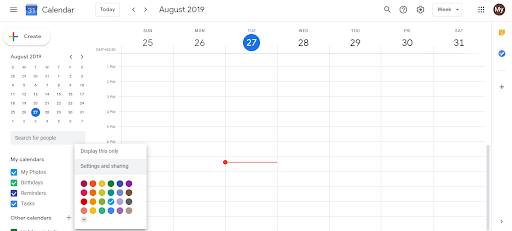
Step 2: Share with specific people
On the Settings page, scroll down to the Share with specific people or groups section.
Click Add people or groups.
Enter your work email address (or the email address of the person you want to share with).
Choose a permission level:
- Viewer: They can see all event details but cannot make changes
- Editor: They can view, add, create, and edit events on this calendar
- Owner: They have full control including sharing settings (rarely needed)
Click Share or Save.
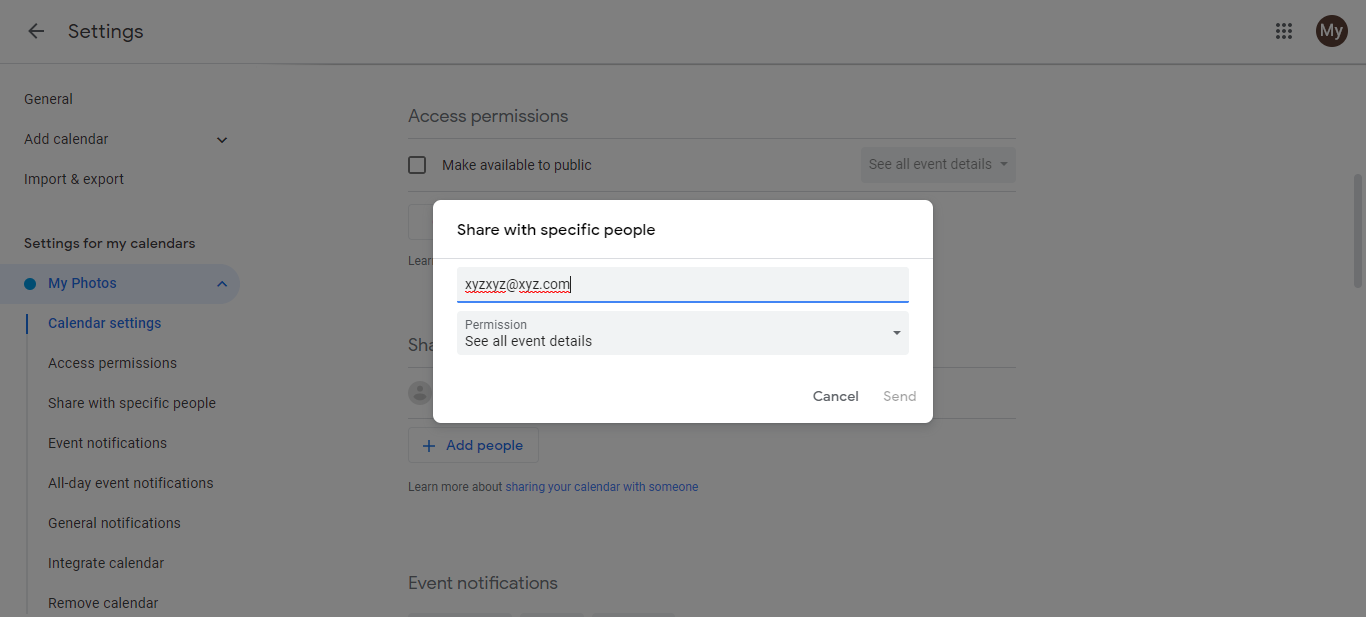
Step 3: View the shared calendar from your work account
Sign into Google Calendar with your work email account.
Your shared personal calendar should automatically appear in the Other calendars section of your work account’s sidebar.
You can now see both your work events (in your work calendar) and your personal events (in the shared personal calendar) in one place.
Setting up bidirectional sharing (mutual viewing):
If you want both calendars visible to both email accounts:
Repeat the above steps from your work account, sharing your work calendar with your personal email.
Now both accounts can see both calendars. When logged in as either account, you will see both the personal and work calendar events.
Understanding the direction of sharing:
- You share your calendar with someone else: They can now see your events in their Google Calendar (in “Other calendars”).
- They share their calendar with you: You can now see their events in your Google Calendar.
- Both share with each other: Both people can see both sets of events.
Privacy considerations:
When you share a calendar:
- If you set the permission to Viewer, the other person can see all event details (title, time, description, location).
- Viewer permission does not allow them to edit events (they can only view).
- If an event is marked as Private, some details may be hidden depending on permission levels, though the event will still show as busy/occupied.
- You control what is shared: if you don’t want someone to see certain events, mark them private before sharing or create a separate calendar for sensitive events that you don’t share.
Important: This is not true sync
One-way sharing or mutual sharing creates a view of both calendars, but changes are not “mirrored” in the technical sense:
- If you edit an event on the work calendar, it updates for everyone with access to that calendar.
- Sharing does not automatically copy events between calendars or keep them in sync on both sides.
- Each calendar remains independent; sharing just grants access to view.
Unsharing a calendar:
If you later want to stop sharing:
Go back to Settings and sharing for the calendar.
Find the person you shared with and click the X button to remove them.
They immediately lose access and the calendar disappears from their view.
Quick summary for different use cases:
| Goal | Setup |
|---|---|
| Share personal events with work account | Share personal calendar with work email |
| See work calendar in personal account | Share work calendar with personal email |
| Mutual visibility (both calendars visible to both) | Both people share calendars with each other |
| Team schedule visible to all | Create one shared team calendar everyone has access to |