How to merge multiple Gmail accounts into one Google Calendar?
Having multiple Gmail accounts can mean managing separate calendars for each account. When you want to view events from all your Gmail accounts in one unified calendar view, you can add those accounts to Google Calendar and toggle calendar visibility. This allows you to see your personal, work, and other calendars side-by-side without constantly switching accounts.
Important distinction:
This article covers viewing multiple Gmail accounts’ calendars in a single Google Calendar interface. It is not the same as exporting and importing (which merges events into one actual calendar). Here, each Gmail account’s calendar remains separate, but you see them all together.
How to add multiple Gmail accounts to Google Calendar (desktop):
Method 1: Using Google’s account switcher (simplest on desktop)
Open Google Calendar at calendar.google.com and log in with your primary Gmail account.
In the top-right corner, click your profile picture or initial icon.
Click the Gmail address currently displayed.
A dropdown appears showing your current account and an Add account option.
Click Add account.
Sign in with your secondary Gmail account.
After signing in, you will see a profile switcher in the top-right corner. You can click your profile picture to see all added accounts listed.
To view both calendars simultaneously:
- Open the account switcher again and note your accounts
- Return to the account switcher and stay in your primary account
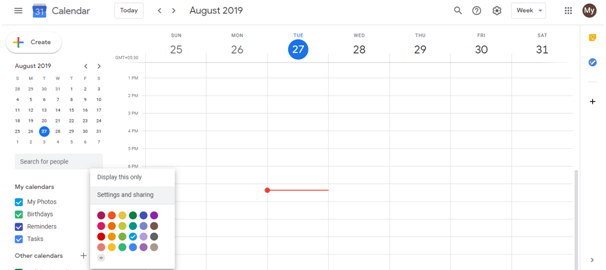
- In the left sidebar under Other calendars, click the + button
- Select Subscribe to calendar
- Enter your secondary account’s email
- You will see a dropdown with that account’s calendar options
- Select the calendar you want to view
- Click Add
The secondary account’s calendar now appears in your primary account’s sidebar under Other calendars.
You can toggle visibility by clicking the checkbox next to that calendar.
Method 2: Subscribe to secondary account calendars (more reliable)
This method works better when you want to keep calendars separate but view them together:
Ensure all your Gmail accounts are added to your browser’s Google account switcher (as described above).
In your primary Google Calendar account, click the + button next to Other calendars in the left sidebar.
Select Subscribe to calendar.
Enter the email address of your secondary Gmail account and the name of their calendar (e.g., “work@gmail.com”).
Click Find calendar or Search.
Select the specific calendar from that account (usually their main calendar is listed).
Click Subscribe.
The calendar now appears in Other calendars in your sidebar. You can toggle it on/off to show/hide those events.
Repeat for each additional Gmail account you want to view.
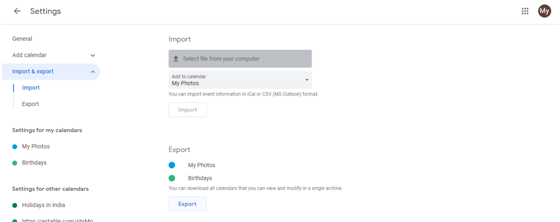
Managing multiple account calendars:
Once you’ve added secondary accounts’ calendars to your view:
- Toggle visibility: Check or uncheck the calendar name in the sidebar to show or hide that account’s events.
- Change colors: Click the three-dot menu next to a calendar to change its display color, making it easy to distinguish events from different accounts.
- Switch between accounts: Use the profile switcher in the top-right to completely switch to a different Gmail account, where you will see that account’s Google Calendar as the primary view.
How to manage multiple Gmail accounts on mobile:
The Google Calendar mobile app also supports viewing multiple accounts:
Open the Google Calendar app.
Tap the three-line menu (hamburger icon) in the top-left.
Scroll down to the very bottom and look for Settings.
Tap Settings.
Tap Add account.
Sign in with your secondary Gmail account.
Return to the calendar view. In the sidebar, you should now see calendars from both accounts listed separately.
Tap the checkbox next to each calendar to toggle its visibility in the main calendar view.
What you will see:
- Primary account: Your main calendar, with events from that account
- Secondary account calendars: Listed under Other calendars or in a separate section, depending on your app version
- All visible events: Color-coded by account/calendar, so you can see which event belongs to which account
- Unified view: You can see your complete schedule across all accounts at once without switching
Important: This is not a true merge
When you view multiple accounts’ calendars together:
- Each calendar remains separate and independent
- Events are not combined into one calendar file
- Your privacy and account security remain intact
- Changes to one calendar do not affect the others
Cannot create events on secondary accounts from the primary view:
One limitation: if you are viewing your secondary account’s calendar from your primary account, clicking to create an event will create it on your primary calendar by default. To add events to your secondary account’s calendar, you must:
- Switch to that account using the account switcher in the top-right
- Then create the event while logged into that account
Tips for managing multiple accounts:
- Use different colors: Assign a different color to each account’s calendar so you can quickly identify which events belong to which account
- Name calendars clearly: If you have multiple calendars within an account (e.g., “Work”, “Personal”), rename them clearly so you don’t confuse them
- Archive old calendars: If you have inactive accounts, consider archiving their calendars to reduce clutter in your sidebar
- Turn off notifications selectively: You can set notifications differently for each account’s calendar, so you’re only alerted for important calendars