How to merge a number of Google calendars into one which is then shared?
Merging multiple Google Calendars means combining events from several calendars into one shared calendar where everyone can view the team’s schedule. This requires two phases: first importing all the calendars’ events into a central calendar, then sharing that merged calendar with your team.
Important note about merge types:
There are two approaches:
One-time merge (import): Export all calendars as .ics files, import them into one central calendar. This is a snapshot; future changes to original calendars will not auto-update in the merged calendar.
Ongoing merge (direct sharing): Have each person share their calendar directly in Google Calendar. This keeps all calendars in sync automatically, though everyone sees separate calendars in the sidebar rather than a single merged calendar.
This article covers the one-time import approach. For a more practical ongoing solution, see the Ongoing sharing section below.
Method 1: One-time merge via import
Phase 1: Export all source calendars
For each employee whose calendar you want to merge:
- Open their Google Calendar (with their permission)
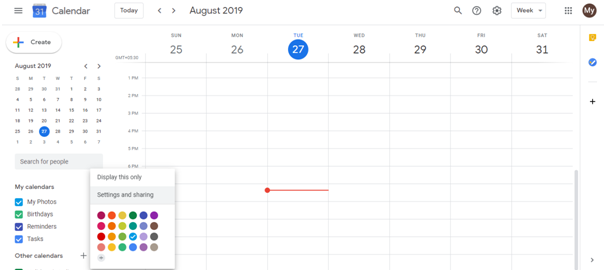
- Click the Settings gear icon
- In the left sidebar, click Import & export
- In the Export section, click Export
- A
.zipfile is downloaded containing all events as.icsfiles
Extract the zip file. Inside you will find one or more
.icsfiles (usually named something like “calendar.ics”).Repeat this for each employee’s calendar.
Phase 2: Import all .ics files into a central calendar
Decide which Google account will be the “merged” calendar. You can:
- Use one employee’s existing account (e.g., a team manager)
- Create a new shared Google account specifically for this merged calendar
Open the merged calendar’s Google Calendar at calendar.google.com.
Click the Settings gear icon.
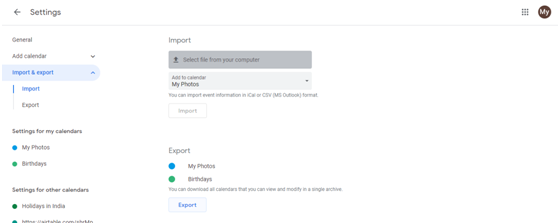
In the left sidebar, click Import & export.
For each exported .ics file:
- Click Select file from your computer
- Choose the
.icsfile - Select which calendar to import into (e.g., My Calendar or a custom calendar like “Team Schedule”)
- Click Import
Repeat for each employee’s .ics file until all events are imported.
Phase 3: Share the merged calendar with your team
In the merged calendar account, click Settings gear icon.
In the left sidebar, find your calendar in the Calendars section.
Click the three-dot menu next to the calendar and select Settings.
Scroll to the Share with specific people or groups section.
Click Add people or groups.
Enter the email addresses of team members you want to share with.
Choose a permission level:
- Viewer: Can only view events (read-only)
- Editor: Can add, edit, or delete events
- Owner: Has full control including sharing and permission changes
Click Save.
Team members will receive a sharing notification and can now see the merged calendar in their own Google Calendar accounts.
Method 2: Ongoing merge via direct calendar sharing (recommended for teams)
Rather than importing, have each person directly share their calendar:
Each team member opens their Google Calendar.
In the sidebar under My calendars, they click the three-dot menu next to their calendar name.
They select Settings.
They scroll to Share with specific people or groups.
They add their manager’s or team email address with Viewer permission.
The manager (or designated person) then goes to Settings > Other calendars > Add other calendars > Subscribe to calendar and adds each shared calendar.
Result: The manager sees all team calendars in their sidebar, updates sync in real-time, and the original calendars remain on their owners’ accounts.
Advantages of direct sharing vs. import:
| Aspect | One-time import | Direct sharing |
|---|---|---|
| Ongoing sync | No (snapshot only) | Yes (real-time) |
| Source calendar updates | Not reflected | Automatically updated |
| Central location | All events in one calendar | Separate calendars visible |
| Setup complexity | Moderate | Simple |
| Permission control | By merged calendar settings | Each person controls their own |
| Privacy | Less granular | Each person controls what’s shared |
Privacy and permissions:
When you merge calendars or share them:
- Original events retain their settings: If an event is marked private in the source calendar, it may show on the merged calendar as “Busy” without details, depending on permissions.
- Granular control: Each team member can designate certain events as private before sharing, controlling what others see.
- Shared calendar privacy: When someone has “Viewer” permission, they see all event details. Use “Viewer” only for trusted team members or use event-level privacy controls.
Quick summary:
For merging calendars in an organization:
- Short-term or one-off needs: Use one-time import (this method). Fast to set up, no ongoing maintenance.
- Ongoing team coordination: Use direct calendar sharing. More practical, real-time updates, less manual work.