How to get iCloud calendar to show in Google Calendar?
iCloud Calendar can be added to Google Calendar as a read-only subscribed calendar using a public sharing URL. This allows you to view your iCloud events in Google Calendar, though you cannot edit them from Google Calendar directly.
Important distinction:
This is a subscription, not a true sync. iCloud Calendar provides Google Calendar with a URL to your public calendar feed. Google Calendar checks this URL periodically for updates. Changes to iCloud events will eventually appear in Google Calendar, but the process is not real-time and is one-directional: from iCloud to Google Calendar only.
How to add iCloud Calendar to Google Calendar:
Step 1: Share your iCloud Calendar publicly
Go to iCloud.com and sign in with your Apple ID.
Click Calendar.
In the left sidebar, find the calendar you want to share (or create a new one if needed).
Right-click the calendar name and select Share Calendar or look for a Share icon next to the calendar name.
In the sharing options, select Public Calendar (or Share with Public).
iCloud generates a public URL for your calendar. Copy this URL.
Why the calendar must be public:
Google Calendar can only subscribe to calendars that have a publicly accessible URL. Private iCloud calendars do not have a shareable URL that Google Calendar can access. Setting it to “Public” generates a unique, hard-to-guess URL but does not list your calendar in any public directory.
Step 2: Add the iCloud URL to Google Calendar
Open Google Calendar at calendar.google.com.
In the left sidebar, find Other calendars and click the + button next to it.
Select Subscribe to calendar or Add from URL (exact label may vary).
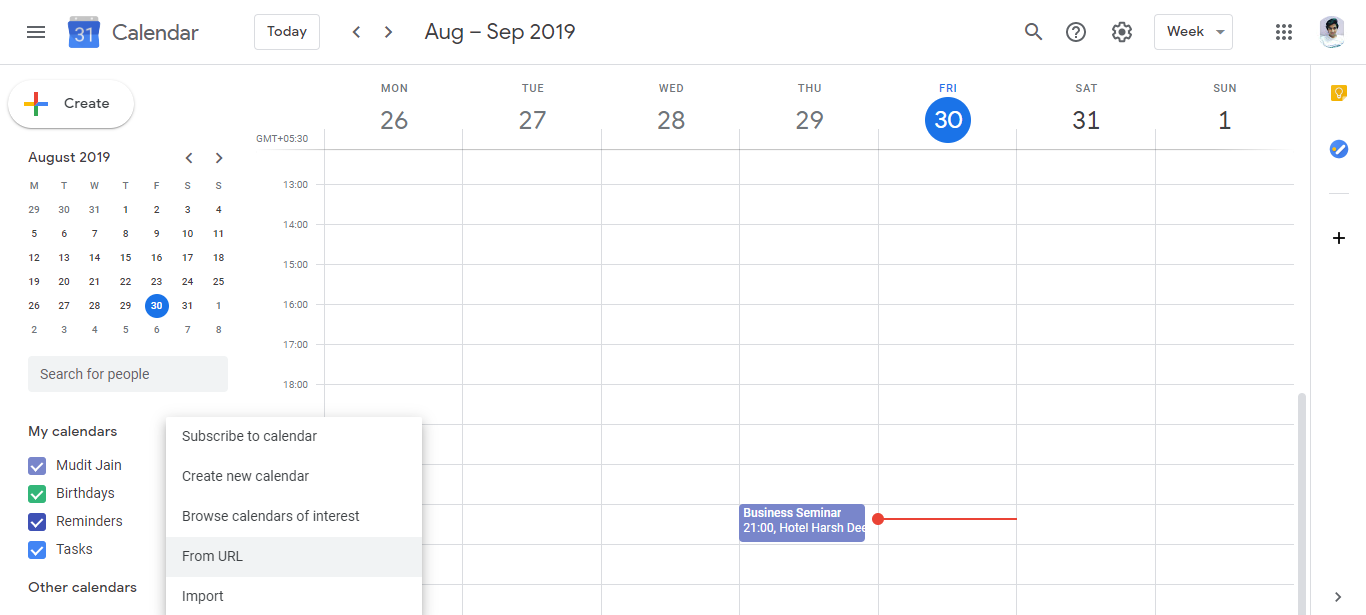
A dialog box appears asking for a calendar URL.
Paste the iCloud public calendar URL that you copied in Step 1.
Click Subscribe or Add.
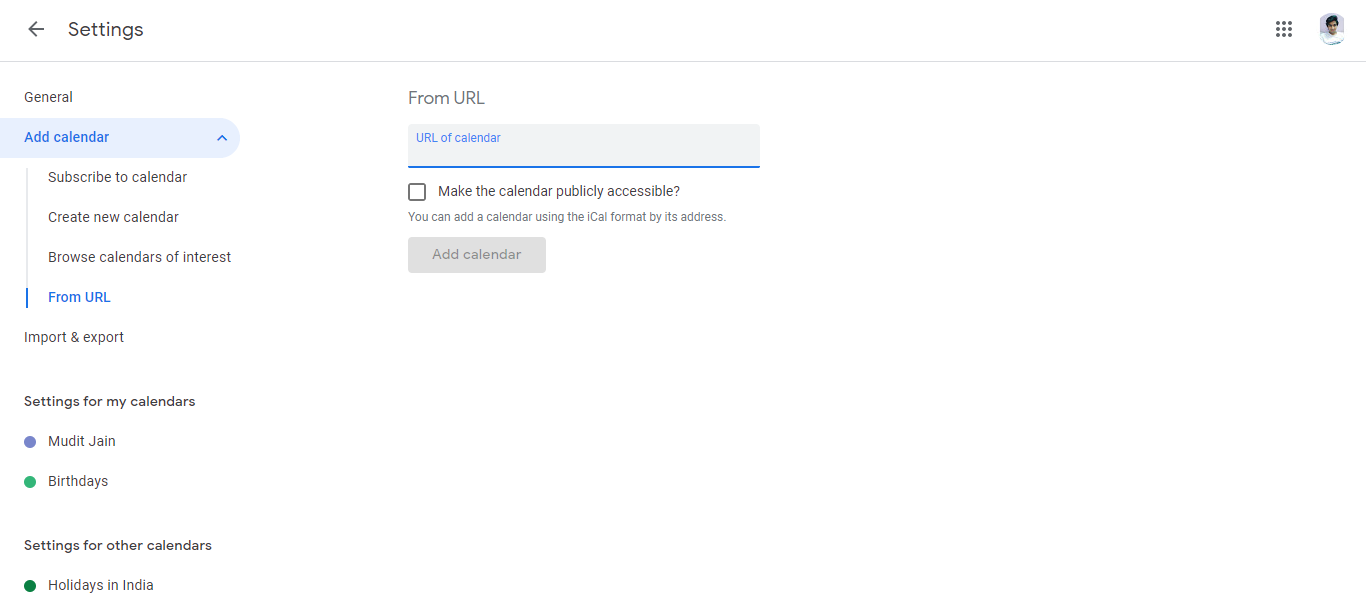
- Google Calendar adds the iCloud calendar to your Other calendars list.
What happens next:
- All events from your iCloud calendar now appear in your Google Calendar view.
- Google Calendar checks for updates periodically (usually every few hours).
- New iCloud events will eventually appear in Google Calendar.
- Deleted iCloud events will be removed from Google Calendar’s view.
Important notes about this setup:
- One-way only: You can view iCloud events in Google Calendar, but you cannot edit them from Google Calendar. Edits must be made in iCloud Calendar or Apple Calendar.
- Delayed updates: Changes to iCloud Calendar may take a few hours to appear in Google Calendar. It is not real-time sync.
- Your iCloud calendar must remain public: If you change the sharing setting back to private, the URL stops working and Google Calendar loses access.
- You can have multiple subscriptions: You can add multiple iCloud calendars to Google Calendar by repeating these steps with different calendar URLs.
Changing your subscription:
To remove the iCloud calendar from Google Calendar:
In Google Calendar, find the iCloud calendar in the Other calendars section.
Click the three-dot menu next to it.
Select Unsubscribe or Remove calendar.
The iCloud calendar disappears from your Google Calendar view, but the calendar itself remains in iCloud unchanged.
Syncing the other direction (Google to iCloud):
If you also want your Google Calendar events to appear in iCloud Calendar:
Export your Google Calendar as a .ics file (Settings > Import & export > Export > download the .ics file).
Open iCloud Calendar.
Import the .ics file (if iCloud supports direct import) or use third-party tools like Zapier to automate the sync.
Note: This creates a one-way sync from Google Calendar to iCloud. Changes to Google Calendar events will not automatically update iCloud unless you set up an automation.