How to export PDF school calendar into Google Calendar?
Google Calendar cannot read a PDF file directly. PDFs are visual documents, not structured calendar data. To import a school calendar from a PDF into Google Calendar, you must first convert the PDF to a calendar-compatible format (.ics or .csv), and then import that file.
Why PDF conversion is necessary:
Google Calendar recognizes only structured calendar data formats like .ics (iCalendar) and .csv (comma-separated values). A PDF is a visual document containing images and text but not structured event data. Google Calendar cannot automatically extract dates and event details from a PDF’s layout.
How to import a PDF school calendar into Google Calendar:
Step 1: Convert the PDF to .ics format
Open a web browser and search for “PDF to .ics converter” or “PDF to iCalendar converter”.
Popular free converters include:
- Online converter tools (search results should show several)
- Some calendar applications (like Apple Calendar) can open PDFs and export as .ics
Upload your PDF school calendar to the converter tool.
The tool attempts to recognize dates and event details from the PDF and structure them as calendar events.
Download the resulting .ics file to your computer.
Important note on conversion accuracy:
Automated PDF converters may not recognize all events if the PDF has:
- Non-standard date formats
- Images or graphics instead of text
- Complex layouts or merged cells
- Handwritten or stylized text
If the conversion misses events, you can manually add them to Google Calendar after importing the converted file.
Step 2: Open Google Calendar Settings
Open Google Calendar at calendar.google.com.
Click the Settings gear icon in the top-right corner.
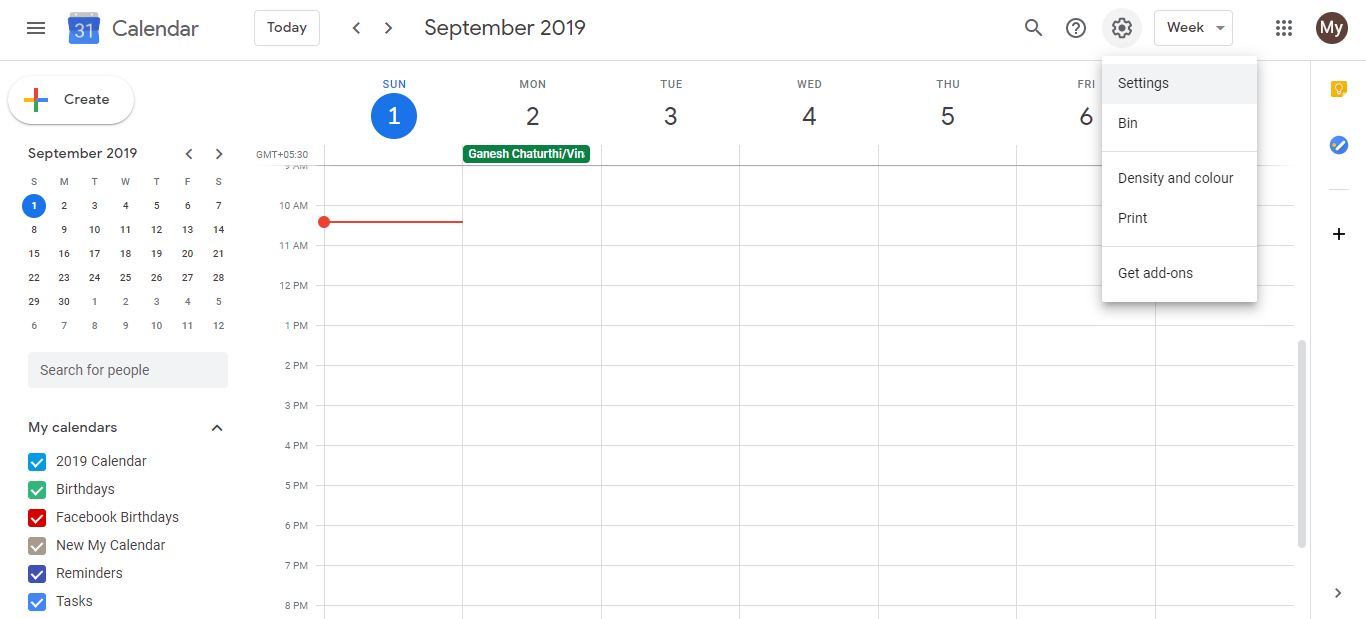
Step 3: Navigate to Import & Export
- In the left sidebar, click Import & export.
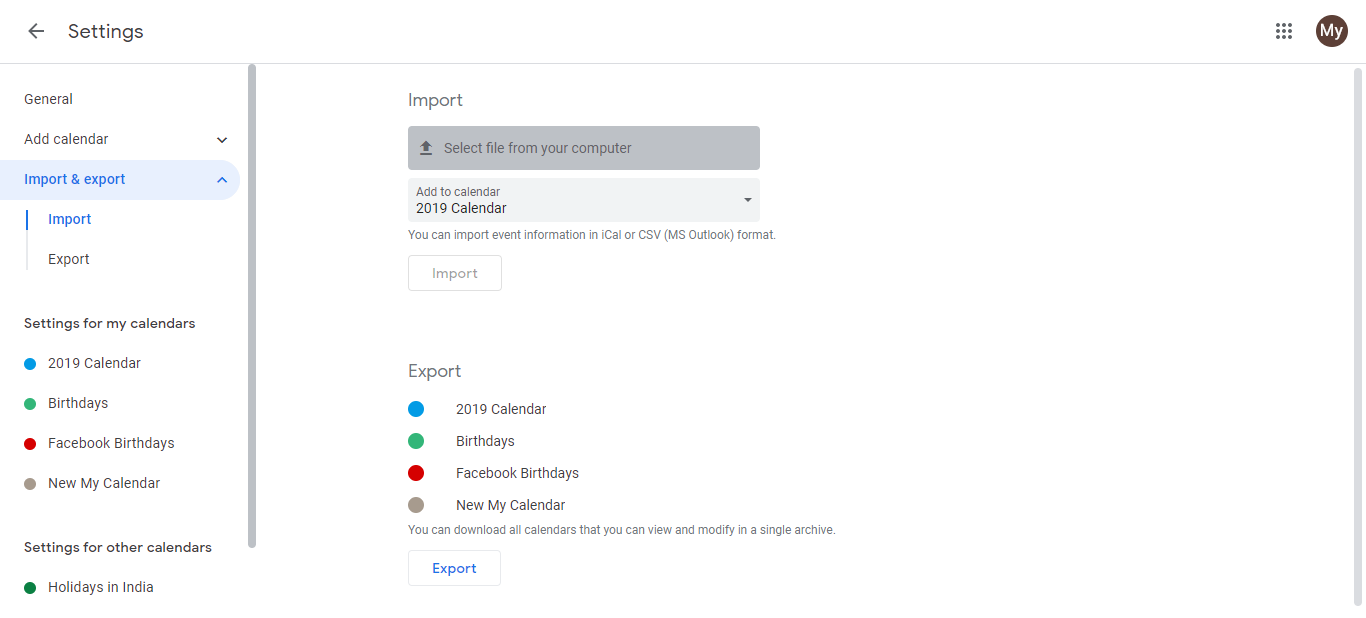
Step 4: Select your .ics file
In the Import section at the top, click Select file from your computer.
Browse to the .ics file you downloaded from the conversion tool and select it.
Click Open.
Step 5: Choose the destination calendar
A dialog appears asking: “Which calendar should these events be imported into?”
Select the calendar where you want the school events to appear (e.g., My Calendar, or a custom calendar like School Calendar if you’ve created one).
Click Import.
What happens after import:
- All recognized events from the PDF are added to your selected calendar.
- Events appear on the dates identified during PDF conversion.
- Reminders and other event details (if recognized) are preserved.
If events are missing after import:
Manually create the missing events in Google Calendar.
To add an event quickly:
- Click the calendar date where the event should appear
- Enter the event name, date, and time
- Click Save
Alternatively, try using a different PDF converter tool, which may recognize the calendar layout more accurately.
Verification after import:
Check your calendar for the imported events.
Verify that dates and event titles are correct.
Add any missing events manually if the conversion tool did not capture them.