How to add calendar to Google Calendar?
Adding a calendar to Google Calendar typically refers to importing events from another calendar application (Apple Calendar, Outlook, Microsoft Exchange, etc.) into Google Calendar. This is a one-time bulk import, not an ongoing sync. Once imported, the events appear in the calendar you choose, but changes to the source calendar will not automatically update.
Important distinction:
This article covers one-time imports. If you want an ongoing sync where both calendars stay updated together, you would instead subscribe to a calendar using a shared URL, which is a different process.
How to import a calendar from another application:
Step 1: Export the calendar from your source application
Open the calendar application (Apple Calendar, Outlook, Evolution, etc.) on your computer.
Find the Export option (location varies by application):
- In Apple Calendar (Mac): Select the calendar, then use File > Export.
- In Outlook: Right-click the calendar folder and select Export.
- In Microsoft Exchange: Use the calendar export option in your client.
- In other applications: Look in File > Export or Calendars > Export.
The export will create a file in .ics (iCalendar) format or occasionally .csv (comma-separated values) format. If given a choice, select .ics as it preserves more event details.
Save the file to your computer.
Step 2: Open Google Calendar Settings
Open Google Calendar at calendar.google.com.
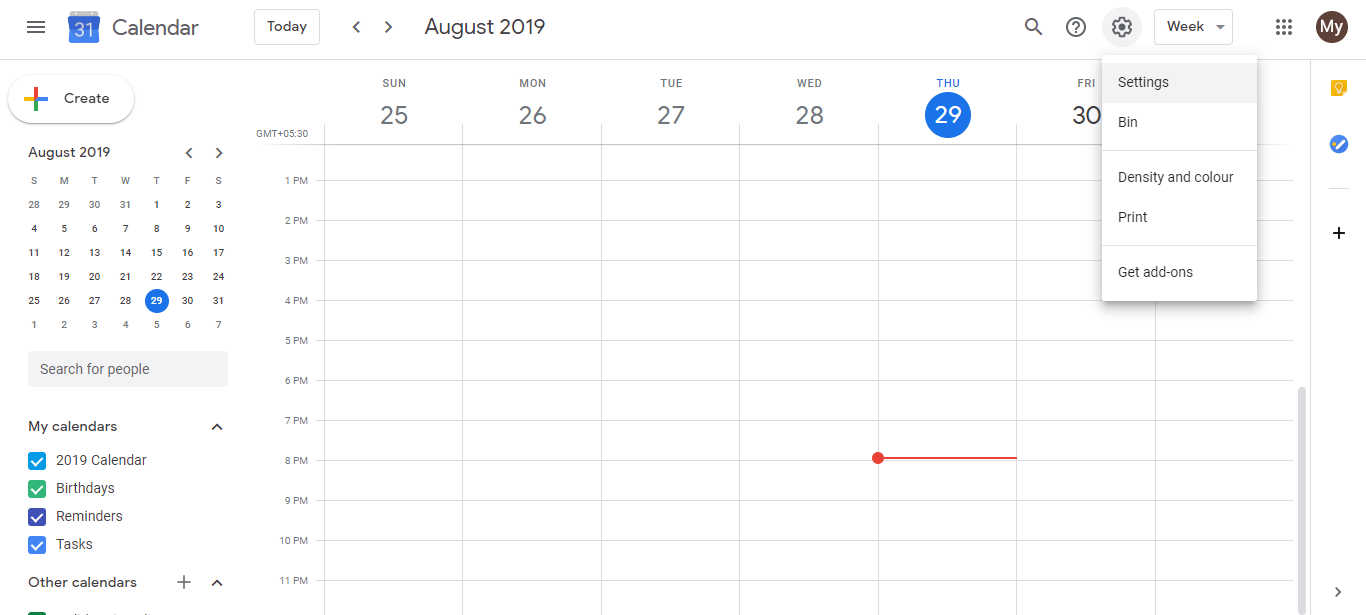
Click the Settings gear icon in the top-right corner.
Step 3: Navigate to Import & Export
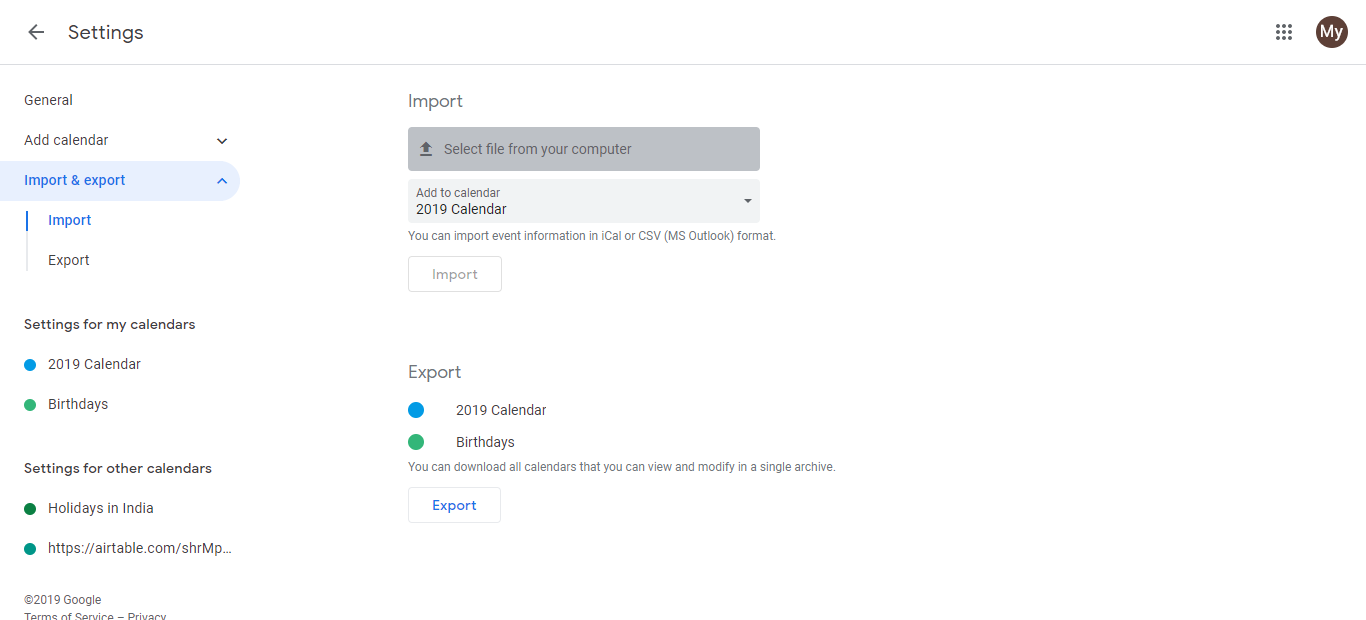
In the left sidebar, click Import & export.
At the top of the page, you will see the Import section.
Step 4: Select your file
Click Select file from your computer.
Browse your computer’s file system and select the .ics or .csv file you exported in Step 1.
Click Open.
Step 5: Choose the destination calendar
A dialog appears asking: “Which calendar should these events be imported into?”
Click the dropdown and select the calendar where you want the events to appear:
- My Calendar (your primary calendar)
- Work Calendar (if you have one)
- Any other custom calendar you have created
Click Import.
What happens after import:
- All events from the file are added to the calendar you selected.
- Each event appears on its specified date and time.
- If the .ics file contains reminders or recurring event patterns, those are generally preserved. CSV imports may lose some of these details.
- If duplicate events are imported by mistake, you will need to delete them manually.
Handling duplicates:
If you import the same file twice by mistake, Google Calendar will create duplicate events. Google Calendar does not automatically detect and skip duplicates. To fix this:
- Find the duplicate events on your calendar.
- Click each event and select Delete.
- Confirm the deletion.
To avoid accidental duplicates, keep notes of which calendar files you have already imported.
Tips for successful import:
- Use .ics format when possible, especially if your events include recurring patterns, time zone information, or reminders.
- Test with a small file first to ensure the format is correct before importing a large number of events.
- Make sure the date format in your file matches what Google Calendar expects (for CSV files).
- If the import fails, check that the file is not corrupted and that all required columns are present (for CSV format).