How to add a saved place from Google Maps to a Google Calendar event?
When you add a location to a Google Calendar event, you can use a saved place from Google Maps instead of typing an address manually. This approach is useful because it ensures the address is accurate, and Google Calendar will display a map preview and provide directions to event attendees.
What are saved places in Google Maps:
Saved places are locations you have starred or labeled in Google Maps (e.g., “Home”, “Office”, “Favorite Restaurant”, “Client headquarters”). Once you have saved a place in Google Maps, you can quickly reference it when adding event locations without having to type the full address again.
How to add a saved place to a calendar event:
Open Google Calendar at calendar.google.com.
Click on the event you want to add a location to, or create a new event by clicking Create (the + button).
Click the Edit button or click Edit event in the event details popup.
Scroll down to the Location field.
Start typing the name of the place you want to add (e.g., “Home”, “Conference Room B”, or a business name).
Google Calendar will show a dropdown list of suggestions. If your saved place appears, click it. If you’re typing a name from Google Maps, you should see it in the suggestions.
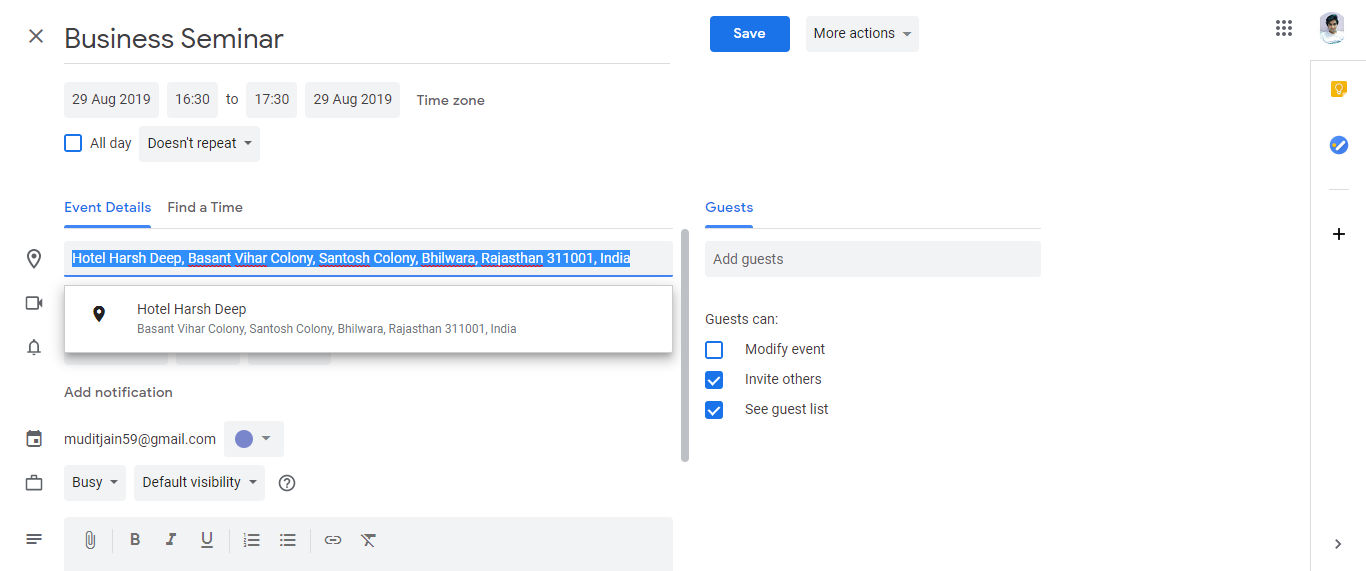
Once you select the location, Google Calendar automatically fills in the address and may display a map preview in the event details.
Click Save to add the location to the event.
Why adding a location matters:
When you include a location in an event, Google Calendar can:
- Show a map preview: Guests can see exactly where the event is located by viewing the map that appears in the event details.
- Provide directions: Guests can click the location link and Google Maps will open with turn-by-turn directions and current traffic information.
- Suggest travel time: On mobile, Google Calendar can estimate travel time and offer a reminder to leave on time.
Adding a location if you don’t have a saved place:
If you have not saved the place in Google Maps yet, you can still add it to a calendar event by typing the address directly in the Location field. Google Calendar recognizes most addresses, street intersections, business names, and landmarks. You do not need to save it in Google Maps first.
Editing a location in an existing event:
To change or update the location of an event that already has attendees:
Click the event and select Edit event.
Click in the Location field and change the address.
Click Save.
Note: Existing event attendees will not automatically receive a notification about the location change. If the location is important, consider sending them a message directly.