How to add a Google Maps route as an Event in Google Calendar?
Google Maps does not have a direct button to export a route (directions with multiple stops or a specific path) directly to Google Calendar. However, you can create a calendar event with the route’s destination address and include the route details in the event description.
Important distinction:
- Single destination: When you add a location to a calendar event, Google Calendar shows the destination address and map preview.
- Route with multiple stops: Google Maps routes can have multiple waypoints (e.g., “Start at home, go to Starbucks, then to office”). Calendar events only support one location field, so you would add the final destination and describe the route in the description.
Method 1: Add the destination address to a calendar event (simplest)
If your route has a final destination (even if you’ll stop elsewhere along the way):
Open Google Calendar at calendar.google.com.
Create a new event or open an existing one.
Click Edit to open the full event details.
Scroll to the Location field and enter the destination address (the endpoint of your route).
Google Calendar displays a map preview and provides directions to that location.
Click Save.
When attendees click the location, they get directions to the destination in Google Maps.
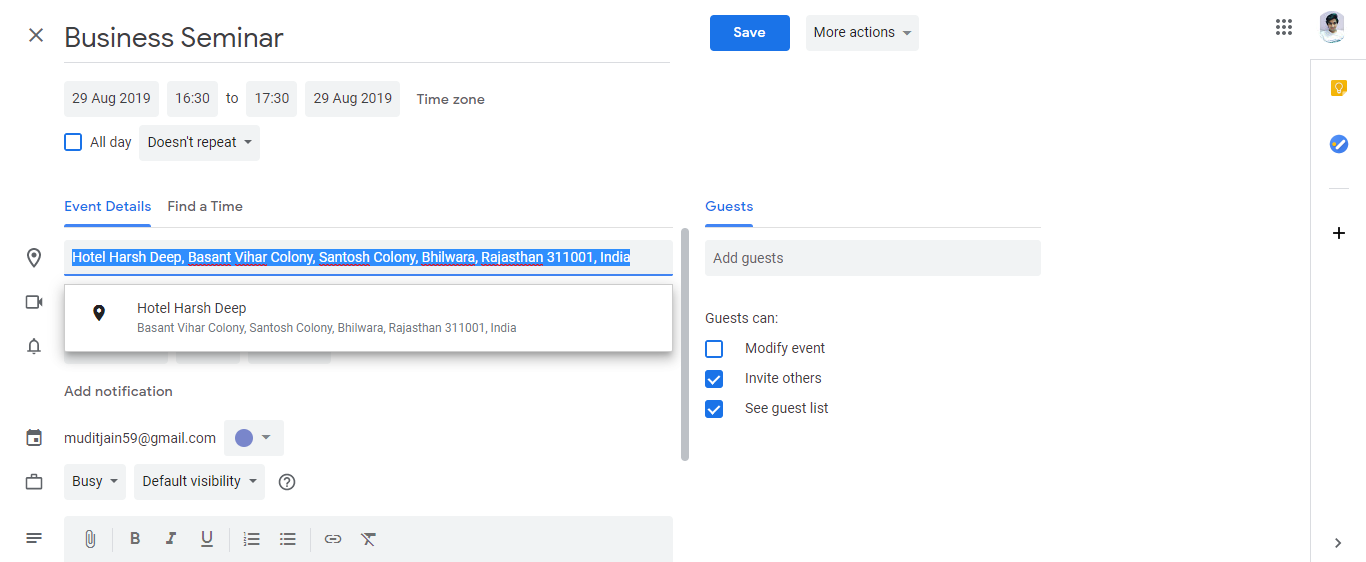
Method 2: Include full route details in the event description
For complex routes with multiple stops:
In Google Maps, enter your starting point and get directions to your destination, adding waypoints/stops as needed.
Copy the full route details from Google Maps (e.g., “Start at 123 Main St, stop at Starbucks at 456 Oak Ave, end at 789 Elm St”).
Create the calendar event with the final destination in the Location field.
In the Description field, paste the full route details:
- All waypoints/stops
- Estimated travel time for each leg
- Notes (e.g., “Allow extra time for parking”)
Click Save.
Attendees can see the full route in the description and click the destination link to get turn-by-turn directions.

Method 3: Share the Google Maps link in the event
In Google Maps, create your route with all waypoints.
Click Share and copy the shareable link to your route.
Create a calendar event with the destination address in the Location field.
In the Description field, paste the Google Maps route link.
Click Save.
Attendees can click the link to open Google Maps with your saved route, including all stops and waypoints.
Travel time reminder with route consideration:
Even if you add just the final destination address to the calendar event:
Set a reminder for the event (e.g., 30 minutes before).
On mobile, Google Calendar’s reminder will suggest when to leave based on travel time to the destination.
Click the directions link to open Google Maps and see the full route with current traffic.
You can choose to follow the optimized route or your own multi-stop route.
Why Google doesn’t offer direct route export:
Google Maps routes are dynamic and can be recalculated based on:
- Current traffic conditions
- Your preferred transportation method (driving, transit, walking)
- Real-time construction or road closures
By the time a route is shared, traffic may have changed, making a static route less useful. Google Calendar’s approach of linking to the destination allows Maps to recalculate the optimal route at the time you need it.
Quick summary:
| Scenario | Solution |
|---|---|
| Single destination | Add address to Location field |
| Multi-stop route | Add destination to Location, list waypoints in Description |
| Complex route with preferences | Share the Google Maps link in event Description |
| Quick navigation | Add destination, click link when ready to navigate |