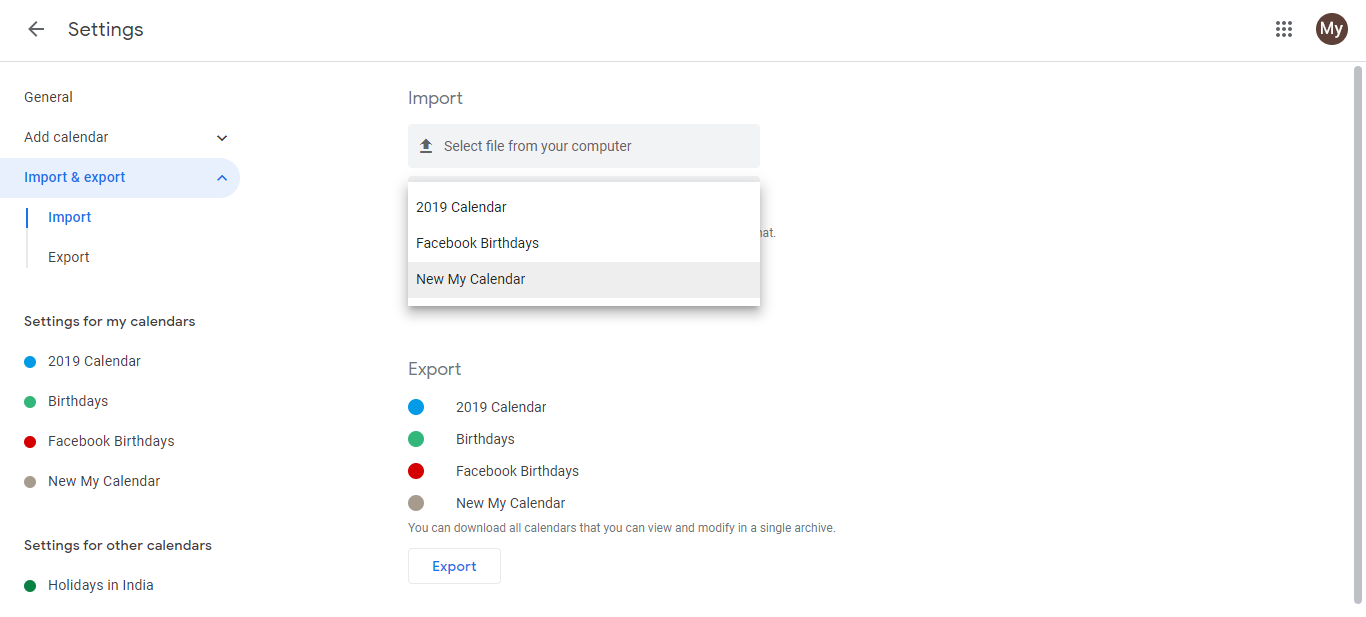
How to add a calendar from "other calendars" to "My calendars" in Google Calendar?
The “Other calendars” section in the Google Calendar sidebar contains calendars you can subscribe to but do not own. These include public calendars (holidays, sports schedules, weather forecasts), calendars shared with you from other people, and calendars shared via URL. Subscribing adds them to your calendar view without creating your own copy.
There are several ways to add a calendar to “Other calendars”, depending on how the calendar is shared with you.
Adding a calendar via a shareable URL or public link:
Open Google Calendar at calendar.google.com.
Click the + button next to Other calendars in the left sidebar.
Select Subscribe to calendar.
Paste the calendar’s URL (this could be an iCal format link ending in
.ics, a webcal:// URL, or a shareable calendar link).Click Subscribe. The calendar now appears in your Other calendars list.
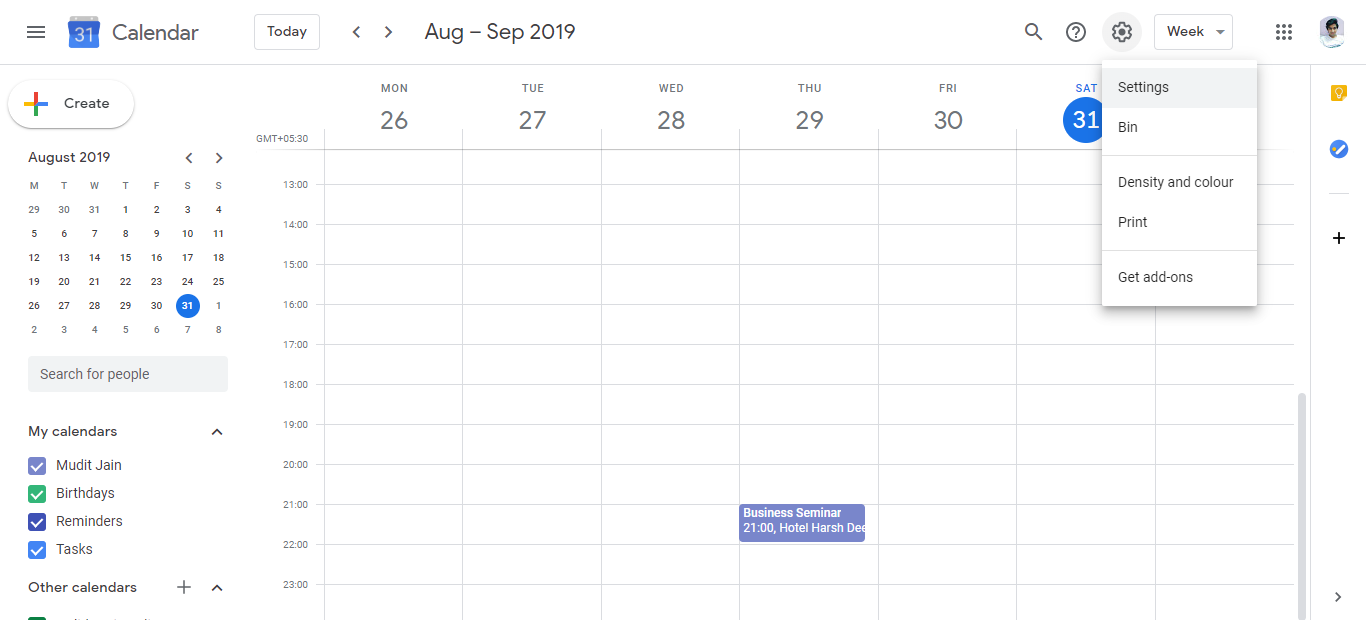
Adding a calendar that’s been shared with you:
If someone shared a calendar directly with you via email:
Open the email from the person who shared the calendar.
Click the link in the email to open Google Calendar.
Click Add or Subscribe when prompted. Google Calendar will add the calendar to your Other calendars list automatically.
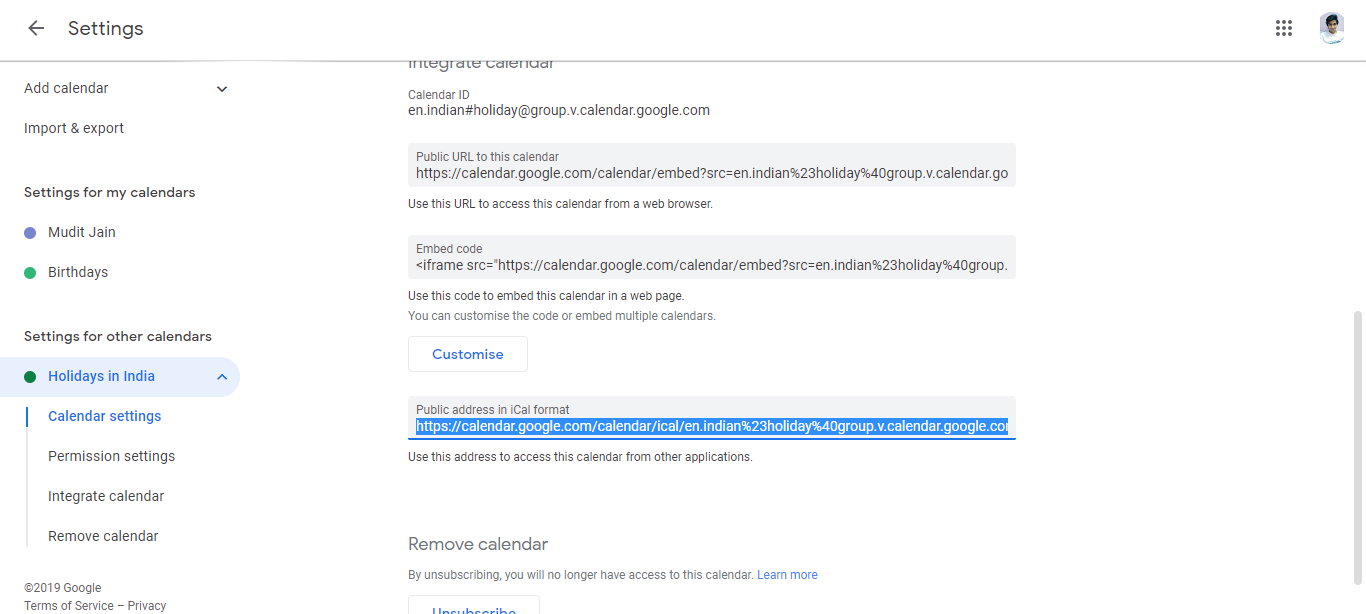
Finding a public calendar to subscribe to:
Open Google Calendar.
Click the + button next to Other calendars.
Select Search for a calendar (or “Browse calendars of interest”).
Type a search term (e.g., “US Holidays”, “World Cup”, “Weather”) to find public calendars.
Click on a calendar result to see a preview. Click Subscribe to add it.
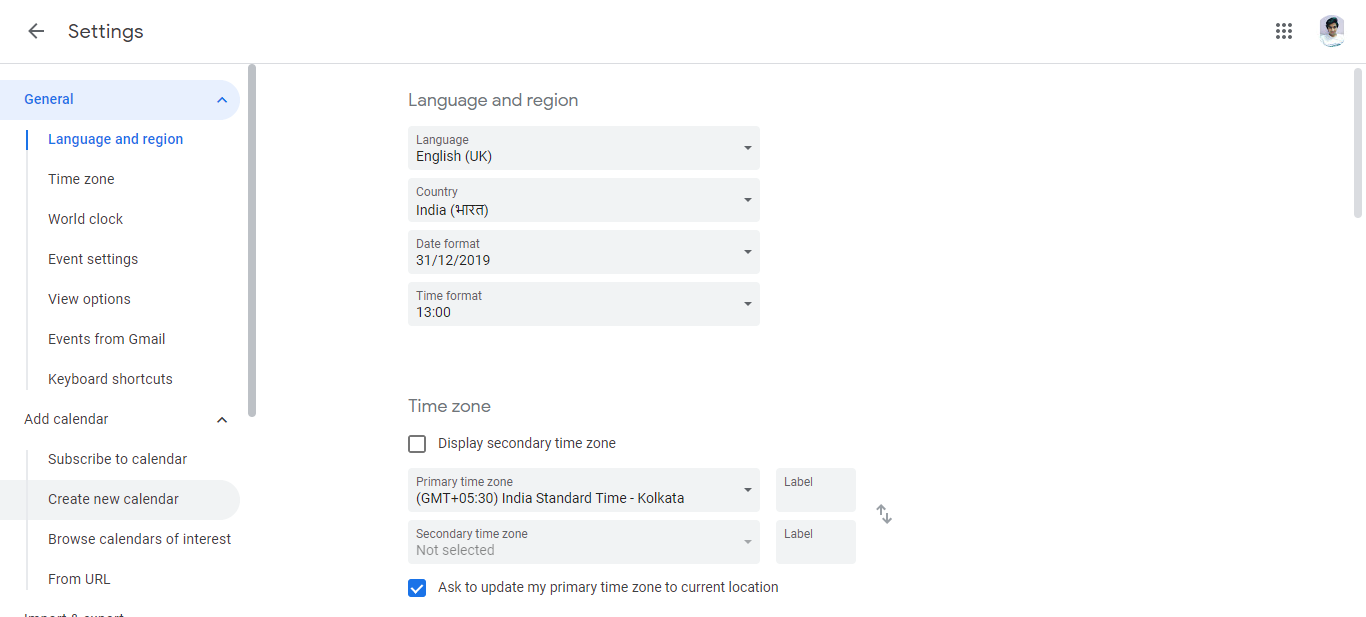
Understand subscriptions vs. ownership:
When you subscribe to a calendar, Google Calendar regularly downloads updates from that calendar’s source. If the calendar owner adds new events or removes old ones, your subscribed version automatically updates. However, you cannot edit the events yourself unless you have been given edit permissions.
If you later want to stop seeing a subscribed calendar:
Find the calendar in the Other calendars section.
Click the three-dot menu next to the calendar name.
Select Unsubscribe (or Remove calendar).
The calendar disappears from your view. Your own calendars and events are not affected.
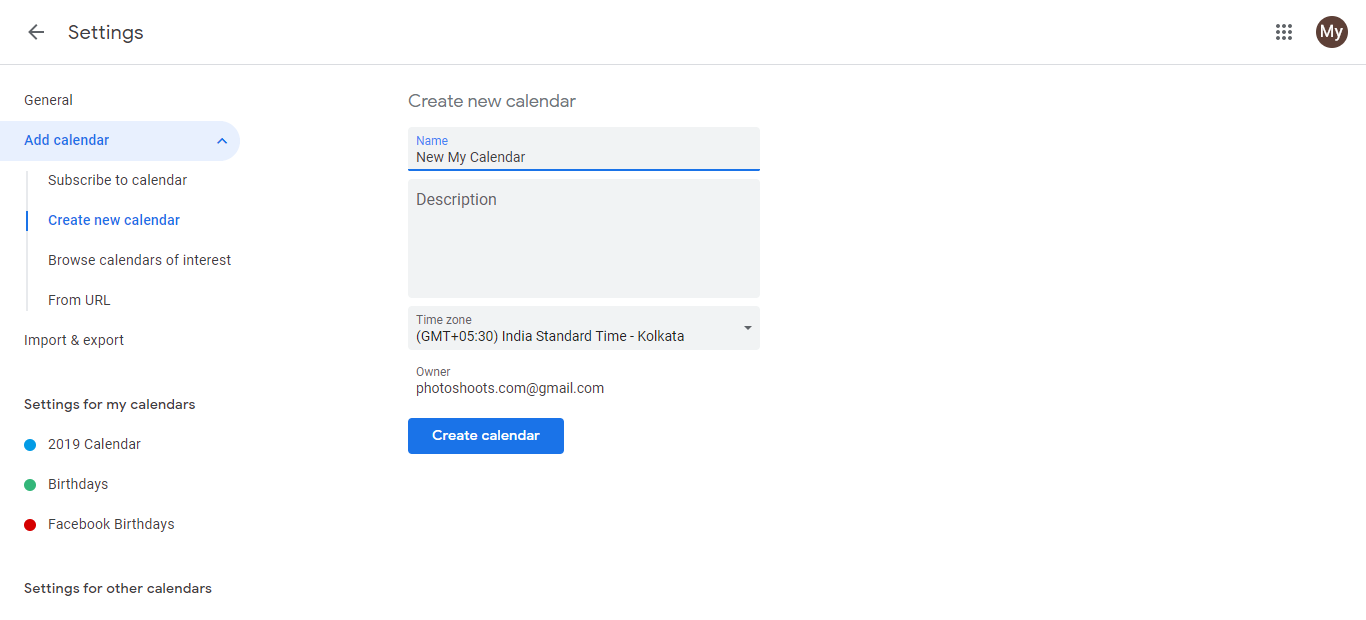
Using the calendar settings to manage subscriptions:
For more detailed options (like changing the color of a subscribed calendar or adjusting notifications):
In the Other calendars section, click the three-dot menu next to the calendar.
Select Settings or Calendar settings.
You can now change the display color, notification timing, or other preferences specific to how the calendar appears in your view.