How to make Google Calendar to remind me about birthdays with a signal?
A “signal” in Google Calendar means a notification or alert that actively reminds you about an event. Google Calendar offers three types of signals:
- Notification (popup): A popup alert appears on your screen in Google Calendar (web) or the mobile app.
- Email: An email message is sent to your Gmail inbox with event details.
- Mobile push: A banner or alert appears on your phone or tablet.
This article covers how to set up these signals for birthday events.
You have two paths:
Path 1: Set up signals for the Birthdays calendar (all birthdays at once)
To get notified about all birthdays with the same signal type and timing:
Open Google Calendar at calendar.google.com.
In the left sidebar under My calendars, find Birthdays.
Hover over the Birthdays calendar name and click the three-dot menu (…) that appears.
Select Notifications.
The Notifications dialog opens. Here you can configure when and how to be reminded:
- Click “Add notification” to add a new reminder.
- Choose the timing (day before, week before, on the day itself, etc.).
- Choose the notification type (which signal you want):
- Notification: You’ll see a popup in Google Calendar at the specified time.
- Email: You’ll receive an email to your Gmail inbox.
- Mobile: You’ll get a push notification on your phone (if you have the Calendar app).
- Click Done.
Repeat to add multiple signals (for example, both a popup a week before AND an email a day before).
Click Save.
Now you’ll receive signals for every birthday in your Birthdays calendar at the times you specified.
Path 2: Set up signals for individual birthdays (custom per person)
To customize signals for specific people (different timing or type for different birthdays):
Open Google Calendar and click Create (+ icon) in the top left.
Click More options to open the full event editor.
Enter the person’s name and their birthday date.
Click the Does not repeat dropdown and select Yearly. This ensures the event repeats every year on that date.
Scroll down to the Notifications section.
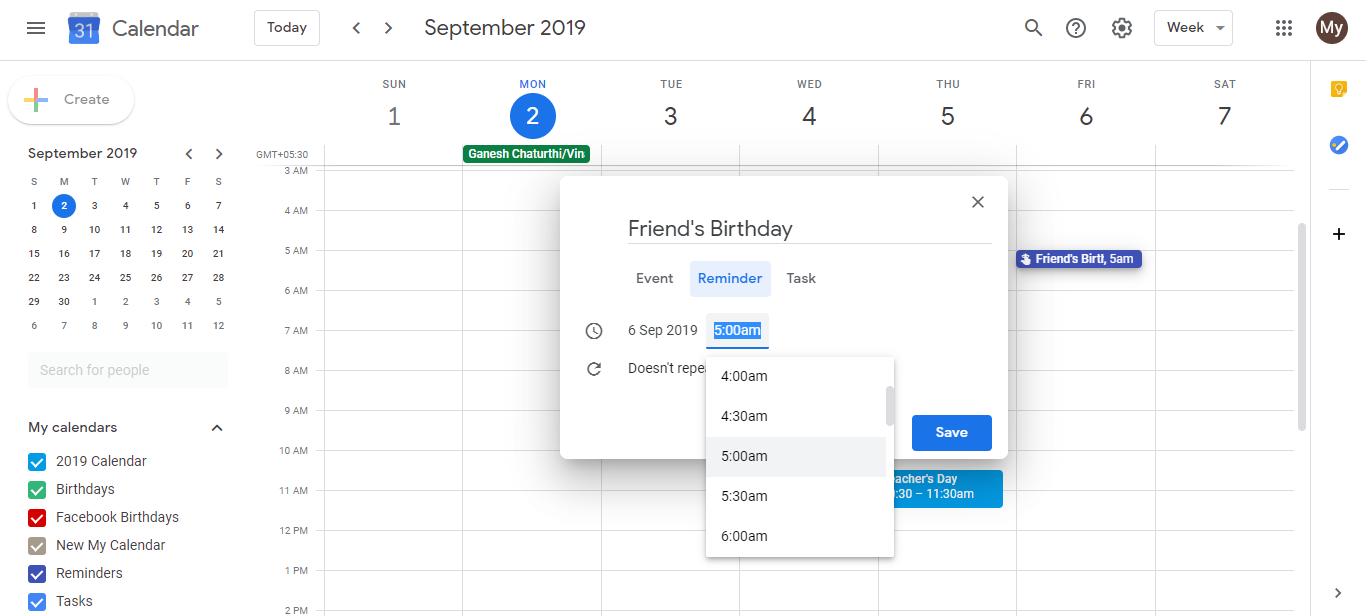
Click Add notification to add a signal:
- Choose the timing (day before, week before, etc.).
- Choose the signal type (Notification for popup, Email, or Mobile push).
- Click Done.
Repeat step 6 to add multiple signals for the same birthday (e.g., popup + email).
Click Save.
Repeat this process for each person you want custom signals for. Now each person’s birthday can have different signals and timing.
Understanding the notification types:
- Notification (popup): Best if you’re actively using Google Calendar throughout the day. The popup appears in your browser or app window.
- Email: Best if you might be away from your calendar. The email goes to your inbox where you’ll see it even if you’re not actively using Calendar.
- Mobile push: Best if you use Google Calendar on your phone and want instant alerts. Works with the Google Calendar mobile app (iOS and Android).
Example scenarios:
- Scenario 1 (all birthdays): Set the Birthdays calendar to send a popup notification one week before, so you have time to plan something special.
- Scenario 2 (VIP contacts): Create individual yearly events for close family and best friends, with email reminders two weeks before and popup reminders one day before.
- Scenario 3 (work birthdays): Create a separate calendar for work contacts’ birthdays, with just a single email reminder on the morning of the birthday.
Important notes:
- Signals are sent according to the time zone set in your Google Calendar settings. Make sure your time zone is correct so notifications arrive when you expect them.
- Mobile push notifications require the official Google Calendar app (not the web version). On iPhone, use Google Calendar. On Android, use Google Calendar.
- Email notifications are sent from Google Calendar (noreply@google.com), so check your email filters if you don’t see them.