How to import lists of dates into Google calendar?
If you have a spreadsheet with dates and event details, you can bulk import them into Google Calendar instead of creating each event manually. This saves time and keeps your calendar organized.
Overview: Export your spreadsheet in the right format, then import it
Google Calendar accepts two formats:
- .ics (iCalendar): Universal calendar format that preserves event details like time zones, recurrences, reminders, and descriptions. Best choice for most imports.
- .csv (comma-separated values): Simpler format, but requires specific column names and handles complex details less reliably. Use this only if your spreadsheet is already in CSV format and doesn’t have recurring events.
Step-by-step:
Step 1: Export your spreadsheet in the correct format
If your spreadsheet is in Excel or Google Sheets:
Open your spreadsheet with dates and event information.
If exporting to .csv format: Make sure your columns are named exactly as Google Calendar expects:
- Subject (event title)
- Start Date (MM/DD/YYYY format)
- Start Time (HH:MM AM/PM)
- End Date (MM/DD/YYYY format)
- End Time (HH:MM AM/PM)
- Description (event notes)
- Location (event location)
Then save the file as
.csv.If exporting to .ics format: Use a spreadsheet-to-iCalendar converter tool (search “convert spreadsheet to ics”), or manually create a .ics file. Many online converters accept CSV input and output .ics format.
Step 2: Open Google Calendar Settings
Open Google Calendar at calendar.google.com.
Click the Settings gear icon in the top-right corner.
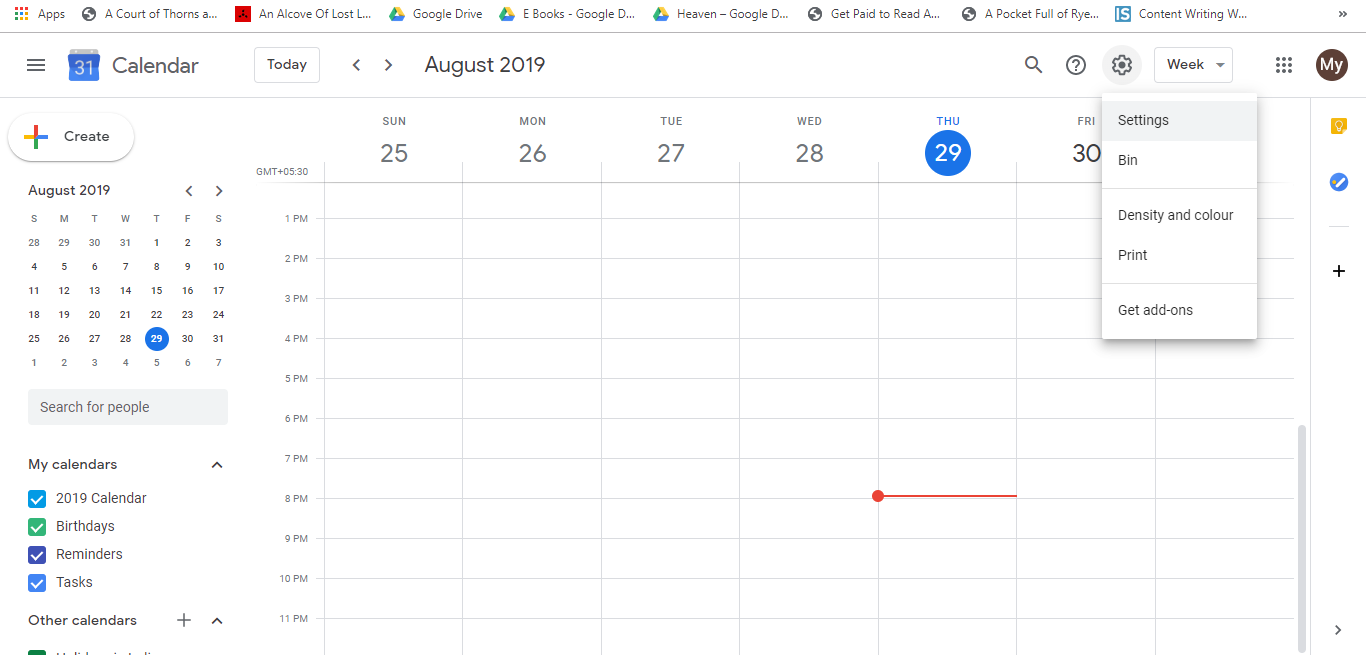
- A dropdown menu appears. Click Settings (the first option).
Step 3: Access Import & Export
- In the left sidebar of the Settings page, find and click Import & export.
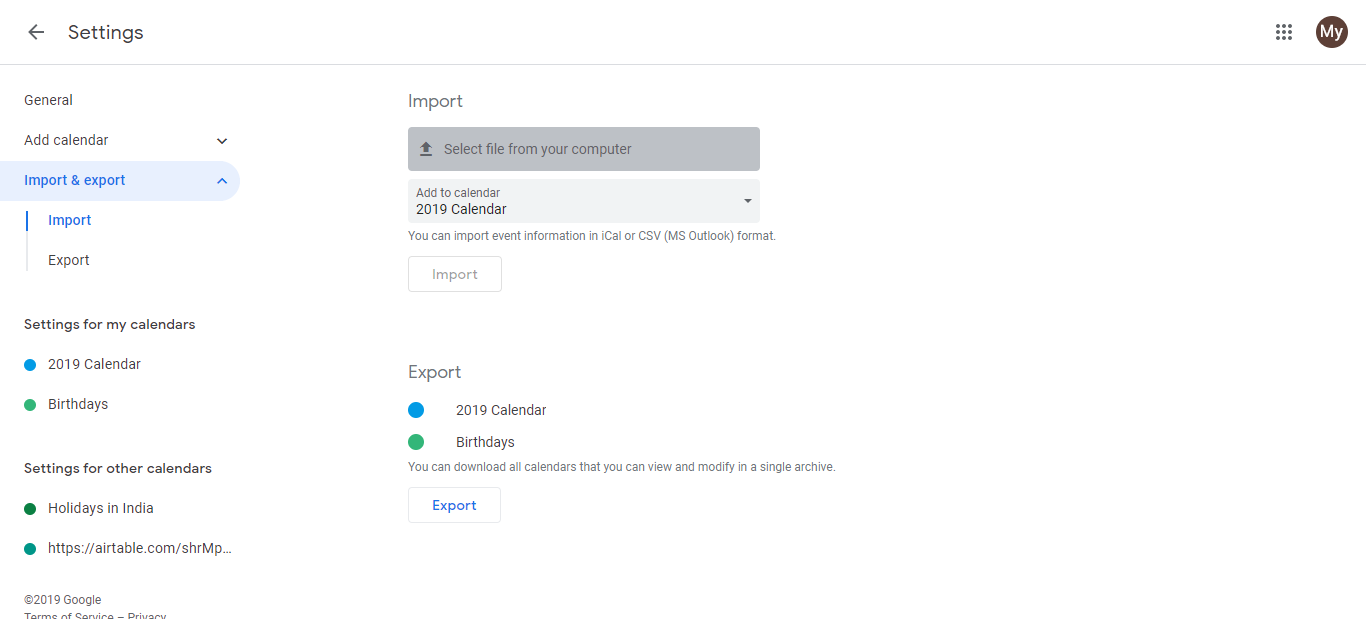
You’ll see two sections: Import at the top and Export below it.
Step 4: Select your file
In the Import section, click Select file from your computer.
Browse your computer and select the .ics or .csv file you exported in Step 1.
Click Open.
Step 5: Choose the destination calendar
A dialog appears asking: “Which calendar should these events be imported into?”
Click the dropdown menu and select where you want the events to appear:
- My Calendar (your main/primary calendar)
- Work Calendar (if you have one)
- Any other custom calendar you’ve created
Click Import.
What happens after import:
- All events from your file are added to the selected calendar.
- Each event appears on its specified date with the time, description, and location you provided.
- If events have reminders in the .ics file, those are preserved. CSV imports may lose reminder information.
- Recurring events in .ics files are imported as recurring series. CSV recurring events may need manual setup.
Handling duplicates:
If you import events and then re-import the same file by mistake, you’ll have duplicates on your calendar. Google Calendar does not automatically detect and skip duplicates. You’ll need to manually delete duplicate events:
- Find the duplicate event on your calendar.
- Click it and select Delete.
- Confirm the deletion.
To avoid this, keep track of which files you’ve already imported.
Tips for successful import:
- Use .ics format when possible, especially if your events have recurring patterns, reminders, or time zone details.
- Test with a small file first to ensure your format is correct before importing hundreds of events.
- Double-check column names if using CSV format (they’re case-sensitive).
- If the import fails, check that all required columns are present and properly named.