How to set every month's end of day event in google calendar?
To create an event that recurs on the last day of every month, you use Google Calendar’s custom recurrence feature. This is useful for end-of-month reviews, invoicing reminders, financial closings, or any monthly task that happens on the final day.
How to create an end-of-month recurring event:
Open Google Calendar at calendar.google.com.
Go to the last day of the current month (e.g., January 31, February 28, March 31).
Click the Create (+ icon) button in the top left.
Fill in the event title (for example: “Month-end review,” “Invoice due,” or “End of month financial close”).
Click More options to open the full event editor.
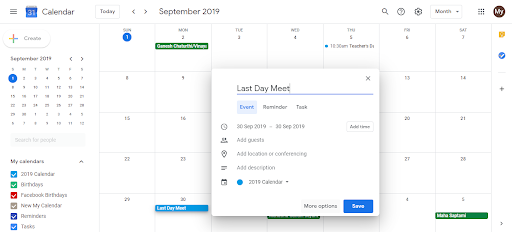
Scroll down to the Does not repeat dropdown and click it.
Select Custom from the dropdown options.
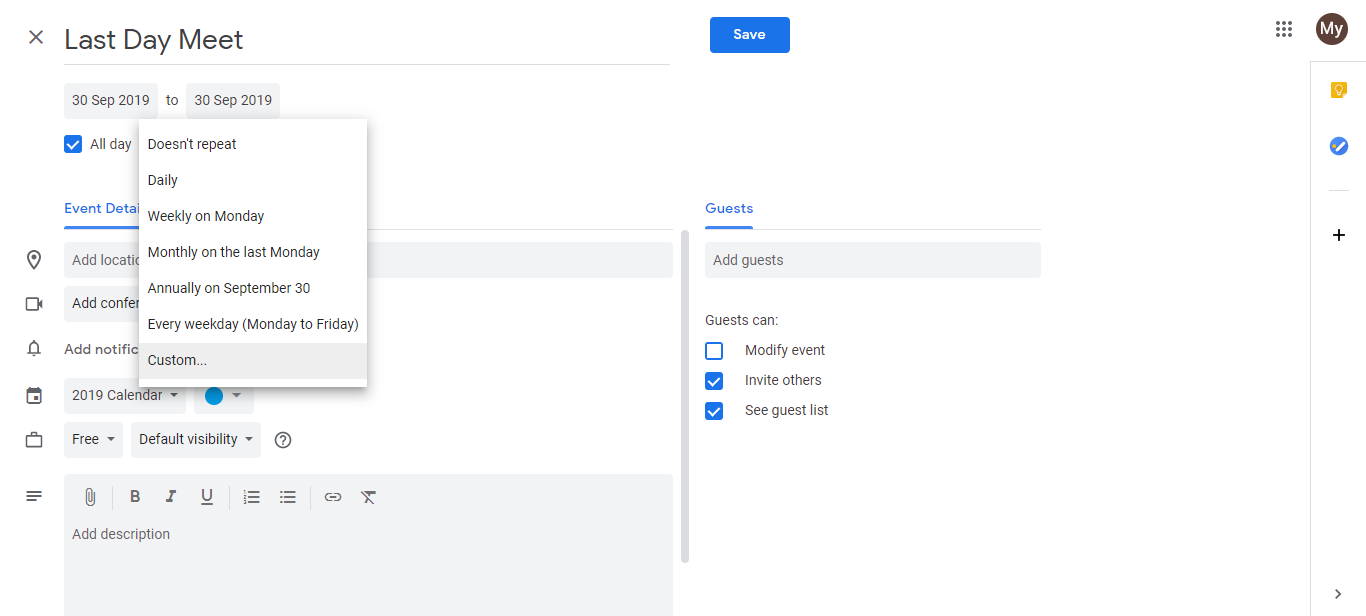
- In the Custom recurrence dialog, set the following:
- Repeat every: 1 (for every month)
- Recurrence type: Monthly
- On the: Select last (day) from the dropdown. This tells Google Calendar to fire on the last day of each month, regardless of whether it’s the 28th, 29th, 30th, or 31st.
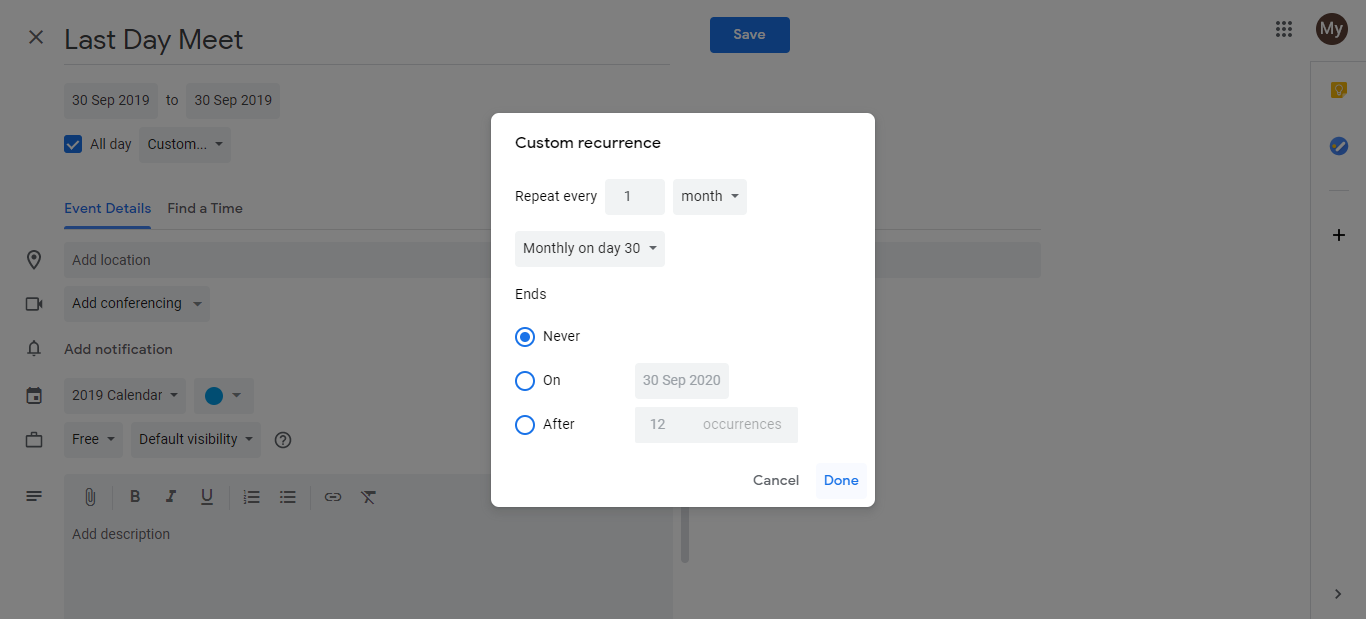
Optional: Set an end date. If you want the event to stop repeating after a certain year or after N occurrences, scroll down to Ends and set the conditions. Leave blank if the event should repeat forever.
Click Done to close the recurrence dialog.
Click Save to create the event.
The event will now appear on the last day of every month automatically.
Why “Every last (day)” works:
When you select “Every last (day)” with monthly recurrence, Google Calendar:
- Recognizes that months have different lengths (28, 29, 30, or 31 days)
- Automatically calculates the last day of each month
- Schedules the event accordingly without you needing to adjust
Result:
- January 31, February 28/29, March 31, April 30, May 31, June 30, July 31, August 31, September 30, October 31, November 30, December 31
Alternative: Last Friday of each month
If you want the event on a specific day (e.g., the last Friday), modify step 8:
- Instead of “last (day),” select last Friday (or last Monday, Tuesday, etc.).
- The event then fires on the last Friday of every month.
Clarification: “End of day” event vs. “end of month” event
- End-of-day event: An event that occurs at the end of the day (e.g., 5 PM - 6 PM).
- End-of-month event: An event that occurs on the last day of the month (can be any time).
To set a true “end of day” event on the last day of the month:
- Follow the steps above.
- In the time fields, set the start and end times to the end of your business day (e.g., 4:00 PM - 5:00 PM).
- Save with the monthly recurrence.