How to see who edited an event in a shared google calendar?
To track changes to events in a shared Google Calendar, you can set up notifications that alert you when someone edits an event. This helps you stay aware of updates, time changes, or other modifications made by collaborators.
How to enable notifications for shared calendar changes:
Open Google Calendar at calendar.google.com.
In the left sidebar, find My calendars and locate the shared calendar you want to monitor.
Click the three-dot menu (…) next to the calendar name.
Select Settings and sharing.
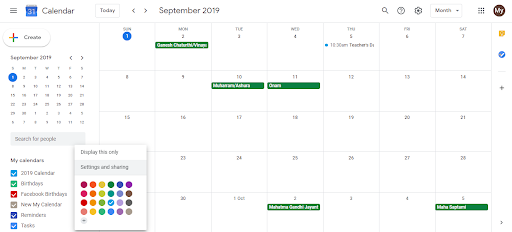
Scroll down to the Notifications section (sometimes labeled “General notifications”).
Click Add notification or modify existing notification settings.
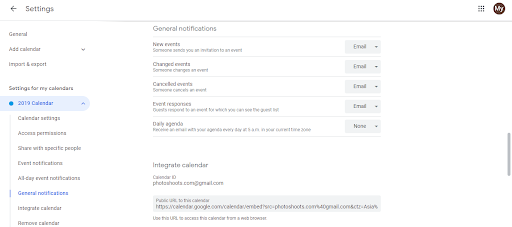
In the notification setup, you’ll see options for:
- Event changes: Notifies you when someone edits an event’s title, time, location, or description
- Event cancellations: Notifies you when someone deletes an event
- New invitations: Notifies you when someone creates a new event and invites you
- Changed invitations: Notifies you when someone adds or removes guests from an event
Select Event changes to be notified of edits.
Choose the notification type:
- Notification: Alert in your browser or mobile app
- Email: Message to your Gmail inbox
Click Save.
What you’ll see when notified:
When someone edits an event on the shared calendar, you’ll receive a notification or email saying something like: “The event ‘[Event Name]’ was updated.”
The notification typically tells you:
- What calendar the event is on
- The event name
- That it was recently updated
However, the notification usually does not show:
- Who made the change (on free accounts)
- What specifically was changed (on free accounts)
- A detailed edit history
Understanding the notification options:
- Event changes + Email: Best for important events. You get an email to your inbox whenever the event is modified, ensuring you don’t miss updates.
- Event changes + Notification: Best if you’re actively using Google Calendar. The notification appears in the app when you’re using it.
- Combine both: Set up both Email and Notification for events you absolutely need to track.
Limitations of notifications on free accounts:
Free Google accounts receive notifications but lack detailed edit tracking. To see exactly who changed what:
- Google Workspace accounts: Check the Audit log in the admin console for detailed change history.
- Free accounts: Rely on notifications and manually ask collaborators what they changed, or add notes to the event description documenting changes.
Best practices for tracking shared calendar edits:
- Regularly review events on the shared calendar for changes.
- Add context to event descriptions so edits are visible at a glance.
- Communicate with your team about significant event changes (time, location, cancellations).
- For critical events, use the event title to note the last time it was updated (e.g., “Team Meeting - Updated 5/15”).