How to merge events from two different google calendars?
You can merge two Google Calendars by exporting one as an iCalendar (.ics) file and importing it into another calendar. This combines all events from both calendars into a single calendar view.
Overview of the merge process:
- Export the first calendar as an .ics file (iCalendar format).
- Repeat for any additional calendars you want to merge.
- Create a new calendar to be the “merged” calendar (optional).
- Import all the .ics files into the merged calendar.
- Delete the old calendars if you no longer need them.
Step-by-step instructions:
Step 1: Export the first calendar
Open Google Calendar at calendar.google.com.
Click the Settings gear icon in the top-right corner and select Settings.
In the left sidebar, click Import & export.
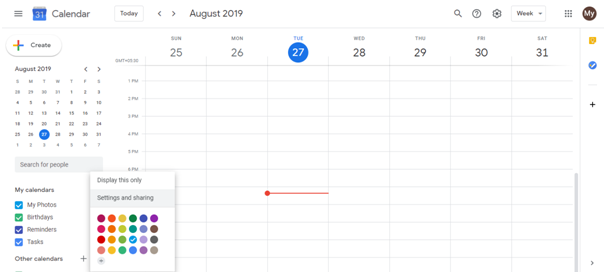
Under the Export section, click the Export all calendars button (or select a specific calendar to export, if that option is available).
A .zip file will be downloaded containing all your calendar data in .ics format.
Extract (unzip) the file. Each calendar will have its own .ics file (e.g., calendar1.ics, calendar2.ics).
Step 2: Repeat for other calendars (if merging multiple)
Repeat Step 1 for each calendar you want to merge. You’ll have multiple .ics files.
Step 3: Create a new calendar to receive the merged events (optional)
In Google Calendar’s left sidebar, under My calendars, click the + button next to “My calendars.”
Select Create new calendar.
Name it something like “Merged Calendar” and click Create.
This step is optional. You can also import into an existing calendar.
Step 4: Import the .ics files
In Google Calendar, click Settings (gear icon) > Settings.
In the left sidebar, click Import & export.
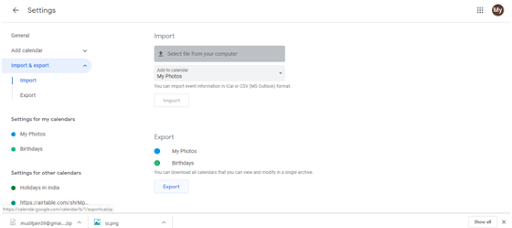
Under the Import section, click Select file from your computer.
Choose one of the extracted .ics files.
A dialog appears asking which calendar to import into. Select your merged calendar (or the calendar where you want to import).
Click Import.
Repeat steps 3-6 for each additional .ics file until all calendars are imported.
Important notes:
- Duplicates: If the same event exists in multiple calendars, both copies will be imported. You’ll need to manually delete duplicates.
- Colors: Events imported take on the color of the destination calendar, not their original calendar color.
- Recurring events: These are handled correctly during import. All occurrences are imported.
- Original calendars: After merging, the original calendars remain unless you delete them manually.
To delete the original calendars after merging:
In the left sidebar under My calendars, hover over the calendar name.
Click the three-dot menu (…) next to it.
Select Delete calendar.
Confirm the deletion.
When merging is useful:
- You have work and personal calendars in separate Google accounts and want to consolidate.
- You’re switching from multiple Google Workspace calendars to a single calendar.
- You want a unified view of events from different teams or projects.