How to make Google Calendar show short, non-conflicting events as non-overlapping?
In Google Calendar’s day and week views, events that occur at the same time appear side-by-side in columns. When you have a 1-hour meeting ending at 11:30 and another starting at 11:30, Google Calendar treats them as simultaneous (overlapping) and displays them in adjacent columns, making both appear narrow. The solution is to shift one event’s time by just 1 minute.
Why Google Calendar displays overlapping events side-by-side:
Google Calendar allocates horizontal space based on time overlap. If Event A ends at 11:30 and Event B starts at 11:30, Google sees them as occupying the same time slot (the instant of 11:30). Both events share the same time space, so they stack horizontally.
The workaround: Offset start or end times by 1 minute
Instead of ending one event exactly when another starts, end it 1 minute earlier.
Open the first event in Google Calendar.
Click Edit (pencil icon).
Adjust the end time: if it currently ends at 11:30, change it to 11:29.
Click Save.
Now the second event, which starts at 11:30, is treated as sequential (not simultaneous). Google Calendar displays them one after another vertically, not side-by-side.
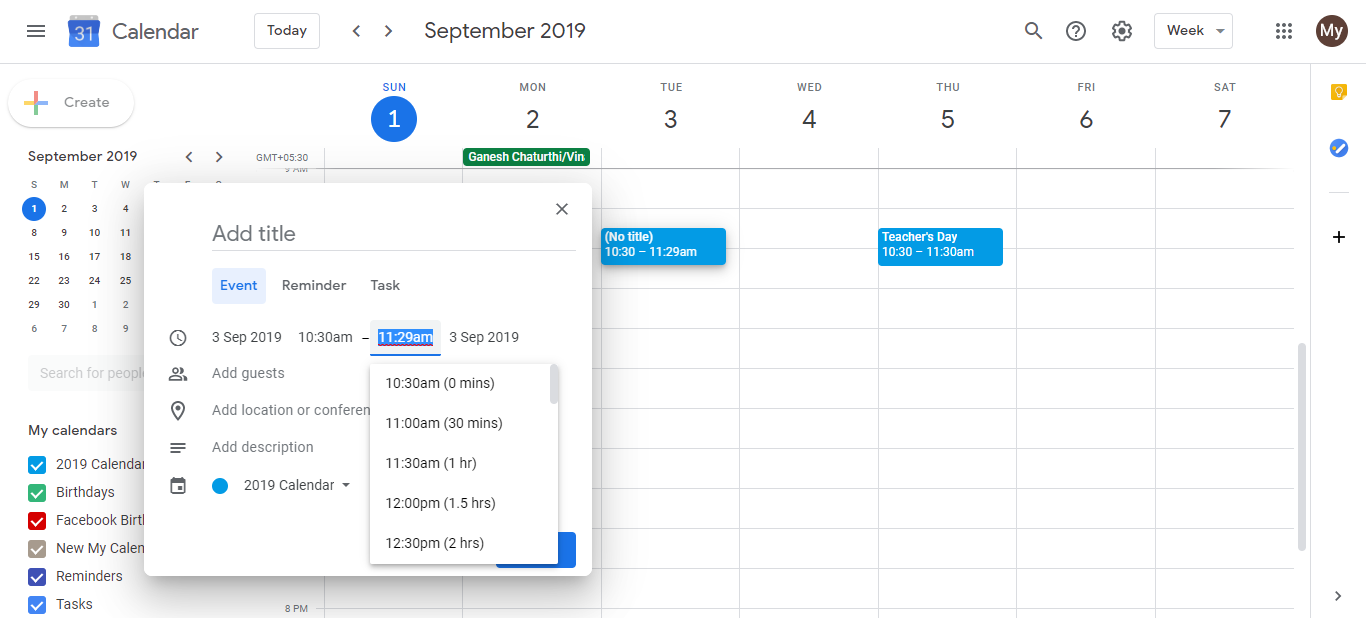
Example:
- Event 1: 10:00 AM - 11:30 AM
- Event 2: 11:30 AM - 12:30 PM
Result: Events appear side-by-side (overlapping display).
Change Event 1 to:
- Event 1: 10:00 AM - 11:29 AM
- Event 2: 11:30 AM - 12:30 PM
Result: Events now display sequentially, no side-by-side stacking.
When this matters:
This is purely a visual issue on your calendar. It does not affect meeting invites, attendee confirmations, or your actual availability. If you need the events to actually overlap in time (two parallel meetings), you’ll see them side-by-side regardless. The 1-minute offset is useful only when you want to avoid the side-by-side display while keeping events sequential in time.