How to find Google Calendar events that have not yet been confirmed?
Pending meeting invitations that you haven’t responded to yet appear on your Google Calendar with a question mark (?) icon. You can quickly identify these unconfirmed events and respond to them.
How to find unconfirmed events:
First, make sure the Automatically add invitations setting is enabled so that invitations appear on your calendar. If this is turned off, pending invitations won’t show on your calendar at all.
Open Google Calendar at calendar.google.com.
Click the Settings gear icon in the top-right corner.
Select Settings.
In the left sidebar, click Settings (main panel).
Locate Event Settings and click it.
Find Automatically add invitations. Make sure one of the “Yes” options is selected:
- Yes, add all invitations - adds invitations from anyone
- Yes, show only invitations from people I know - adds only invitations from your Google Contacts
If you select “No, only display invitations I’ve replied to,” invitations won’t appear on your calendar until you respond.
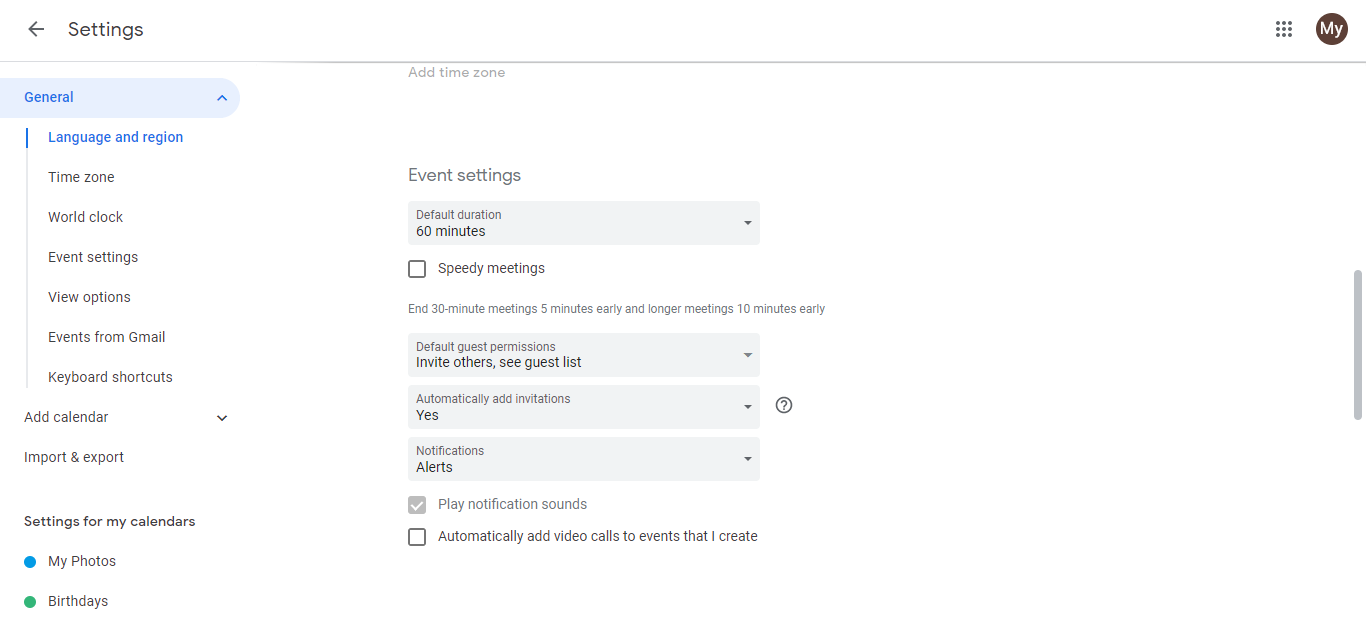
- Click Save.
Identifying unconfirmed events on your calendar:
Once the setting is enabled, look at your calendar view:
- Unconfirmed events have a question mark (?) icon on the event title or in the event’s status area.
- Confirmed/accepted events show a checkmark or your name as attending.
- Declined events show an X or indicate “declined.”
Responding to unconfirmed invitations:
Click the event with the ? icon on your calendar.
In the event popup, you’ll see response options at the top:
- Yes (Accept)
- Maybe (Tentatively accept)
- No (Decline)
Click your response.
Your response is sent back to the event organizer, and the ? icon changes to reflect your response.
Understanding the two “Yes” options:
- “Yes, add all invitations”: All invitations from anyone are automatically added to your calendar. You’ll see ? icons for all pending invitations, whether from colleagues, acquaintances, or strangers.
- “Yes, show only those I know”: Only invitations from people in your Google Contacts are automatically added. Invitations from unknown senders won’t appear on your calendar unless you manually accept them from Gmail.
Choose based on how many invitations you typically receive and how much calendar clutter you’re willing to tolerate.