How to delete or decline all Google Calendar events while out of the office?
The Out of Office feature automatically declines any new meeting invitations sent to you during a specified date range, so you don’t have to decline them one by one. You also send a custom message to invitees explaining your absence.
Important distinction: Out of Office auto-declines new invitations that arrive during your absence. It does NOT remove events you’ve already accepted before creating the Out of Office block. Those remain on your calendar as accepted.
How to set Out of Office:
Open Google Calendar at calendar.google.com.
Click on the date or day when your out-of-office period begins.
In the quick event creation window, look for the Out of Office option. Click it (you may need to click the calendar dropdown or More options to find it, depending on your version).
Fill in the details:
- Title: Keep it simple, like “Out of Office”
- Dates: Select the start date and end date of your absence
- Time: If you’re gone all day, set it as an all-day event
- Out-of-office message: Type your auto-reply message. Example: “I’m out of the office from May 10-15 and will respond to your message upon my return.”
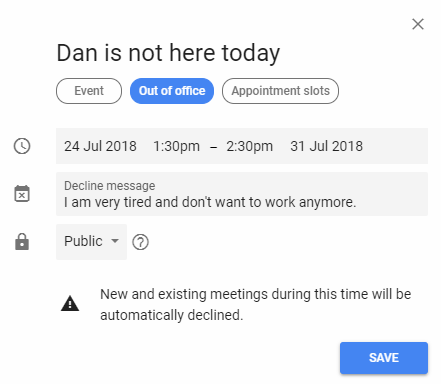
- Click Save.
What happens when you create Out of Office:
- Any new meeting invitations you receive during those dates are automatically declined.
- An auto-reply message is sent to the organizer with the decline reason (your out-of-office message).
- Your calendar shows as “busy” during that time, and others cannot see your event details.
- The Out of Office block appears on your calendar as a visual marker of your absence.
Important: What Out of Office does NOT do:
Out of Office does not:
- Delete or decline events already on your calendar before you created the Out of Office block.
- Stop emails from arriving in your inbox (only calendar invitations are auto-declined).
- Pause notifications or integrations.
If you have meetings already scheduled before creating Out of Office, those remain accepted on your calendar. You’ll need to manually decline them if you don’t want them visible.
To manually decline existing events while out:
- Open each event you’ve already accepted.
- Click Decline to send a decline response to the organizer.
- Or, open the event and select Delete to remove it from your calendar (without notifying the organizer that you’ve declined).
When to use Out of Office:
Use Out of Office when you’re on vacation, at a conference, or otherwise unavailable for meetings. Set it up before you leave so new invitations are handled automatically during your absence.