How to create a Google Calendar event from a Gmail Message
Google Calendar automatically scans your Gmail inbox for structured confirmation emails: flight bookings, hotel reservations, restaurant reservations, concert tickets, and delivery notifications. When it finds one with a clear date and time, it creates a calendar event automatically without you needing to do anything.
Enable automatic event creation from Gmail:
Open Google Calendar at calendar.google.com.
Click the Settings gear icon in the top-right corner.
In the left sidebar, select Settings again (from the dropdown menu).
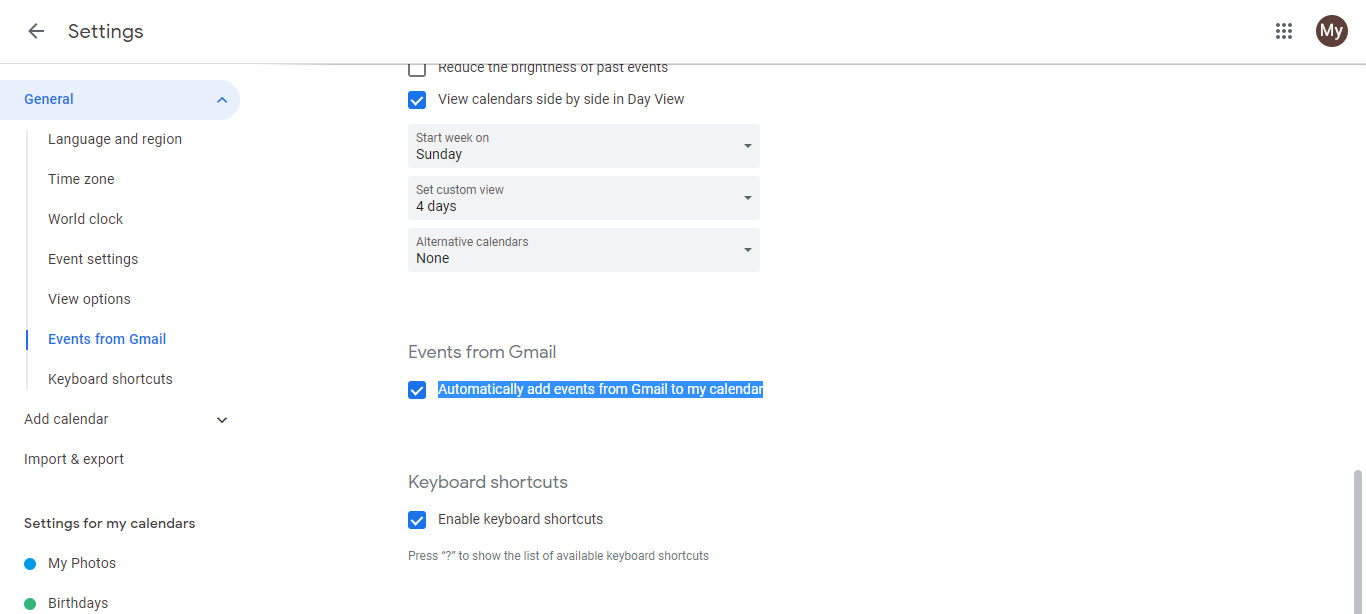
In the main panel, find the section Events from Gmail and click it.
Check the box next to Automatically add events from Gmail to my calendar.
Click Save. From now on, Google Calendar will scan your emails for event details.
How to identify auto-created events:
When Google creates an event from an email, it appears on your calendar with a small envelope icon. This indicates the event came from Gmail, not from a calendar invite or manual entry. You can click the event to see which email triggered it.
What happens when an event is detected:
Google reads the email content looking for dates, times, and location information.
It creates an event on your calendar using the detected details.
The event title matches the email subject (or relevant detail from the email).
The event includes the time and location from the email, if detected.
You can click the event to view it, and click the envelope icon to jump back to the original email.
You can still edit or delete auto-created events:
Auto-created events are like any other calendar event. You can:
- Click the event and choose Edit to change the time, title, location, or reminders.
- Click the event and choose Delete to remove it from your calendar.
- The deletion only removes it from your calendar, not from your email.
When this feature helps:
This is particularly useful for travel confirmations (flights, hotels), reservations (restaurants, appointments), and ticketed events. You no longer need to manually add these details to your calendar. They appear automatically, and you can set reminders to ensure you don’t miss them.