How do I create a Google Calendar event that repeats on the first Monday of every May?
To create an event that repeats on the first Monday of May every year, you’ll use Google Calendar’s custom recurrence feature. This requires setting the event to repeat every 12 months on a specific day pattern.
How to set up the recurring event:
Open Google Calendar at calendar.google.com.
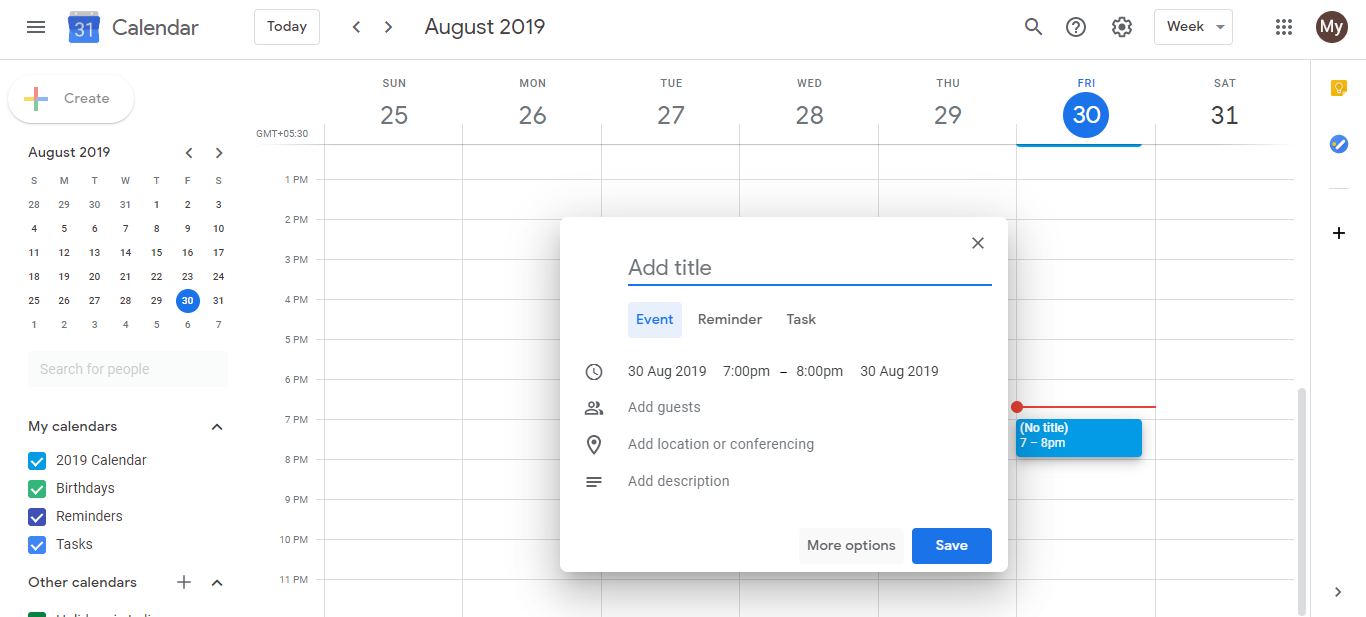
Go to any day in May of the current year (or any May in the future). Click the Create (+ icon) button in the top left.
A quick event creation window appears. Click More options to open the full event editor, which lets you set complex recurrence patterns.
Enter the event title (for example: “Memorial Day Observation” or “May Team Meeting”).
Click the date field and confirm the date is in May. It will be the first Monday of May. Google Calendar will use this as your anchor date for the recurrence pattern.
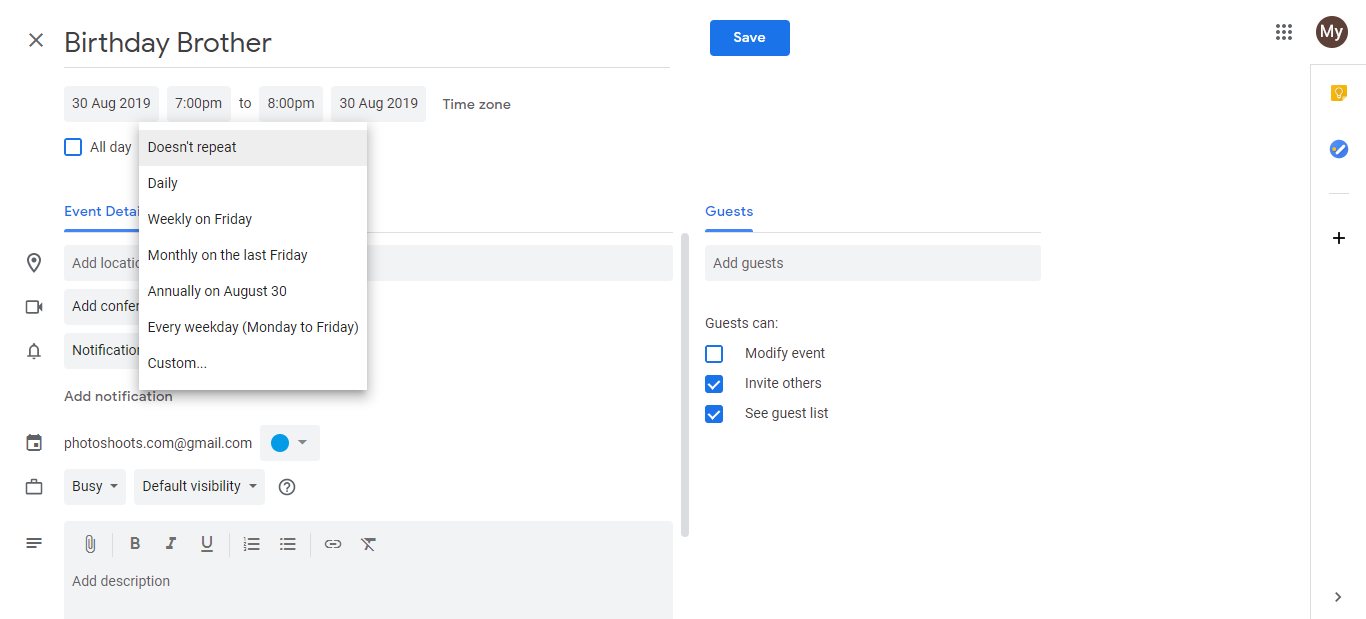
Scroll down to the Does not repeat dropdown and click it.
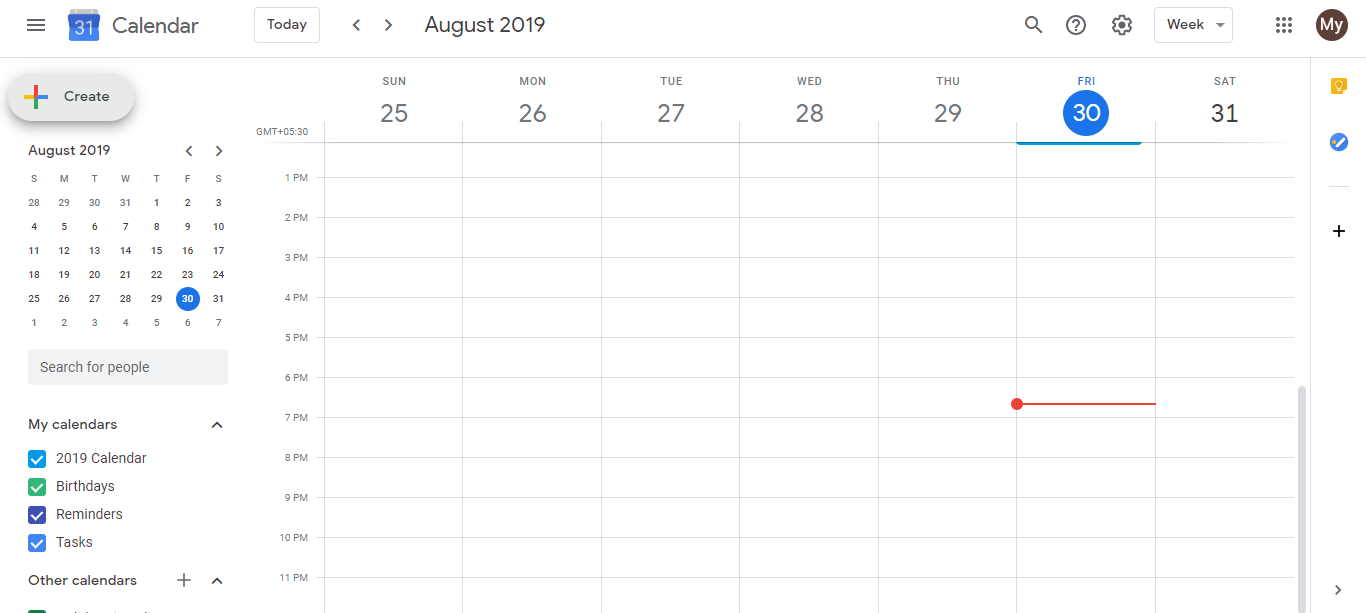
- Select Custom from the dropdown options.
- In the Custom recurrence dialog, set Repeat every 12 months. This means the event repeats once per year (12-month interval). Changing this to a different number (e.g., 6 months) would make it repeat twice per year. Leave it at 12 to repeat annually.
Below “Repeat every 12 months,” you’ll see additional options. Make sure the recurrence type is set to Monthly.
In the Monthly recurrence options, select Monthly on first Monday. This tells Google Calendar to fire the event on the first Monday of the month (in May, that’s the first Monday; in other months, it would be that month’s first Monday).
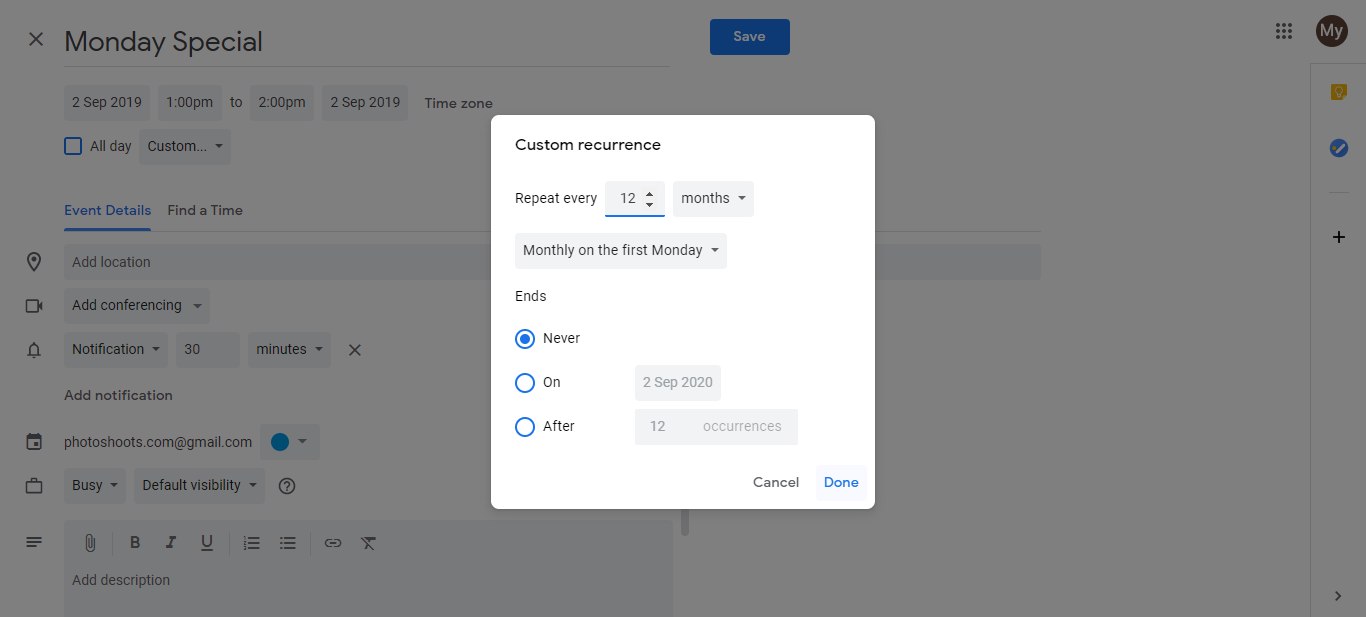
Set an optional end date if you want the event to stop repeating after a certain year, or leave it blank for the event to repeat forever.
Click Done to close the recurrence dialog.
Click Save to create the event.
The event will now appear on the first Monday of May every year, without you needing to recreate it.
Why 12 months + Monthly on first Monday:
Setting the interval to 12 months tells Google “repeat this every year.” Specifying “Monthly on first Monday” tells Google “on the specific day pattern of the first Monday.” Combined, the event fires on the first Monday of May only (not the first Monday of every month, since it’s an annual event starting from May).
If you want the first Monday of every month instead of just May, use the same Custom recurrence but keep “Repeat every 1 month” instead of 12 months.