How can I add an event on someone else's Google Calendar?
To add events to someone else’s Google Calendar, they must first share their calendar with you and grant you permission to make changes. You have two scenarios:
Scenario 1: You want to add events to their calendar
The other person needs to share their calendar with you at the edit permission level.
They open their Google Calendar on calendar.google.com.
In the left sidebar, they find My calendars and click the three dots (…) next to the calendar they want to share.
They select Settings and sharing.
In the Access permissions section, they click Share with specific people.
They enter your email address and click Add.
In the permission dropdown next to your email, they select Make changes to events. This grants you edit access so you can create, modify, and delete events.
They click Share.
Once shared, you can open Google Calendar and:
Go to calendar.google.com.
In the left sidebar under Other calendars, their calendar appears. Click on it to view it.
When you click Create (+ icon) to make a new event, a calendar selector appears. Choose their calendar from the dropdown instead of your own calendar.
Fill in the event details and click Save. The event appears on their calendar.
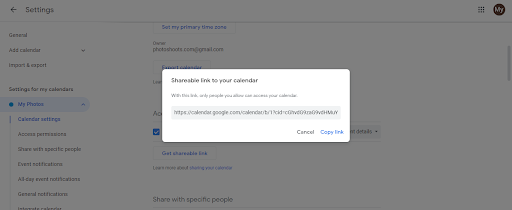
Scenario 2: You want them to add events to your calendar
You can share your calendar with them and give them permission to add events:
Open your Google Calendar.
In the left sidebar under My calendars, click the three dots (…) next to your calendar.
Select Settings and sharing.
Click Share with specific people.
Enter their email address and select Make changes to events in the permission dropdown.
Click Share. They can now add events to your calendar.
Important note: If you select “Make available to public” instead, anyone with the link can view your calendar, but they cannot add or edit events. Public calendars are view-only.