How to add an anniversary to Google Calendar?
Without setting up yearly recurrence, you would need to manually recreate anniversary events every January. With yearly recurrence, the event appears automatically each year on the same date, forever.
How to add an anniversary:
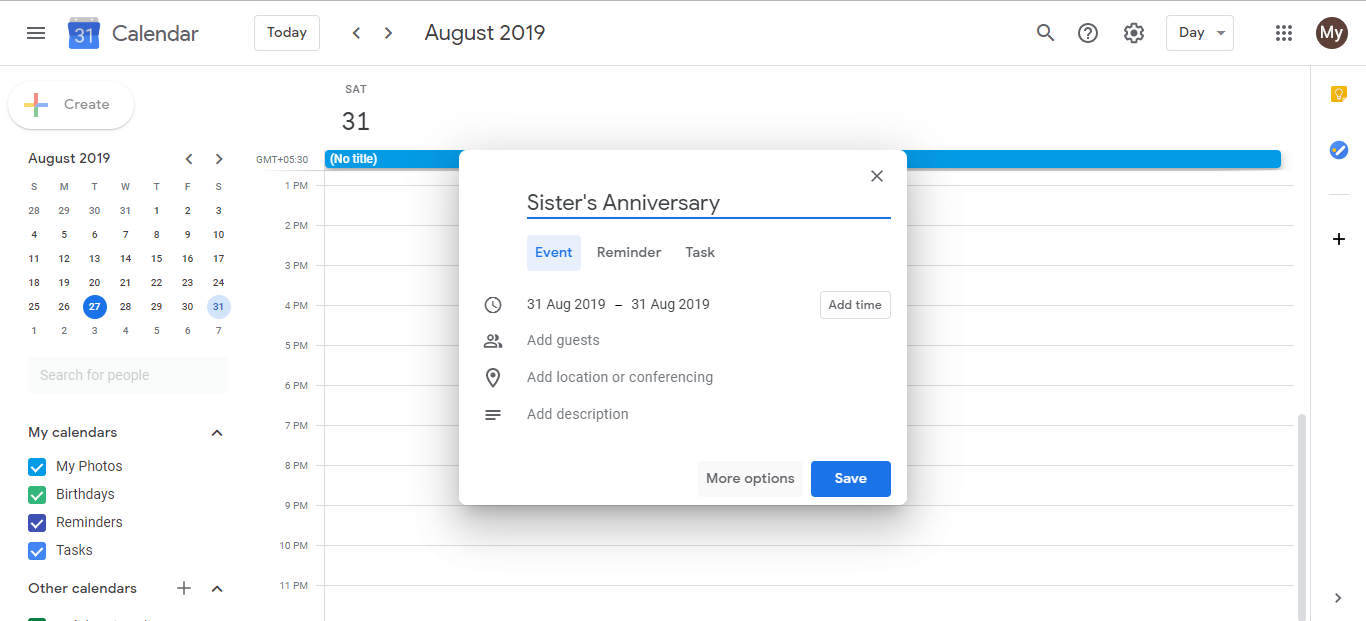
Go to calendar.google.com and click the Create button (+ icon) in the top left.
A quick event creation window appears. Click More options to open the full event editor, which lets you set up recurrence and add details.
Enter the event title (for example: “Smith Corp. Relationship Started” or “Business Founded”).
Click on the date field and select the correct date for the anniversary.
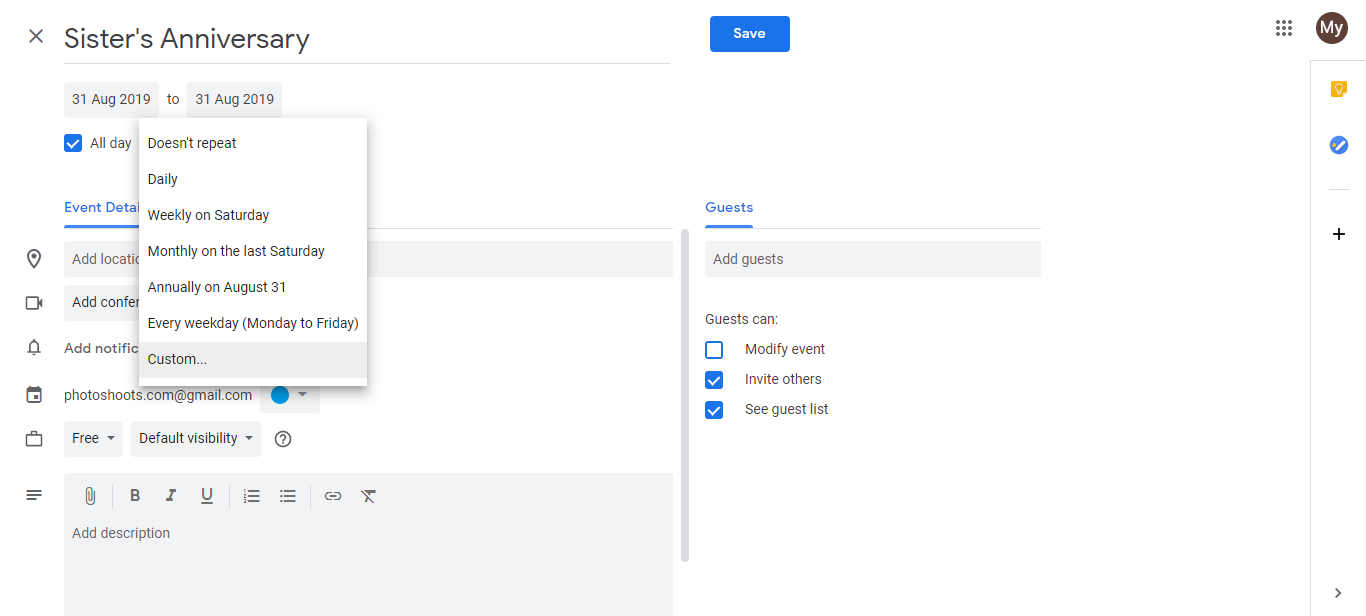
Scroll down to the Does not repeat dropdown and click it.
Select Yearly from the options. This makes the event recur every year on that date.
- Set up the reminder and description. In the Notifications section, choose when to be reminded: the day before gives you a morning alert so you have time to reach out or plan. You can also add a description to provide context, like “Client for 3 years” or “5 Year Company Anniversary”. This context appears in the reminder so you know why the date matters.
Notification types available:
- Notification: alert in your browser or mobile app
- Email: message to your Gmail inbox
- Popup: on-screen alert at a specific time
Choose based on how you want to be reminded: if you’re always at your computer, a notification works. If you might be away from your desk, email ensures you see it.
- Click Save to add the anniversary to your calendar.
The anniversary will now appear on your calendar every year on that date. When the reminder fires, you’ll have advance notice to reach out, send a note, or acknowledge the milestone.