Announcing Zoom Integration
Scheduling meetings and coordinating the details between all of the tools in your tech stack is hard enough as is! That’s why we want to help simplify things with our new Zoom integration. With this new integration you will be able to :
With the Zoom Integration you can automatically add a unique Zoom link to every meeting you schedule with FrontDeskChat. When someone books an appointment we generate a meeting link and deliver it to both parties via email.
Connect FrontDeskChat and Zoom so that video conferencing details are added to your calendar and meetings reminders are sent so that everyone is prepared and on time for the meeting.
Say goodbye to manually creating a zoom link and adding to your calendar. Cut down on busy work of updating zoom links if a meeting is rescheduled or deleted.
Connect FrontDeskChat and Zoom to generate a dynamic conferencing link for any of your event types. Invitees will receive location details in the confirmation notification after scheduling with you.
Authorize and deauthorize FrontDeskChat to use your Zoom account
Linking your existing Zoom account to FrontDeskChat takes moments to complete.
1. Authorizing FrontDeskChat to use your Zoom Account
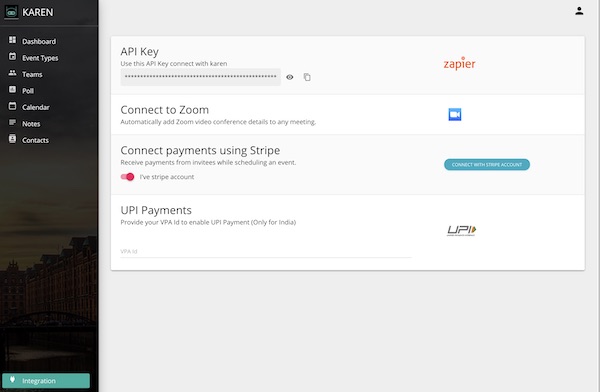
Login to your FrontDeskChat dashboard, and go to ‘Integrations’ (located at the bottom of the left hand sidebar menu) and then click “Connect Zoom”.
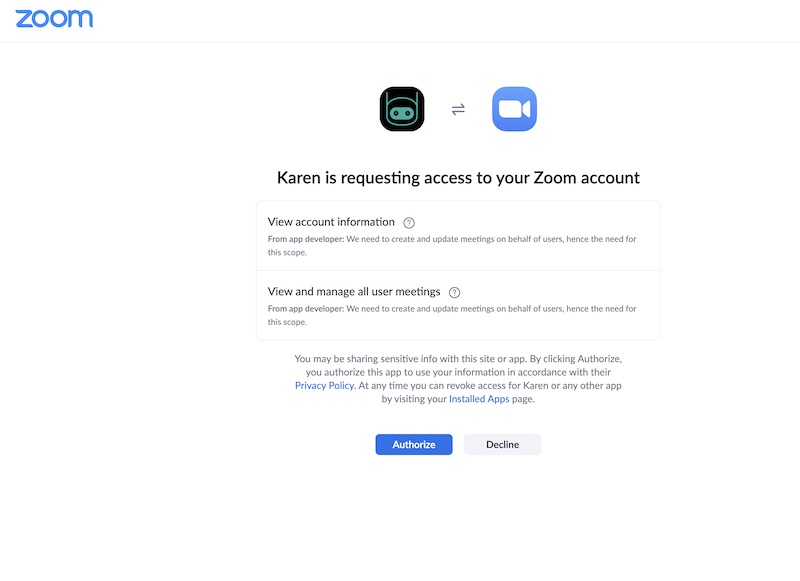
2. Login to your Zoom account and click Authorize.
3. Personal event types
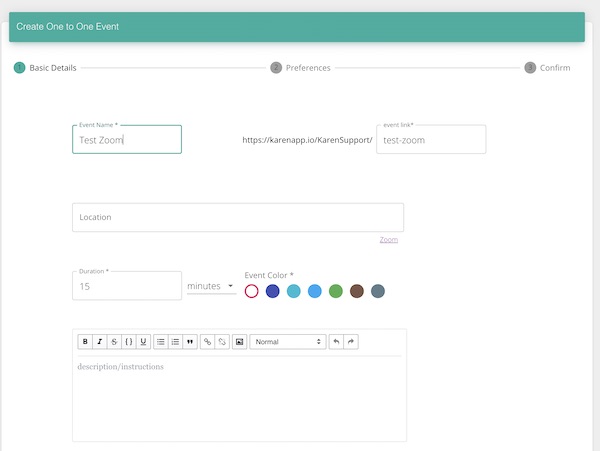
Visit the Event Types tab on your Home page and open the event you would like to edit.
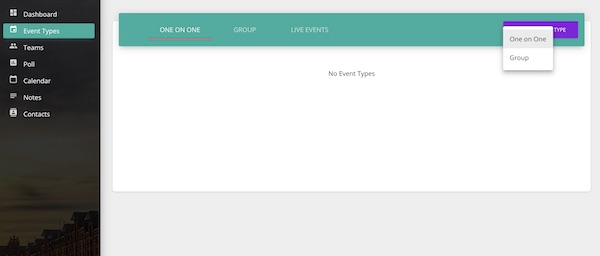
Click to add Zoom as the location of the event. The location details will be included in event notifications sent to you and your invitees, so everyone will know where your meeting will take place.
Deauthorize FrontDeskChat to use your Zoom account
To deauthorizing FrontDeskChat from accessing your Zoom account:
Go to ‘Your account’ (located at the bottom of the left hand sidebar menu) and then click “Integrations”.
Scroll down to o the Zoom Account section and click “Remove Access”
Your FrontDeskChat account is now no longer connected or authorized to use Zoom.
Using Zoom Video Conferencing with FrontDeskChat
Once you add your Zoom account to FrontDeskChat, you can use either your Zoom personal meeting ID or automatically create a Zoom one-time meeting ID each time you schedule a new event/meeting using FrontDeskChat.
You can select either of these Zoom meeting types when you create a new event and as your Default conferencing type in ‘Settings’ under ‘Conferencing information’.
Troubleshooting your Zoom account
If you see an error from FrontDeskChat stating your Zoom account is “Not Authorized”;
Go to ‘Your account’ (located at the bottom of the left hand sidebar menu) and then click “Add/manage accounts”.
Scroll down to o the Zoom Account section and click “Authorize”
If you encounter an error from FrontDeskChat stating “PMI not detected”
Go to ‘Your account’ (located at the bottom of the left hand sidebar menu) and then click “Integrations”.
Scroll down to o the Zoom Account section and click “Authorize”
Need help?
If you have any questions or just need help troubleshooting using Zoom with FrontDeskChat, please send an email to help@frontdeskchat.com or check this support article.