Introduction
A prospective client sends a message on Friday evening. You don’t see it until Monday. By then, they’ve already booked with someone else who answered in 15 minutes.
Research from B2B sales data shows that nearly 8 in 10 buyers hire the first business that answers their inquiry. That slow Monday response? It costs you the deal.
Worse still, you spend 30 minutes in back-and-forth emails just to find a time that works. “How about Tuesday? No? Wednesday morning? Let me check. What about Thursday?” Your week fragments into 6-minute gaps between meetings with no time to prepare. You jump from one discovery call to another without context, without prep, without strategy.
If you run a consulting practice, offer coaching, or work as a fractional executive, your calendar is your business. Most consultants treat it like a personal planner. It’s reactive, disorganized, and signals to clients that you’re not sharp or prepared.
Here’s what most miss: Google Calendar isn’t just a scheduling tool for consultants. It’s your client meeting command center. You have 80% of the features you need already sitting in your account, unused.
This guide walks you through the entire consultant workflow. From initial contact through discovery, prep, the meeting, and follow-up. You’ll use only Google Calendar and Gmail. No Calendly subscription. No expensive booking software. No complex setup.
You’ll build a system that looks as professional as any paid tool, saves you 5+ hours a week on scheduling logistics, and gets you more qualified leads because you’re prepared and responsive when clients reach out.
The Consultant’s Client Meeting Workflow
Before we set up anything, let’s map out the problem you’re actually solving. Most consultants don’t have a workflow at all. They have a reactive chaos loop.
Here’s what that looks like:
The Chaos Loop:
- Client inquiry comes in → You see it hours or days later while checking email between other work
- Email back-and-forth → “Let me check my calendar and get back to you” (more delays)
- Day of call arrives → You scramble 15 minutes before the call to prep
- The call → You’re unprepared because you didn’t know what to expect, what their budget is, or what they actually need
- After the call → “I’ll send a proposal by tomorrow” (you never do, or you send it five days later)
- Client moves on → They booked with someone else who was faster and sharper
Result: leads go cold while you scramble. The ones who stick around see someone scattered, not sharp.
The Designed Workflow:
Here’s what a system looks like:
- Client books a discovery call (via your appointment slot. They pick the time, no email back-and-forth)
- Automatic email sends prep doc with your discovery questions + background on what you discuss
- You have 30 minutes blocked to read their answers before the call (the calendar enforces this)
- You run a tight, informed call because you’ve reviewed their background, budget, and challenges
- Proposal goes out within 24 hours (built into your workflow, not forgotten)
- Follow-up reminder fires on Day 5 if they haven’t responded
The difference? You look prepared, professional, and responsive. Clients notice. They’re more likely to say yes. They perceive you as more expensive than someone who was scrambling before the call.
Everything in this guide builds that workflow, one step at a time. Calendar becomes your client meeting system instead of just a calendar.
Step 1: Set Up Your “Client Discovery” Calendar
The first move is creating a separate calendar just for client meetings. This is a small decision that changes how your week looks.
Why a separate calendar? Three reasons:
1. Context clarity. You’re not mixing a dentist appointment with a $50K consulting opportunity. Each event type needs its own context. When you look at your week and see “Client Discovery” events, your brain shifts into revenue mode.
2. Makes it delegable. If you hire an assistant later, they manage this calendar only. They never see your personal appointments or family events. You share the Client Discovery calendar with them at whatever permission level makes sense.
3. Lets you share specific slots. You never share your full calendar. You share specific booking links (appointment slots). Clients see only the times you’re available for calls, not your entire week.
Here’s how to set it up:
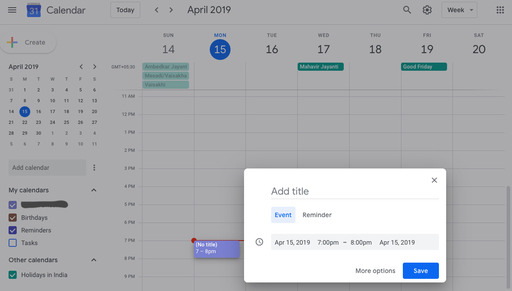
- Open Google Calendar
- On the left sidebar, find “My calendars”
- Click the “+” button next to it
- Select “Create new calendar”
- Name it something clear: “Client Discovery” (or “Consultations” if you prefer, or “Proposals” if you’re selling bigger engagements)
- Leave the calendar set to Private for now (you’ll share specific slots via appointment links, not the full calendar)
- Click “Create calendar”
Pick a color that stands out from your personal calendar. Click the three dots next to your new calendar, select “Settings,” then choose a color. Pick something visually distinct like deep blue, teal, or crimson. You want to spot client meetings at a glance.
Why this matters: You create a visual and mental separation between personal time and client time. When you look at your week, you instantly see how much client-facing work you have scheduled. It trains your brain: this calendar is where revenue happens. Everything else is overhead.
Step 2: Create Appointment Slots (Your Free Calendly Alternative)
Most consultants don’t know Google Calendar has built-in booking slots. It’s buried in the interface, which is why people pay $10–$20/month for Calendly when Google’s version is completely free and integrated with everything.
Appointment slots let clients book your time without back-and-forth emails. And clients expect to be able to book you directly. Make them send an email asking when you’re free, and they move on. They find someone with a booking link instead.
Here’s how to set it up:
- Open Google Calendar and click the Settings gear icon (top right)
- Click Settings again in the dropdown menu
- In the left menu, select your Client Discovery calendar (the one you just created)
- Scroll down to Appointment Slots
- Click Create appointment schedule
Now fill in the key details:
- Name: “30-Minute Discovery Call” (be specific about what they’re booking)
- Duration: 30 minutes (adjust if you do 45-min or 1-hour calls)
- Availability: Select the days and hours you actually take calls
- Example: Tuesday–Thursday, 10 AM–5 PM ET
- Don’t include Monday mornings (they’re always chaos)
- Don’t include Friday afternoons (clients cancel)
- Pick times that work with your energy, not against it
- Booking window: How far ahead can clients book?
- Recommend: 7 days (gives you time to prep, doesn’t feel like you’re always available)
- Too soon (3 days) = you’re scrambling to prepare
- Too far (30 days) = clients forget they booked with you
- Buffer time: Add 15 minutes of “buffer” after each call to handle delays
- This prevents back-to-back calls with zero break
Now the part that actually matters for consultants: Custom questions.
Click “Add a question” and add fields that pre-qualify prospects:
- “What’s your biggest business challenge right now?” (open-ended, shows engagement)
- “What’s your budget range for this engagement?” (kills unqualified leads)
- “When do you need this solved by?” (shows urgency and timeline)
- “What’s your company size?” (helps you understand the context)
- “How did you hear about us?” (marketing attribution)
- “What would success look like?” (shows alignment with your style)
Here’s what happens: Clients answer before booking. You see the answers before the meeting and can immediately assess if they’re serious, if they have budget, and if they’re a fit. This eliminates discovery calls with people who can’t afford you, lack urgency, or aren’t serious.
You might have 10 discovery calls booked for the week. The pre-booking answers will show you that 3 aren’t actually a fit. You can reach out directly, thank them, and suggest a lower-cost alternative or refer them to a colleague.
The result: A shareable booking link that looks professional. Send it to prospects in your email signature, share it in Slack, put it on your website. Clients book instantly. No more scheduling emails.
Step 3: Link Your Email to Calendar Reminders (Auto-Send Prep)
You’ve got a booking system now. Next: make sure you’re never unprepared for a call.
The problem: clients book at odd hours. Someone might book Thursday at 10 PM ET because they’re in a different timezone. You’re tired, you say yes and confirm. Friday arrives and you’ve completely forgotten about the prep work.
You jump on the call Monday morning with zero context. The client notices immediately. You ask basic questions you should have known from their booking form. They see you as unprepared, even though you were available.
The solution: Calendar reminders + Gmail templates = automatic prep workflow.
Set up email reminders:
- Go to your Client Discovery calendar Settings
- Under Notifications, click Add notification
- Add Email reminder for 1 day before the call
- Add another Email reminder for 15 minutes before the call
The 1-day reminder says: “Discovery call with [Client Name] tomorrow at 10 AM. Review their answers and research their company.”
The 15-minute reminder says: “Call starting in 15 minutes. You’re ready.”
Create a Gmail template for prep docs:
- Open Gmail, click Compose
- Write a brief email with:
- The key discovery questions you’ll ask on the call
- A link to a Google Doc (your proposal template skeleton)
- A note: “Research this company. What’s their revenue? What’s their industry? Who’s the founder?”
- Your calendar availability if they want to reschedule
- Click the three dots (bottom of compose box)
- Select Templates > Save draft as template
- Name it “Pre-Call Prep Template”
Now when a client books a discovery call, add this template to the event description. They see it immediately after booking:
“Hi [Client Name], thanks for booking. Before our 30-minute discovery call, please review these discovery questions and share any additional context about your business. Here’s a template for thinking through your situation: [Link]. Looking forward to it!”
Why this works: You’re priming the client to send better information before the call. The email reminders keep you accountable to prepare instead of winging it.
When clients see you’ve done homework, they immediately perceive you as serious. They treat the call differently. They bring decision-makers. They move faster toward a decision.
Step 4: Block Pre-Call & Post-Call Time
Most guides skip this, but it’s the single biggest differentiator between scattered consultants and sharp ones.
The trap: back-to-back discovery calls with zero prep time and zero thinking time.
Client 1 ends at 11 AM. Client 2 starts at 11:30 AM. You’re running from one conversation to another with your brain still stuck in the previous call. You haven’t written down what Client 1 needed. You don’t know Client 2’s business.
Clients notice when you’re winging it.
The fix: time blocking.
Before each discovery call, block 30 minutes for prep work.
Here’s how:
- Create a calendar event called “Pre-Call Prep: [Client Name]”
- Set it to start 30 minutes before the discovery call
- Make it 30 minutes long (so if the call is at 10 AM, prep block is 9:30–10 AM)
- Mark it as Busy (so it shows as blocked time)
- Optional: use Calendar’s “Focus Time” feature to mute notifications during this block
What you actually do in those 30 minutes:
- Read their booking form answers carefully (not just skim)
- Google their company, check their LinkedIn, look at recent press
- Draft a rough proposal outline (how you’d solve their problem)
- Make notes on their budget, timeline, and specific pain points
- Run through your opening 3 questions and think about how they might answer
- Take a breath
This single move changes how clients perceive you. They notice preparation. It makes you seem more expensive, more serious, more qualified.
After each call, block 15 minutes for notes:
- Create an event called “Call Notes & Follow-Up: [Client Name]”
- Set it to start immediately after the discovery call ends
- Make it 15 minutes long
What you do in those 15 minutes:
- Write down the 5 most important things you learned
- Note the budget they mentioned
- Capture their timeline (“need this solved by September”)
- Note next steps (“send proposal by tomorrow”)
- Draft a 2-line thank-you email and send it immediately (while they’re thinking about the call)
When you step out of a call and have 15 minutes to capture everything while it’s fresh, your follow-up is faster and more personalized. And faster follow-up = higher close rate. Studies on B2B sales show that responding within 1 hour vs. 24 hours can double your close rate.
The result: You’re not just more prepared. You’re better at selling because you’re present during the call instead of worried about the next one.
Step 5: Create a Post-Call Follow-Up Workflow
The call ends. You say “I’ll send a proposal.” Then silence.
Three days later, the client wonders if you’re actually serious. Four days later, they’ve moved on. Five days later, they’ve booked with someone else.
Delay kills deals. Here’s the workflow that fixes it:
Immediately after the call (in those 15-minute notes blocks):
- Create a task in Google Tasks: “Send proposal: [Client Name]”
- Set the due date to 24 hours from now (usually the next day, same time)
- In the task details, paste the link to your proposal template and note any custom details
- In the discovery call event description, add a reminder: “Proposal deadline: [DATE]”
Send the proposal the next day:
- Open your standard proposal template (a Google Doc you reuse)
- Copy it (File > Make a copy)
- Customize it with client-specific details:
- Their company name and the specific challenge they mentioned
- Budget range they indicated
- Timeline they need
- Your recommended approach (specific to their situation, not generic)
- Share the Doc with them (comment-access is fine, they don’t edit but can comment)
- Send an email with the subject line: “Proposal: [Their Challenge] for [Company Name]”
- Keep it short: “Here’s the proposal we discussed. Let me know any questions. Happy to walk through it on a call this week if helpful.”
If they don’t respond in 5 days:
Create a calendar event called “Follow-Up: [Client Name]” and set it for Day 5 after you sent the proposal. When it fires, send a “checking in” email. Don’t be pushy—just: “wanted to see if you had questions on the proposal or if there’s anything I can clarify.”
The result: Proposals go out within 24 hours. Follow-ups happen automatically. Leads don’t fall into black holes because you forgot about them.
Scaling Up: Team Calendars & Delegation (When You Hire)
Solo for now? Skip this section. But if you’re thinking about hiring an assistant in the next year, here’s how your system scales.
When you add a team member, you don’t give them access to your personal calendar. Just the Client Discovery calendar.
Share only what they need:
- Open your Client Discovery calendar
- Click Settings
- Under Share with specific people or groups, add your assistant’s email
- Give them Edit access (so they can add prep docs, reschedule if a client asks)
- That’s it. They never see your personal calendar.
What your assistant can do:
- Pre-fill discovery calls with client prep documents before they book
- Confirm calls the day before (email from you, but they send it)
- Reschedule if a client emails asking to move the time
- Add your Zoom link or meeting room to the event
- Take initial client notes if you want
This frees you up to focus on strategy and closing. Your assistant handles the logistics.
Advanced: Automation with Zapier (Optional for Power Users)
If you want to go deeper, Zapier connects Google Calendar to other tools you use.
Example automations:
- When a client books an appointment slot → Zapier sends a Slack message to you with their name and challenge
- When a discovery call happens → Zapier automatically creates a Google Drive folder named “[Client Name]” and puts your proposal template in it
- When a discovery call is marked “completed” → Zapier adds a row to your spreadsheet (tracking budget, timeline, close date, etc.)
You can set most of these up in about 10 minutes using Zapier’s template library.
But honestly? For most consultants, the workflow above is enough. Zapier is nice-to-have, not must-have. Master the basics first.
Common Mistakes (And How to Avoid Them)
Before we wrap up, let’s address the things that trip up most consultants when they try this system.
Mistake 1: Not Setting Availability Boundaries
The problem: You set appointment slots to “always available” or open them up for too many hours.
Result: Clients book you at odd times. You get calls at 7 PM on Friday. Your calendar becomes unpredictable. You never actually close it.
The fix: Set specific availability windows and stick to them.
- Example: Tuesday through Thursday, 10 AM to 4 PM ET (leave a 1-hour lunch block)
- Protect Friday mornings for proposal writing
- Close your calendar completely after 5 PM
- Give yourself 48 hours minimum before the earliest available slot
Clients would rather book a confirmed slot with you next week than get a “maybe” call this week. Predictability signals professionalism better than constant availability.
Mistake 2: Skipping the Pre-Call Prep Block
The problem: You set up appointment slots and reminders but skip pre-call prep because you think you’re already aware of the call.
Result: You wing discovery calls. You forget their specific challenges. You ask questions you should have known from their booking form.
The fix: Treat prep time like a paid meeting. You wouldn’t skip a client call, so don’t skip the prep.
Set a phone reminder 5 minutes before your prep block. Close your email and Slack. Open their booking form answers and read them carefully. You’ll close more deals and get more referrals.
Mistake 3: Not Following Up Within 24 Hours
The problem: You send the proposal on Day 3 because you got busy.
Result: The client’s attention has moved on. They’re comparing you to three other consultants. You’ve lost momentum.
The fix: Use the Google Tasks reminder. When it pops up, send the proposal that day. Make it automatic, not optional.
If you can’t send it the same day, send it the next morning before 10 AM. That’s your deadline.
Mistake 4: Overloading the Appointment Slot Questions
The problem: You add 10 custom questions to appointment slots because you want to know everything.
Result: 50% of prospects abandon the booking. It feels like a form, not a conversation.
The fix: Ask only 4 to 5 questions:
- What’s your challenge? (open-ended)
- What’s your budget range? (a checkbox with ranges)
- When do you need this solved? (timeline)
- What would success look like? (vision)
- How did you find us? (marketing)
That’s it. You can ask deeper questions on the call. Booking forms kill conversions.
Mistake 5: Forgetting to Share Your Appointment Link
The problem: You set up appointment slots but never tell anyone about them.
Result: Prospects still email asking when you’re available.
The fix: Put your booking link everywhere.
- Email signature (add it under your name)
- Website contact page (instead of a contact form)
- LinkedIn headline (“Book a discovery call: [link]”)
- Slack status or bio
- Reply to emails with your booking link (“Here’s my calendar: [link]”)
Make it the path of least resistance. Clients will use it.
Google Calendar vs. Paid Booking Tools: An Honest Comparison
You might be wondering: if Google Calendar has appointment slots, why do people use Calendly or Acuity?
What Google Calendar handles:
- ✅ Free booking links (completely free, no monthly fee)
- ✅ Automatic scheduling (no back-and-forth emails)
- ✅ Timezone handling (shows prospects your available times in their timezone)
- ✅ Custom questions before booking (pre-qualification)
- ✅ Email reminders (you’ll never miss a call)
- ✅ Full integration with Gmail and Google Workspace
What it doesn’t do:
- ❌ Automatic invoice generation (you still create proposals manually)
- ❌ Payment collection (you can’t collect deposits or session fees)
- ❌ Proposal workflow automation (you manually send proposals)
- ❌ AI-powered client qualification (it asks questions, but doesn’t think about answers)
- ❌ Automated follow-up sequences (you manually follow up)
The honest take:
Google Calendar covers 80% of what most consultants need. If you’re starting out or running lean, it’s absolutely sufficient. You’ll look as professional as someone using Calendly.
But if you want to automate the qualification piece (automatically screening out prospects who aren’t a fit), take deposits before discovery calls, or generate and send proposals automatically, that’s where paid tools come in.
For example, some platforms like FrontDeskChat integrate with Google Calendar to add the qualification layer: they answer prospect questions via chat, ask your qualifying questions, take a session fee, and then book directly into your Calendar. You jump on calls only with qualified, pre-paid clients. You’re prepared because the qualification system pre-screened them.
The point: Google Calendar gets you 80% of the way there for free. The question is whether you need that last 20%.
Conclusion: Your Consultant’s Command Center
You now have a consultant-grade booking and workflow system, built entirely in Google Calendar.
Here’s what you’ve built:
- A Client Discovery calendar. Separate from your personal life, visually clear, delegable later.
- Appointment slots. Free, professional booking links with pre-qualification questions.
- Pre-call prep time. 30 minutes blocked so you’re always prepared.
- Post-call notes. 15 minutes to capture details while they’re fresh.
- Task reminders. Proposals go out within 24 hours. Follow-ups happen automatically.
- Team delegation. When you hire, your assistant can manage this calendar.
The impact is real. You’ll spend fewer hours on scheduling logistics. Clients will see you as more professional and prepared. Your close rate will improve because you’re actually ready for calls instead of scrambling.
Start this week. Set up one appointment slot. Share it with one prospect or add it to your email signature. See what happens when clients can book you in 30 seconds instead of sending 5 emails.
Then scale it.
Your consultancy now has a system that works. Use it.
Want to go further? If you want to add AI-powered qualification and payment collection to your booking flow, check out FrontDeskChat, which integrates directly with Google Calendar to handle the qualification layer so you only take qualified, pre-paid calls.
Last updated: May 22, 2025